Author:


Tired of under-eye bags ruining your perfect selfie? If you're looking for a quick and easy way to remove eye bags from a photo, a powerful eye bag remover app is your best bet. While eye creams and treatments can take time, this app gives you instant results with natural-looking edits.
In this article, we’ll show you how to smooth out dark circles and puffiness in photos using the best free eye bag remover, so your selfies always look fresh and flawless.
Best Eye Bag Remover to Get Rid of Under Eye Bags
YouCam Makeup is the best eye bag remover app to instantly and naturally remove eye bags from photos. Whether you're dealing with tired-looking eyes, dark circles, or puffiness under your eyes, this app offers a quick and easy fix with just a tap.
Thanks to its advanced AI face detection and one-tap editing technology, YouCam Makeup can precisely identify under-eye areas and smooth them out without making your photo look over-edited. It’s perfect for enhancing selfies, portraits, and profile pictures.
Best of all, the app is free to download, making it the easiest way to remove eye bags from your photo and achieve a refreshed, flawless look in seconds.

How to Remove Eye Bags from Photos with Eye Bag Remover
In this section, we’ll tell you exactly how to remove those annoying under-eye bags in photos naturally and easily.
- Step 1: Download the Best Eye Bag Remover
- Step 2: Tap "Photo Edit" and find the "Eye Bag" Tool
- Step 3: Remove the Eye Bags with a Slide Bar
- Step 4: Remove Dark Circles from the Photo
- Step 5: Save the Photo
Step 1: Download the Best Eye Bag Removal Photo Editor
The first step couldn’t be easier, start by downloading YouCam Makeup available for both iOS and Android.

Step 2: Tap "Photo Edit"
Once you’ve got the app downloaded and open on your device, navigate to Photo Makeup from the main screen, and then choose the photo you want to edit.
Step 3: Remove Eye Bags From Photo

When your photo comes up, tap Retouch in the bottom menu. Then, navigate to Eye Bag. You’ll see a slider appear on the bottom of your screen now — drag the bar to the right until you reach the desired look.
You can also tap the white face in the top left corner to make more detailed and precise adjustments like editing the placement of each eye individually.
Step 4: Remove Dark Circles From Photo

To brighten your under-eye area more naturally, find the Dark Circles removal tool. The app will automatically detect the darker shades under your eyes and fix them naturally. You can then use the slider bar like the Eye Bag feature to adjust the intensity.
Step 5. Save Your Photo
When you think you’re done, tap the white box in the upper right-hand corner to see a before and after of the effect. Now that you’ve made the edits you want, save your photo and share!
More Than Eye Bag Removal: All-in-One Face Editor
Aside from removing eye bags, YouCam Makeup also has some of the most practical tools for everyday photo retouch.
Remove Blemishes from Photo

Skin smoothing is a common photo editing feature, but YouCam Makeup takes it a step further. Instead of just blurring your face, its AI blemish remover precisely targets blemishes for a natural, flawless finish.
You can also adjust the intensity with a simple slider, making it one of the most effective and user-friendly tools in the app.
Remove Dark Circles from Photos

Dark circle removal is one of the standout features in the YouCam Makeup app. Often used alongside the eye bag remover, it naturally brightens the under-eye area for a refreshed, well-rested look. With just a simple swipe, you can enhance your portraits in seconds—no editing skills required.
Edit Face Shape in Photos

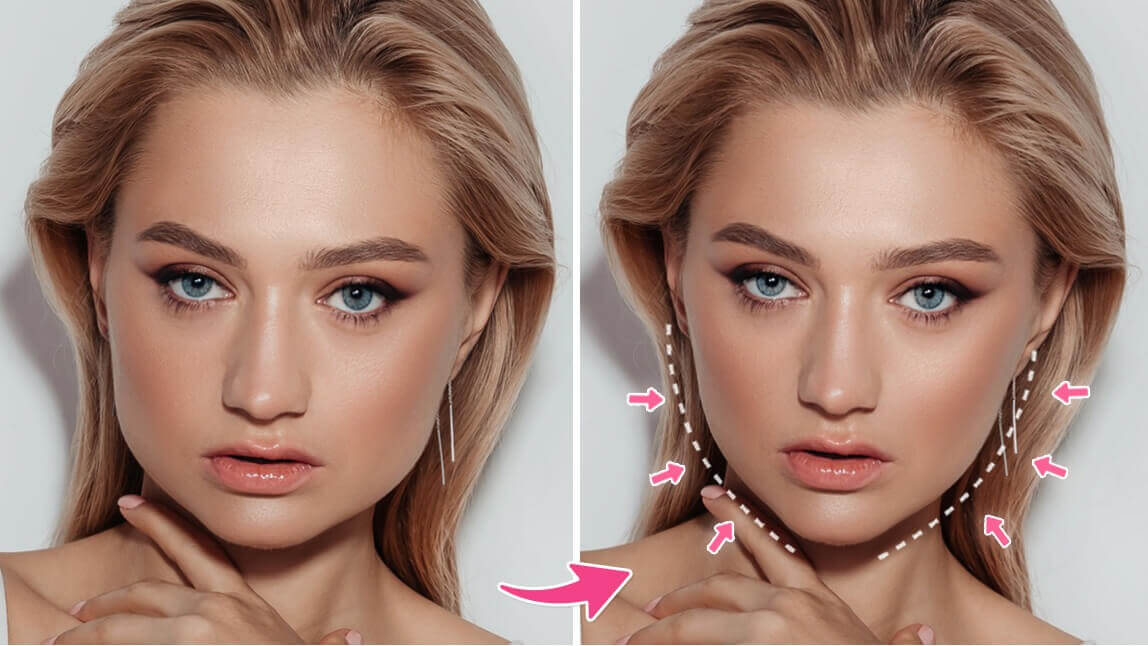
If you’re looking to refine facial features beyond skin retouching, YouCam Makeup is the ultimate go-to. With 25+ face shape editing tools, you can effortlessly adjust everything from your nose and lips to your jawline, cheeks, and even eyebrows. It’s the all-in-one face editing app every iPhone and Android user needs.
Best Eye Bag Remover to Get Rid of Eye Bags in Minutes
If you're looking for a quick, easy, and natural way to remove eye bags from photos, YouCam Makeup is the ultimate eye bag remover app to try. With advanced AI tools and one-tap editing, you can smooth under-eye areas effortlessly and enhance every selfie.
Say goodbye to tired eyes and hello to flawless, refreshed photos—no expensive treatments or filters needed!