Author:


Curious what you would look like fat using a fat filter free tool?
This blog shows you how to use YouCam Makeup to apply fun AI fat effects on your photos and explore playful body transformations.

Disclaimer: The YouCam Makeup fat filter is designed for lighthearted, creative edits and playful imagination. We celebrate all body types and encourage positive, respectful use of the tool without mocking or discriminating against anyone’s appearance.
What Is a Fat Filter?
A fat filter is an AI-powered photo effect that simulates how you might look with a fuller face or a curvier body.
Using advanced image detection and generative AI, the filter automatically adds realistic volume to your cheeks, jawline, waist, arms, or legs — letting you explore a “what would I look like fat?” transformation instantly.
How Fat Filters Work
- Uses AI to detect your facial structure and body proportions
- Adds natural-looking fullness to selected areas
- Preserves lighting, shadows, and details for realistic results
- Generates a chubbier look with one tap or slider adjustments
How to Add AI Fat Filter to Photo?
With YouCam Makeup, creating playful edits is as easy as snapping a selfie. Here’s a step-by-step guide to applying the fat filter on your photos:
- Step 1: Download the Best Fat Maker App
- Step 2: Upload Your Photo
- Step 3: Try AI Fat Filter
- Step 4: Adjust Your Body Shape
- Step 5: Add Fat Face Filter for Chubby Cheeks
Step 1: Download the Best Fat Maker App
If you haven’t already, download the YouCam Makeup app from the App Store or Google Play. It’s free to download and packed with fun photo features.

Step 2: Upload Your Photo
Open the app and tap the “Photo Edit” option. Choose a selfie or full-body photo from your camera roll that you want to edit.
Step 3: Apply the AI Fat Filter
Once your photo is loaded, head to the editing toolbar at the bottom of the screen. Tap on the Body feature to open up the customization options.

Step 4: Adjust Your Body Shape
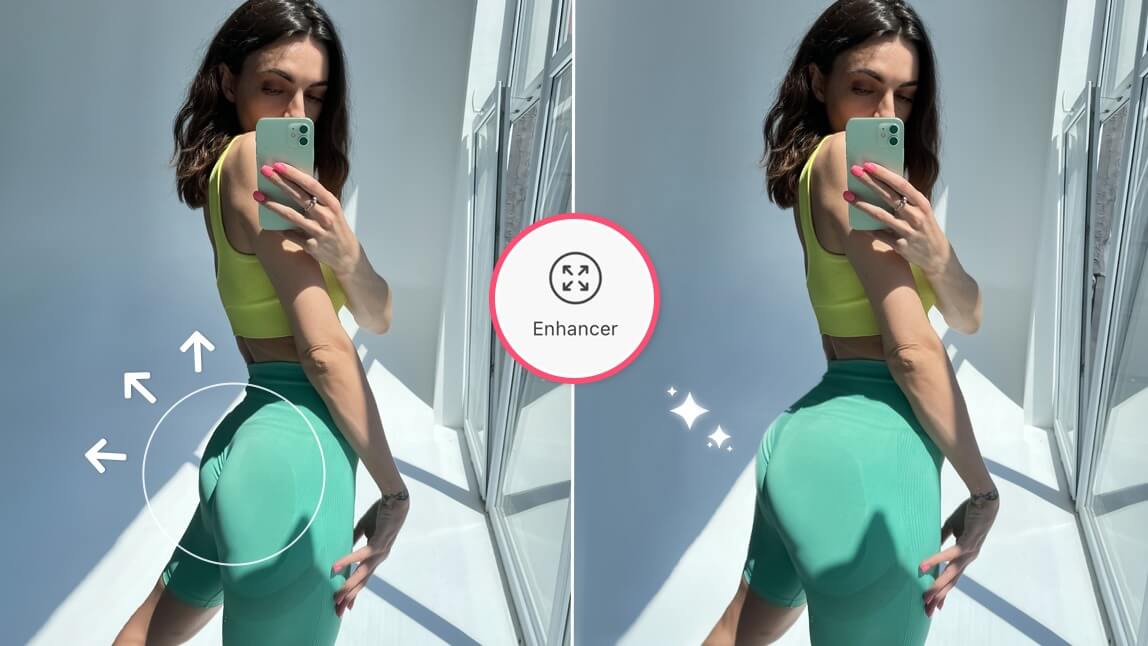
- Use the body shape sliders to add fullness to your waist, arms, legs and other areas.
- Play around with the settings until you achieve your desired effect, it’s up to you!

Step 5: Add Fat Face Filter for Chubby Cheeks
Want to see how you would look with a rounder face? YouCam Makeup’s Face Reshape tools makes it easy to apply a fat face filter that adds realistic fullness to your cheeks, jawline, and chin.
Under Reshape, use the Chin Shape, Cheek, and Cheekbone filters to give yourself fuller facial features.
Why Try the AI Fat Filter?
It’s not just about photo editing, it’s about self-expression, humor, and creativity. Using the fat filter is a fun and creative way to explore different looks with zero commitment.
Here are why more people are trying these AI weight gain filters:
- Visualize AI Weight Gain: Ever wondered “What would I look like if I gained weight?” A fat filter lets you explore fuller face shapes or curvier figures instantly using smart AI weight gain simulation tools.
- Lighthearted Fun: Whether it’s adding a few extra pounds for laughs or giving your face a chubby makeover, the fat AI effect is a guaranteed way to entertain yourself and your friends.
- Before-and-After Edits: Create playful transformations that showcase different versions of yourself. Perfect for meme content, parody posts, or just seeing what’s possible with AI.
More Body Editing Tools in YouCam Makeup
The Body Tuner isn’t just for adding fun curves, it’s packed with features to help you customize your photos exactly how you want. Here’s what else you can do:
- Slim Waist & Hips: Want a more defined silhouette? Easily adjust your waistline or hip shape for a natural, balanced look.
- Tone Arms & Legs: Whether you’re adding muscle definition or creating a leaner look, this tool lets you tweak your limbs with precision.
- Height Adjustment: Instantly elongate your legs or adjust proportions to look taller in any photo.
- Full-Body Adjustments: Edit your overall body proportions, so your photo reflects the look you’re envisioning.
Make People Look Fat in Photos with AI Fat Maker
Whether you're using the AI fat maker to see weight gain transformations or simply to try a fun fat filter, YouCam Makeup makes it easy and entertaining. With powerful body editing and face reshape features, you can experiment with chubbier cheeks, fuller figures, and creative edits all with just a few taps.
Download YouCam Makeup and discover how the best AI fat filter can turn your selfies into something truly unexpected and fun!