 Author:


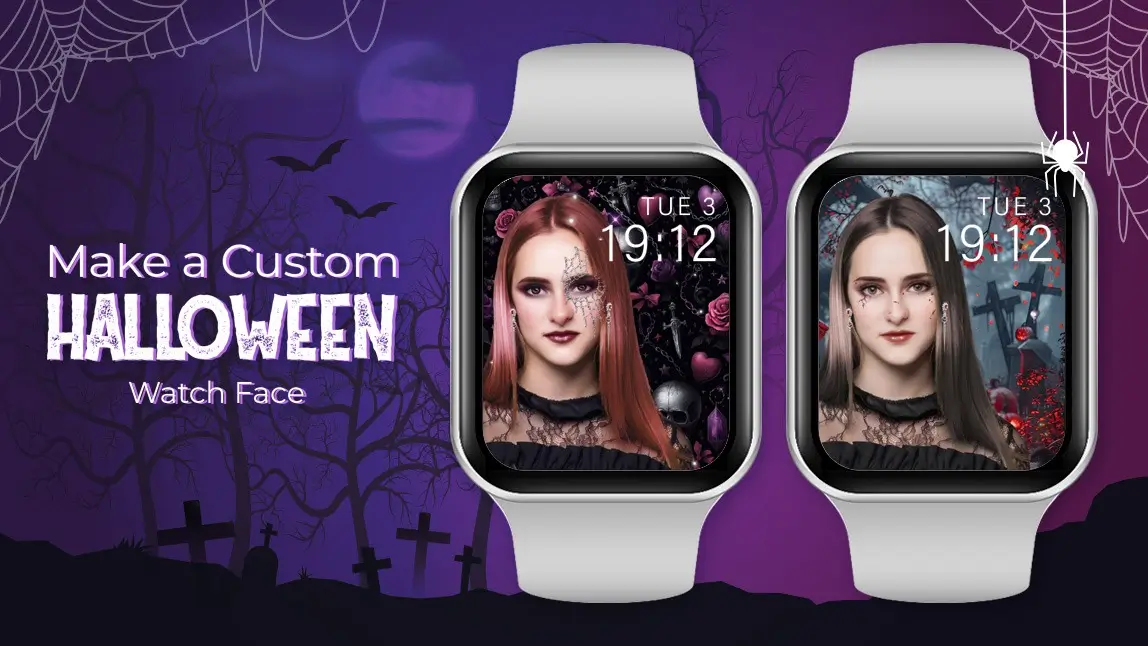
Halloween 2026 is the perfect time to get creative not just with costumes and makeup but also with your digital style. If you’re looking for a way to spook up your tech, why not design your own custom Halloween watch face. It’s easy, fun, and a unique way to show off your festive spirit.
Best of all, you can pair your Apple Watch face with a Halloween themed selfie from YouCam Makeup, giving you a perfectly coordinated Halloween vibe from head to wrist.
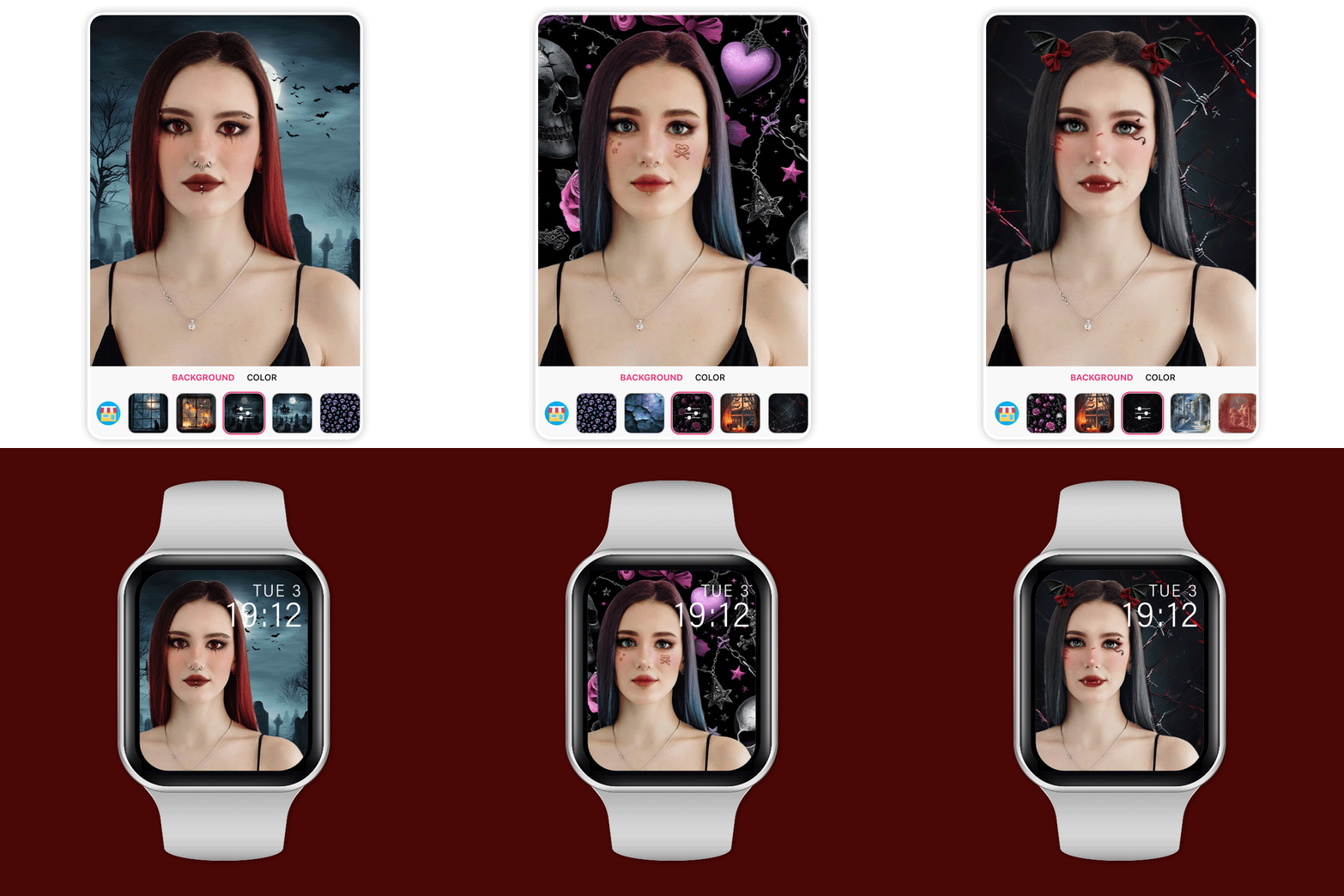
🧪 How I tested this: For this 2026 update, I made a few Halloween watch faces from my own selfies, edited in YouCam Makeup, and set them up on my Apple Watch using the Photos face. I quickly learned that a photo that looks great on a phone doesn't always work on a tiny, rounded watch screen. Bold makeup, a simple background, and plenty of space around my face made the biggest difference. Below are my notes on what looked great on the wrist and what I'd change.
Create a Halloween Watch Face with YouCam Makeup
The most exciting part of making a Halloween Apple watch face is choosing the right image. This year YouCam Makeup makes it effortless.

Transform with Spooky Makeup Looks
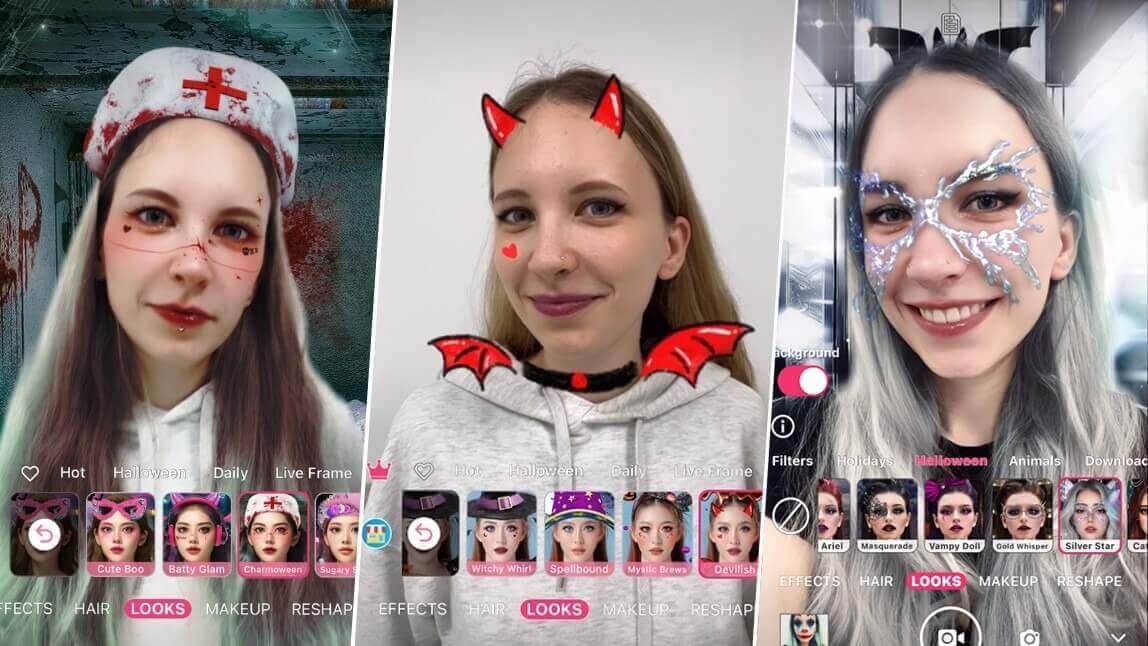
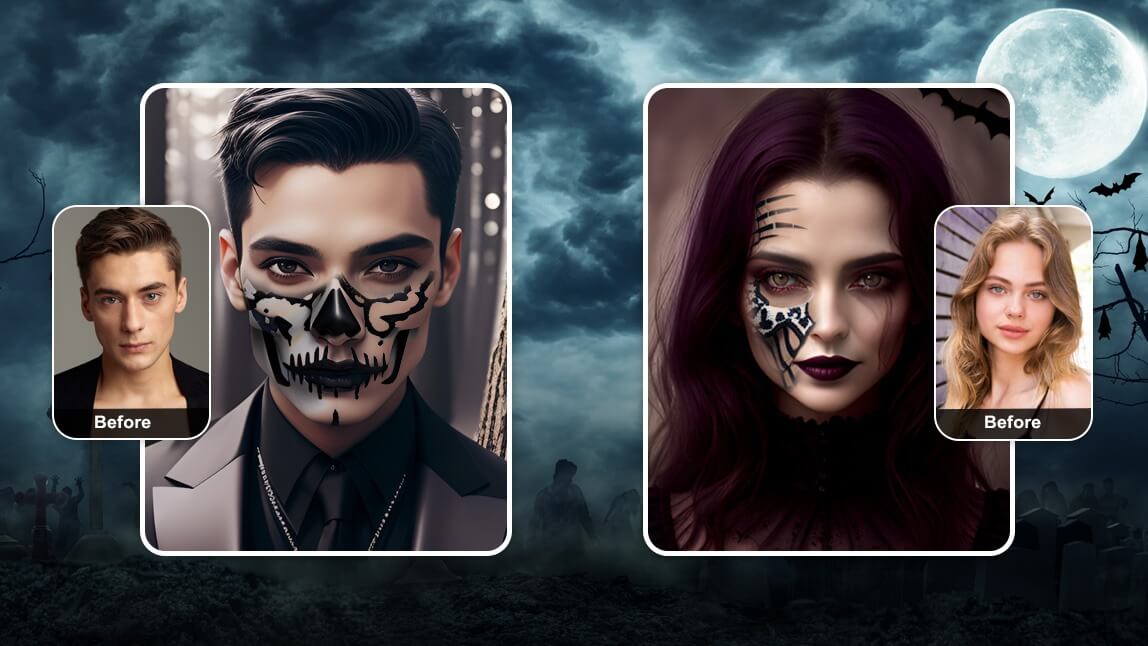
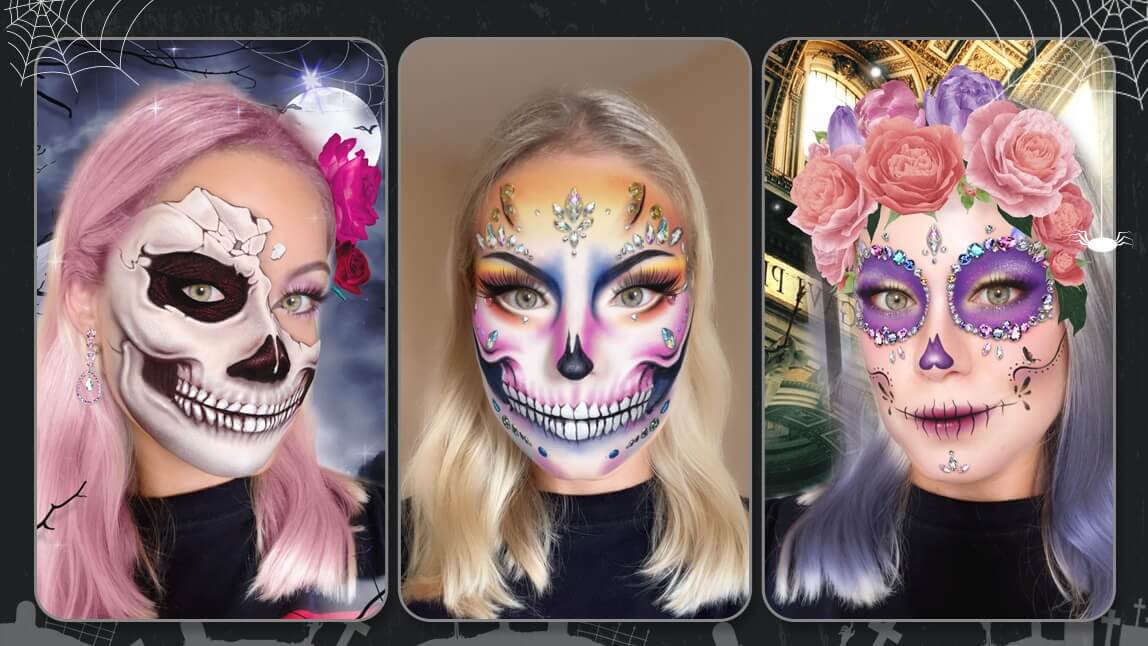
Take a photo with YouCam Makeup’s Halloween makeup filters. Try ghostly pale makeup, vampire red lips, or eerie pumpkin effects. The app is your go-to for creating the most bewitching Halloween photos.

🧪 My test notes: Vampire red lips and ghostly pale makeup were the most readable on my watch. Subtle looks with fine glitter or thin liner looked great on my phone but mostly disappeared once shrunk down to the watch screen.
Change Halloween Photo Background
Instantly place your selfie into themed scenes. Change your photo backgrounds to haunted houses, glowing pumpkins, eerie forests, and neon Halloween vibes. These ready-made backgrounds give your watch face a spook-tacular touch!

🧪 My test notes: Darker backgrounds like haunted houses and eerie forests looked moody and also made the white clock digits easier to read. Busy neon scenes were fun, but the time was harder to see at a quick glance.
Enhance with Watch Face Apps
If you want more advanced customization, watch face apps like Facer and Clockology are great tools. They allow you to upload your own designs and add more detail beyond Apple’s built in options.
They’re ideal if you want to combine your YouCam Makeup selfie with layered design elements or customize the layout of your watch face.
👉 Pro Tip: After you create your perfect Halloween look in YouCam Makeup, save the image to your camera roll. This will become your custom watch face.
🧪 My test notes: I'd start with Apple's built-in Photos face and only reach for a third-party app if you want extra design elements. For most Halloween photos, the native option was simpler and felt more reliable day to day.
How to Upload Your Halloween Apple Watch Face
Here is the step by step process to set your new design:
- Step 1: Open the Watch app on your iPhone
- Step 2: Tap Face Gallery > Photos
- Step 3: Create a new album such as “Halloween Faces” and add your image
- Step 4: Tap Create Watch Face and adjust placement of the time and complications
- Step 5: Sync with your Apple Watch and you’re done!
Your wrist is now officially ready to haunt Halloween night.
🧪 My test notes: Before adding the photo to your album, crop it closer to a portrait shape with your face centered. When I skipped that step, the watch's own crop cut off part of my makeup or placed the time right over my eyes.
Customize Your Own Watch Face for Halloween
Making your own Halloween Apple Watch face is easy, fun, and the perfect way to show off your creativity this spooky season.
Whether you design with a stock image or your own haunted artwork, using YouCam Makeup selfies and backgrounds takes your watch face to the next level by tying your digital style to your Halloween look.
🧪 My test notes: Adding several edited photos to the same album was my favorite trick. Each time I raised my wrist, a different Halloween look showed up, which made it feel much more festive than a single static face.
More Halloween Photo Editing Ideas
- 10 Easy Last-Minute Halloween Costume Ideas For Women 2025
- 5 Butterfly Makeup Ideas for Halloween 2025
- Best Free Halloween Face Filter App 2025
- Goth Filter: Try on Goth Makeup Looks for Halloween
- Beetlejuice Filter: Try the Iconic Beetlejuice Makeup Look Instantly
Halloween Watch Face Options Compared: Which Option Is Best?
There's more than one way to get a Halloween look on your wrist. Here's how the main approaches compare.
| Option | Best For | My Verdict |
|---|---|---|
| YouCam Makeup edit + Apple Photos face | A personal Halloween selfie with spooky makeup and a themed background | My top pick: personal, festive, and uses Apple's built-in face |
| Regular photo + Apple Photos face | A quick, no-edit option using a photo you already have | Easy, but less Halloween-specific unless the photo is already themed |
| Third-party watch face apps (Facer, Clockology) | Extra design layers and details beyond Apple's built-in options | Good for tinkerers who want more control, with more setup |
Verdict: For most people, editing a selfie in YouCam Makeup and using it with Apple's Photos face is the easiest way to get a watch face that is both personal and truly Halloween-themed.
What Real Users Say
Here is what App Store reviewers have said about YouCam Makeup, the app used to create the Halloween photos in this guide.
"This app is truly incredible once you take time to explore what it can do and use creative thinking." — tehstev88, ★★★★★ (App Store review)
"I love everything about this app, with a few small things that I've noticed." — alit8, ★★★★★ (App Store review)
Pro Tips for Better Results
- Leave space above your head: The time usually sits at the top of the Photos face, so frame your selfie with room above your hair.
- Choose high contrast: Dark backgrounds with bright makeup, or pale makeup against a dark scene, stay readable on a small screen.
- Crop to portrait first: Crop your edited photo close to the watch's tall shape before adding it to your album so the automatic crop doesn't cut off key details.
- Save at full quality: Export your YouCam Makeup edit at the highest quality so fine details stay sharp after resizing.
- Build a rotating album: Add three or four Halloween photos to one album so your watch face changes throughout the day.
- Keep complications minimal: Fewer complications keep your Halloween photo visible instead of covered by widgets.
New for Halloween 2026: What watchOS 27 Changes (and Doesn't)
watchOS 27 introduces a new Siri Modular face built around Siri and Smart Stack suggestions, while the Photos face remains largely unchanged and is still set up through the Watch app on iPhone, so the upload steps in this guide still apply (Source: the5krunner, September 20, 2026).
Need more spooky material for your watch face? Grab one of these free scary Halloween backgrounds or try the YouCam Halloween Filter online.