Author:


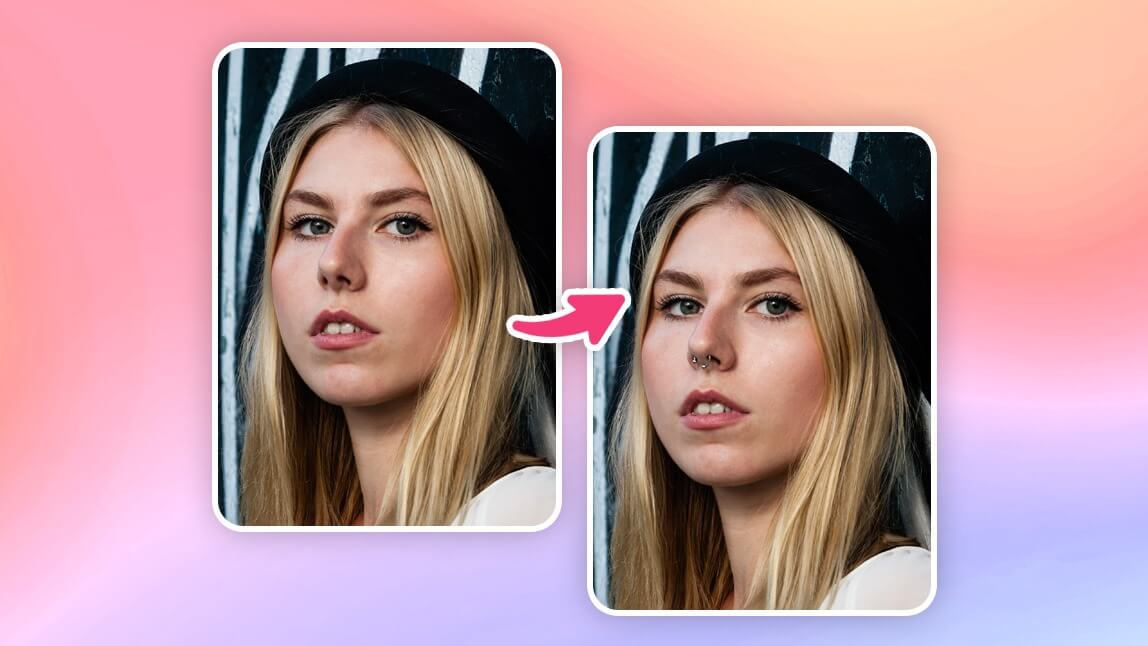
Thinking about getting a piercing but not sure if it will suit you? With a piercing filter, you can try on piercings virtually with your photo and see what you look like with nose rings, septum piercings, and even lip piercings.
In this article, we'll show you easy it is to experiment pain-free with YouCam Makeup's piercing filter. Or if you prefer to skip the download, use an online piercing simulator to try your favorite piercing looks right from your browser.
We also compared the app and the online editor side by side to help you pick the right one for your setup — see the comparison below.

- What Is a Piercing Filter?
- Best Piercing Simulator for Virtual Piercing Try On
- How to Add Piercing Filter to Your Photo
- Try Preset Piercings Looks With YouCam Makeup
- Try Piercing Filter Online with YouCam Online Editor
- Piercing Filter FAQs
What Is a Piercing Filter?
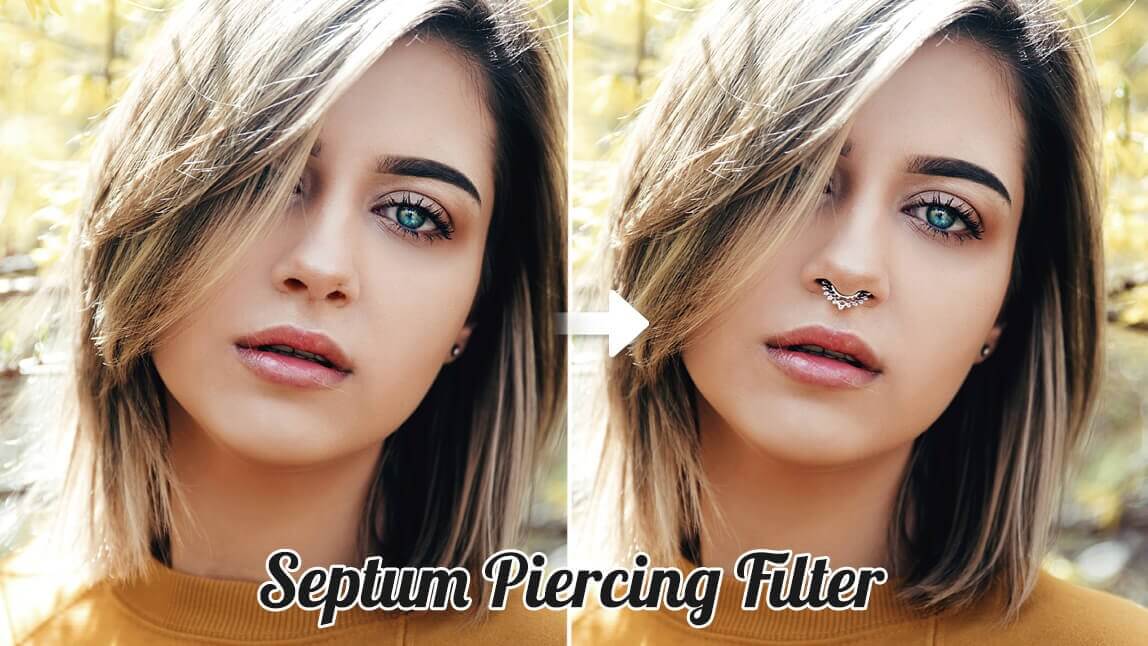
A piercing filter is a fun and easy way to see what you would look like with piercings before getting the real thing. With AI and AR technology, the piercing simulator adds realistic facial piercings to your photo virtually.
With a piercing filter, you can:
- Instantly see what you would look like with piercings
- Try on different styles: nose rings, septum, lip, eyebrow, and more
- Adjust placement and size to preview the look on your face
Popular Piercing Filters to Try Virtually
With YouCam Makeup and YouCam Online Editor, you can test various virtual piercings to see what fits your style. Here are some top options to try:
- Nose Ring Filter: Try simple studs, hoops, or even double nostril looks
- Septum Piercing Filter: See how a central hoop or bar would look
- Lip Piercing Filter: Play around with labret, Monroe, medusa, or snake bite styles
- Eyebrow Piercing Filter: Add a bold touch with curved or straight barbells
- Ear Piercing Filter: Test everything from helix to tragus to stacked ear piercings
Best Piercing Simulator for Virtual Piercing Try On
If you’re wondering what you’d look like with a nose ring or lip piercing, YouCam Makeup is the best piercing app to help you find out instantly. Using advanced AI and AR technology, the app lets you try on different piercing styles like nose studs, septum rings, lip piercings, eyebrow piercings, and even ear piercings in just a few taps.

Plus, you can save your look, share it with friends for opinions, or even use it as inspiration before booking your actual piercing appointment.

A quick note before you dive in: I tried the piercing filter on a few different reference photos — a straight-on selfie, a slightly angled photo, and one with hair partially covering the nose area. Placement was most accurate on a clear, front-facing photo where the nose and ear areas were fully visible; on the angled photo, the piercing sometimes sat a touch off from where a real piercing would actually go, so it's worth using your straightest, best-lit selfie for the most convincing result.
How to Add a Piercing Filter to Your Photo
Follow the steps below to try YouCam Makeup's piercing filter and explore your new look.
- Step 1: Download the Best Piercing Simulator App
- Step 2: Upload Photo or Use Live Camera
- Step 3: Virtual Piercing Try-On with Piercing Filters
- Step 4: Customize Your Own Piercing Filter
Step 1: Download the Best Piercing Simulator App
Start by downloading YouCam Makeup for free from the App Store or Google Play Store.
Step 2: Upload a Photo or Use Live Camera
Choose "Photo Edit" to apply the filters to an existing photo or select "Camera" to snap a selfie and try them on live.
Step 3: Try Piercing Filters with Preset Styles
Head to the “Looks” section and browse these preset piercing styles:
- Astra and Ravenette (find them in the Party category)
- Vortex (located in the Makeup Artist category)
- Heartscape (find it under Halloween)
Choose the piercing filter you like and see it instantly applied to your face with precision.

I tried a few of these preset looks on the same photo, and the difference between them is more than just the piercing style — Vortex and Heartscape both add a full makeup look on top, so the piercing ends up feeling like one part of a bigger transformation rather than a piercing-only preview. If you just want to see the piercing itself, Astra's look stays closer to a natural, no-makeup base.
Step 4: Customize Your Piercing Filter
You can also add piercings to your photo with the Beauty Agent feature in YouCam Makeup. Enter a prompt like "Add a nose piercing to my photo in a simple ring style."
You can customize the piercing style and placement to your liking.

Once you’re happy with your virtual piercing, save the image and share it with friends, or keep it as a reference for the real deal!
Testing the Beauty Agent prompt option, being specific paid off — a prompt like "add a small gold hoop to my left nostril" placed the piercing exactly where expected, while a vaguer prompt like "add a nose piercing" left more up to the AI's interpretation of placement and style.
Top 4 Piercings Looks in YouCam Makeup
If you want to see yourself with a complete makeup look, YouCam Makeup also offers preset piercing looks you can apply to your photo. Find them under the Makeup Look category and see what styles suit your taste.
Astra

Looking to turn heads? The Astra piercing filter brings a glam vibe with a sparkling nose stud, a bold septum ring, and oversized earrings. It’s the perfect choice if you want to explore a confident, edgy look with a virtual piercing simulator.
On my test photo, the septum ring in this look showed up clearly, but the earrings were harder to make out at a smaller preview size — worth tapping to view the full-size image if you want to judge the earring style too.
Ravenette

For something more mystical, the Ravenette piercing filter is inspired by whimsigoth aesthetics. This look pairs a subtle nose stud with a bold lip piercing—ideal for expressing your dark, dreamy energy without committing to real piercings.
Heartscape

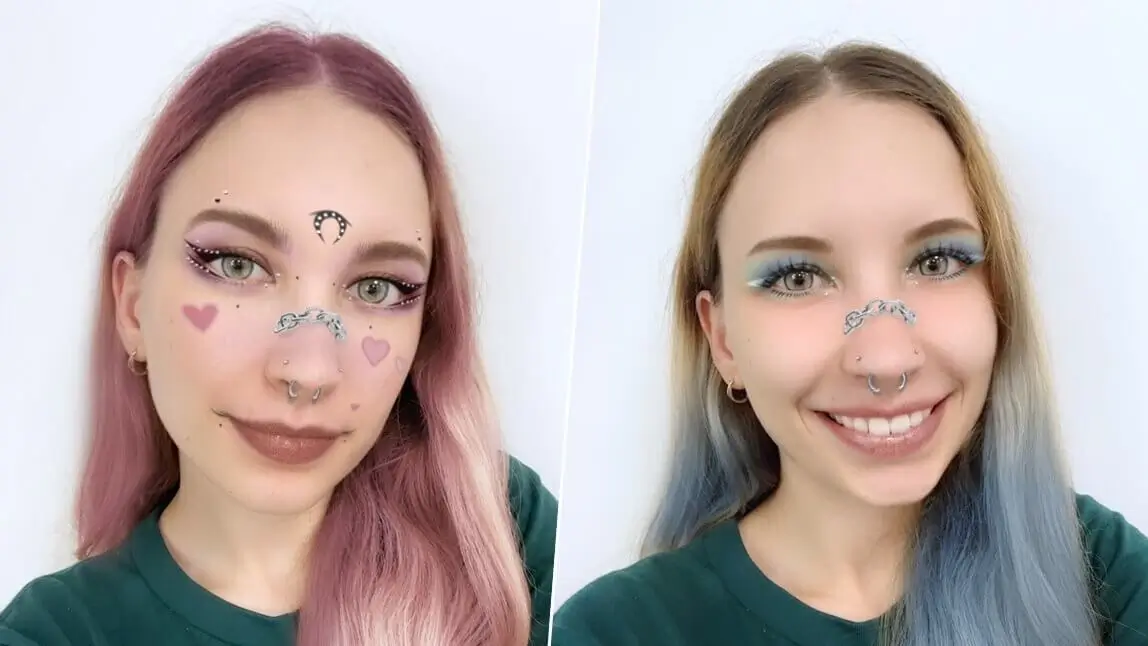
Heartscape is a fan-favorite for a reason. Featuring a septum ring, nose chain piercing, and a soft glam pink makeup look, this filter blends bold and feminine vibes perfectly.
Vortex

Channel the Y3K trend with the icy-cool Vortex piercing filter. This look includes a septum ring and nose chain like Heartscape, but pairs it with a futuristic blue makeup look for a cosmic finish.
This was the most dramatic transformation of the four looks I tried — the blue makeup tone changes the whole photo, so it's a good one to preview on a couple of different lighting setups before deciding if the color grade works for you.
Try Piercing Filter Online with YouCam Online Editor
Curious how you'd look with a nose ring, lip stud, or a septum piercing? With YouCam Online Editor, you can try on different piercing filters online with the AI Replace feature.

How to Try Free Piercing Filter Online
Want to see what you would look like with piercings? Follow the steps below to try the piercing filter online free with YouCam Online Editor:
Step 1: Go to YouCam Online Editor
Open any browser on your desktop or mobile device and visit the YouCam Online Editor.
Step 2: Upload Your Selfie
Choose a clear, front-facing photo to get the most accurate results with the piercing simulator.
Step 3: Apply Piercing Filter Online
Select the area you want to place your piercing and enter a short description of your desired style. The AI will automatically apply your chosen look, giving you a realistic virtual preview in seconds!
Running the same test photo through the online editor's AI Replace tool, the result was close to what I got in the app, though it took a slightly more detailed prompt to get the piercing placement right compared to tapping a preset style in the app — worth being specific about which piercing and where when you type your description.
Download the Best Piercing Filter App: YouCam Makeup
Ready to explore your new look without the commitment? YouCam Makeup makes it easy to experiment with piercings in a fun and risk-free way.
The virtual piercing app offers several filters that come with cool piercing styles, makeup, accessories, and backgrounds. Explore creative piercing filters to elevate your style game!

YouCam Makeup App vs. YouCam Online Editor: Which Should You Use?
| Method | Best For |
|---|---|
| YouCam Makeup App | Quick preset piercing looks, trying multiple styles in just a few taps |
| YouCam Online Editor | A one-off piercing preview from your desktop browser without downloading an app, using a custom AI prompt |
If you want to browse and try several piercing styles quickly, the app's preset looks are the faster route. If you just want a single quick preview from your desktop browser without installing anything, the online editor's AI Replace tool gets you there in a couple of steps.