Author:


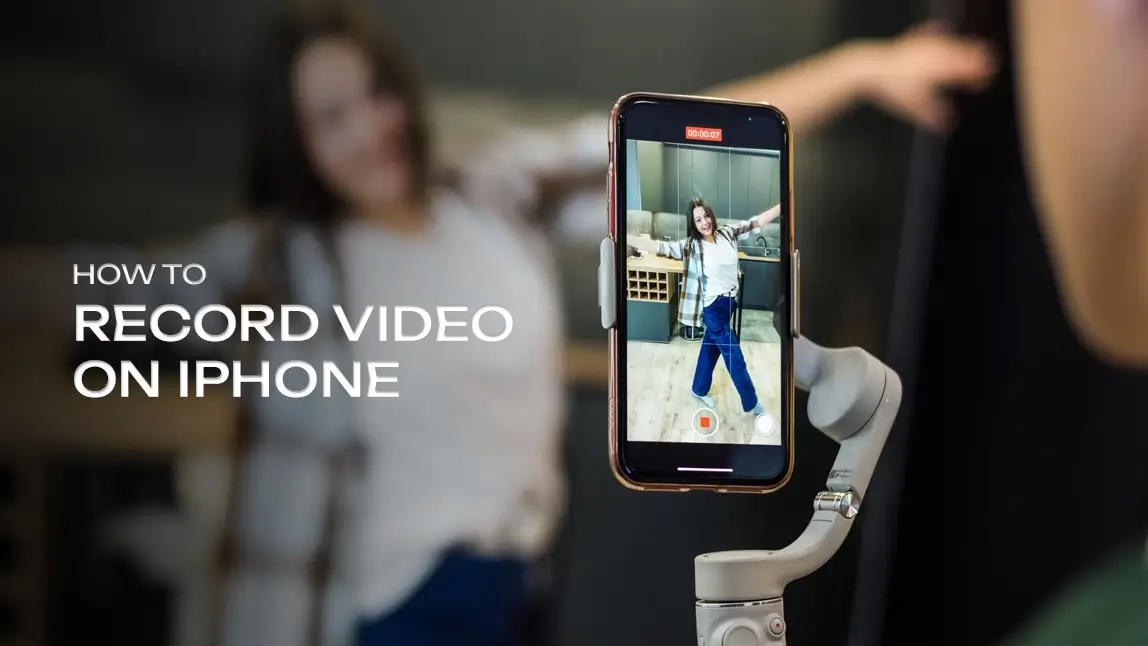
If there’s one universal truth of modern life, it’s that we all have a miniature film studio tucked into our pockets at all times.
Whether you're documenting a latte that looks suspiciously like a cloud, capturing your dog’s Oscar-worthy leap for a treat, or recording something that will absolutely not go viral but we can dream, learning how to record video on iPhone the right way makes a world of difference.
But here’s the thing: recording is only half the story. Editing is where the magic happens, and the iPhone’s built-in tools, good as they are, can only take us so far.
That’s where apps like YouCam Video swoop in like post-production superheroes to polish your footage into something worth rewatching.
Let’s break it all down.
How to Record Video on iPhone Like a Pro
Recording video on an iPhone is wonderfully simple: open the Camera app, tap Video, and hit the big red button.
But to get footage that doesn’t look like it was shot during an earthquake, here are some settings and techniques worth knowing.
1. Use the Right Resolution and Frame Rate

- 4K at 30fps: Ideal for high-quality everyday videos. Crisp detail without giant file sizes.
- 4K at 60fps: Perfect for fast motion (sports, pets zooming through the house, kids, all three at once).
- 1080p at 30fps: Good quality with smaller file sizes.
If you’ve ever wondered why your video looks a little… fuzzy… compared to your friend’s, it’s probably this menu.
2. Turn on Grid Lines
Head to Settings → Camera → Grid.
This helps you keep your horizon straight. No more videos that look like you live on a slanted planet.
3. Lock Your Focus & Exposure

This keeps your video from constantly adjusting lighting and focus.
4. Stabilize Your Shot
You don’t need a Hollywood gimbal (though your iPhone wouldn’t mind one).
Even bracing your elbows against your body, leaning on a wall, or using a tripod can steady your footage.
5. Clean Your Lens
A quick wipe with your shirt (preferably the clean side) can fix 90% of murky-looking footage.
Does the iPhone Have Video Editing Tools?
Yes! The Photos app includes a surprisingly solid set of editors. You can trim clips, adjust lighting, tweak color, and even crop or rotate.
iMovie, Apple’s free app, adds more timeline-based editing with transitions, titles, and a few effects.
But if you’re looking to remove objects, retouch faces, enhance video quality, or use AI-powered repairs, the iPhone’s native tools tap out pretty quickly.
Which brings us to…
Why Use YouCam Video for Editing?
 If the iPhone Camera app is your “recording studio,” YouCam Video is the high-end post-production suite you bring your footage to when it needs to look polished, intentional, or dramatically upgraded without requiring film school.
Think of it as giving your videos the glow-up they deserve.
YouCam Video includes advanced features like:
- AI Video Repair for fixing damaged footage
- AI Lighting to brighten dark or uneven clips
- Video Enhance to upscale to HD quality
- Video Denoise to reduce grain and noise
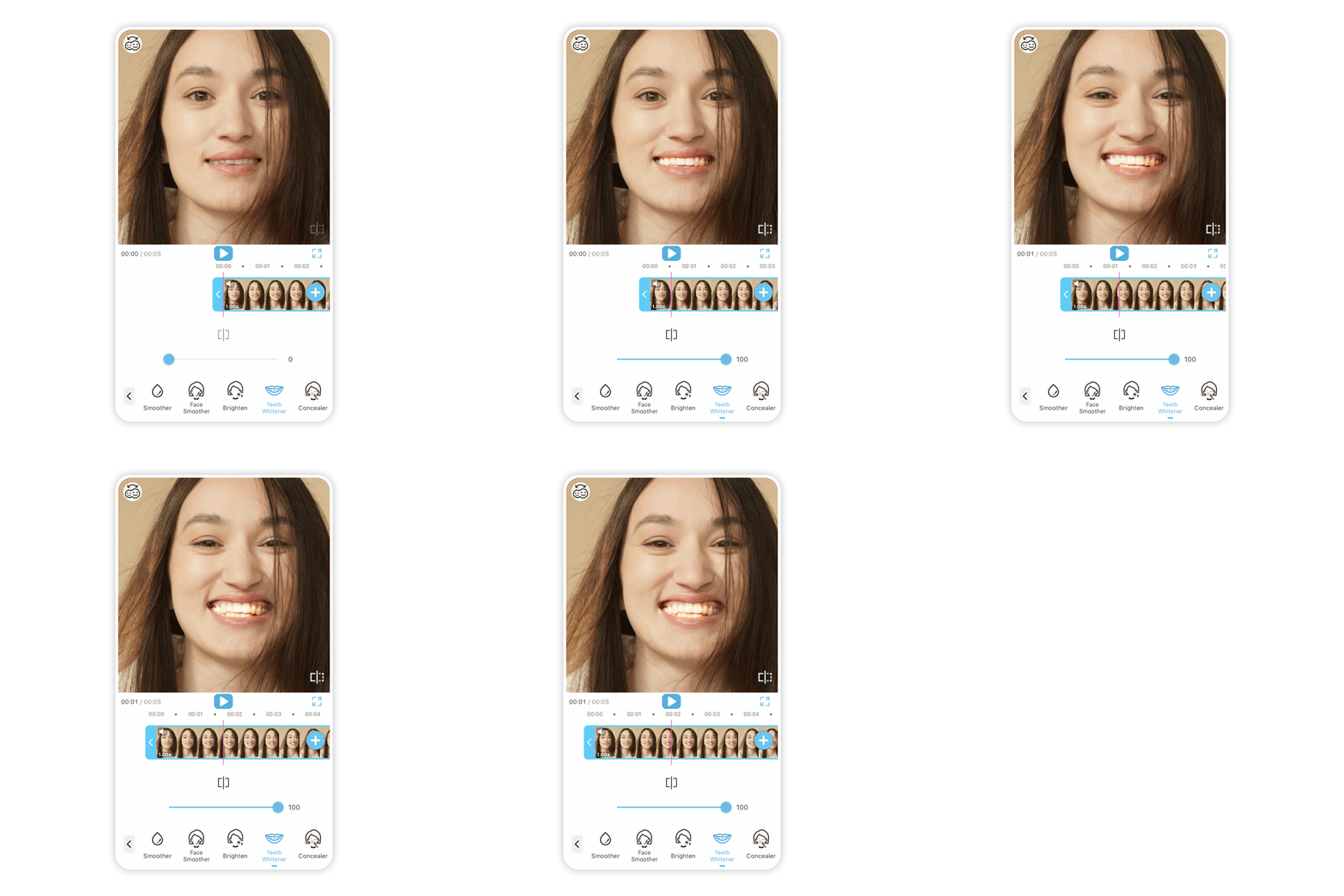
- Retouch tools for smoothing skin, whitening teeth, brightening eyes
- Object Removal for getting rid of background distractions (goodbye, random stranger waving behind you)
- Filters, effects, aesthetic presets, and more
It’s basically the difference between “I made this on my phone” and “I made this on my phone but also, wow.”
How to Edit Your iPhone Videos in YouCam Video
Here’s a step-by-step guide to editing your footage and giving it the cinematic treatment.
1. Download YouCam Video
Grab it from the App Store or Google Play. It takes about 10 seconds and zero effort.
2. Upload Your Video
Open the app → tap the ‘+’ button → choose the clip you just recorded on iPhone (or any clip you want to revive from your camera roll).
3. Start With Enhancing the Basics

- AI Video Repair: Stabilizes and clarifies shaky or low-quality footage.
- Video Enhance (HD): Boosts resolution to make the clip look sharper and cleaner.
- Video Denoise: Reduces grain, especially in dim lighting.
These tools can make even a last-minute handheld recording look intentional.
4. Improve the Lighting

Whether you recorded in a dim café or under fluorescent office lights (we’ve all been there), this tool helps your clip look professionally lit.
5. Fix What’s Distracting

Just highlight the unwanted object and let the app rebuild the background automatically.
6. Retouch Your Video (Subtly)

YouCam Video offers:
- Skin smoothing
- Blemish removal
- Teeth brightening
- Under-eye brightening
- Face reshaping (optional and adjustable)
Use these like a finishing filter to polish your presence without overdoing it.
7. Add Filters & Aesthetic Effects
From trendy looks to cinematic color grading, the app’s filters help set the mood.
Want your video to feel dreamy? Vibrant? Moody? Retro? There’s a preset for that.
8. Trim, Cut, and Refine
Finish up by trimming unnecessary seconds, adjusting speed, or adding transitions.
9. Export & Share
Once everything looks good, export in high quality and share it on whatever platform your masterpiece is destined for.
Final Thoughts: Bring Your iPhone Videos to Life with YouCam Video
The iPhone makes it incredibly easy to capture moments, but turning those moments into polished, shareable videos is where creativity comes alive.
So the next time you record video on iPhone, give it the editing treatment it deserves with YouCam Video’s powerful, beginner-friendly tools.