Author:


Recording a great moment, only to find the colors look off later? With the right tool and a few taps, you can transform your footage into something vibrant and professional.
Meet YouCam Video — your go-to video color changer for stunning results without the complexity.
Why Change Colors in a Video?
Video color correction and grading are more than just filters. They let you fix issues (like poor lighting or color casts) and set a mood (bright & cheerful, moody & cinematic).
Whether you filmed on your phone or in challenging light, changing the video color can elevate your story and keep your visuals consistent across clips.
How to change the color of the video?
Firstly, changing color in videos is easier than you might think.
Here are three straightforward methods that anyone can use, using YouCam Video (a video color changer) as our go-to example.
Method 1. Color grading
With a video editing app and video color changer like YouCam Video, you can change the hue of a video to achieve a desired visual style or mood.
Here are a few examples of color grading for your reference:
1. Raise color saturation to make the colors pop
Amp up the excitement in your video by cranking up the colors. Saturation helps your video tell a better story and captures the emotions in a way that feels just right.
2. Enhance the video sharpness and increase the brightness ✨
The color of the video seems a bit dull? Play with the sharpness, brightness, saturation, and highlights until you are satisfied with the results.
3. Boost the color brightness for a lively background
Not happy with the background of the video? Take the color level of the background to the next level.
4. Fix color issues with the "Portrait Light" feature
Ever feel frustrated when your face looks too dark in the sun? Just adjust the "Portrait Light" to fix it in a snap!
5. Change the color in video by balancing the exposure
Whether you're adjusting color balance or enhancing tones, the exposure tool makes it easy to improve the look of your videos.
Method 2. Filter effects
If you don’t want to manually adjust everything to get the right color, no worries! For a quick and efficient color transformation, filters can be your best friends.
Check out some of our popular filters below:
# Nostalgia filter
▲ Perfect for giving your video a classic, retro vibe.
# Cinematic film filter
▲ Looking to make your video cinematic? Try out our Film Style Filters!
# Soft pink filter
▲ Add a touch of pink to your video with Soft Pink Filter!
# VCR vibes filter
▲ Add VCR filters and take your videos back to the 90s!
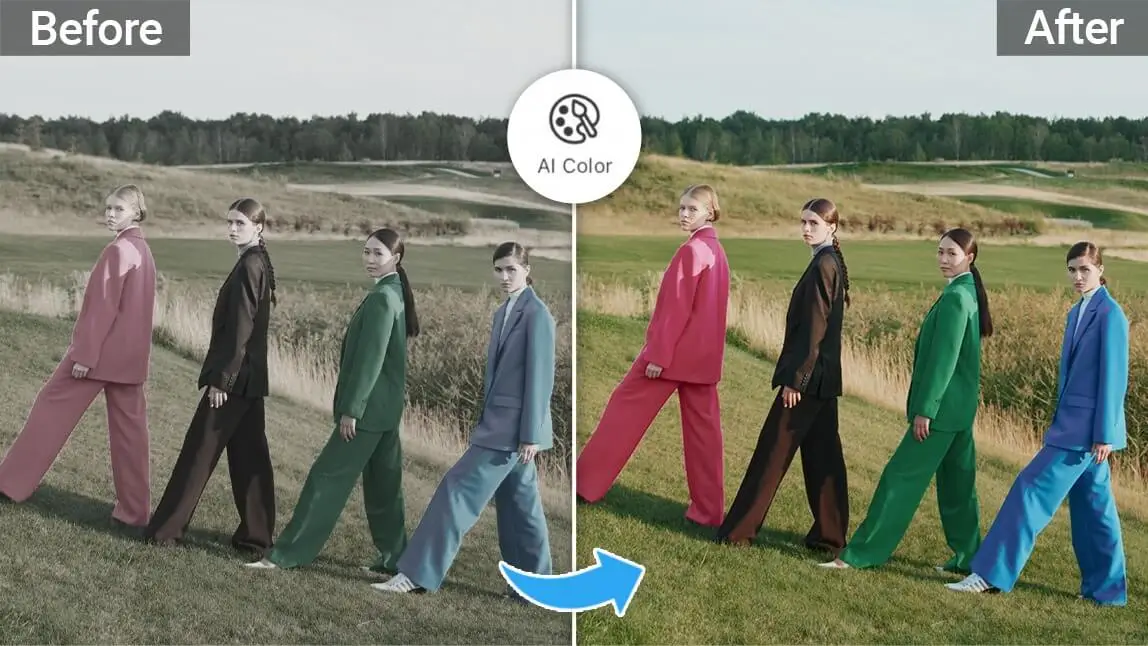
Method 3. New feature "AI Color"
▲ Color correct your video in seconds with AI Color!
YouCam Video's recently released new feature, "AI Color," lets you auto-correct your video colors with ease.
Doesn't matter if your videos were shot at night with low light or in bright sunlight with too much exposure. AI video color correction sorts it out in seconds, making it perfect for easy, no-fuss video upgrades.
[Bonus] How to Make Your Video Black and White?
If you're looking to give your video a classic, timeless feel by making the video black and white, you can experiment with two features in YouCam Video:
- Color grading
- B&W filters
Color grading
First, go to "Adjust" and click on "Saturation." Simply slide the saturation level down to -100 to turn your video black and white.
Black & White filters
YouCam Video offers 6 different black-and-white filters. Simply pick the one you prefer and adjust the intensity until it looks good to you.
Tips for Editing Color in Video
Want even better results when adjusting color in your videos? Here are some practical tips to help you color-edit like a pro — even if you're a beginner.
1. Start with Exposure Before Color: Fix the overall brightness first. Proper exposure makes your later adjustments (like saturation or contrast) look more natural and consistent.
2. Avoid Over-Saturation: Boosting saturation makes videos pop, but too much can make skin tones look unnatural. Increase slowly and stop once colors look vibrant but still realistic.
3. Use Contrast for Depth: Increasing contrast adds dimension to your clips, especially if your video looks flat. Just avoid going too high — it can remove detail in shadows and highlights.
4. Match Color Across: All ClipsIf you're editing multiple clips together, ensure they have consistent color and tone. This makes your final video feel smoother and more professional.
5. Use Filters as a Base, Then Fine-Tune: Filters are great starting points. After applying one, adjust exposure, saturation, or warmth to make the look uniquely yours.
6. Leverage AI Tools for Quick Fixes: If you're unsure where to start, use AI Color in YouCam Video. It automatically balances lighting and tones — then you can fine-tune the details afterward.
More Video Editing Tips & Tricks
- How to Correct Color a Video With the Best Color Correction App
- 3 Best Apps to Blur Video Background on iPhone
- How to Remove Video Background on iPhone Without Green Screen
Conclusion
By the end of this article, we hope that you are excited to apply some of the techniques mentioned to change color of the video.
Whether you're documenting your daily life, sharing special moments, or expressing your unique perspective, video color transformation is a powerful tool that can make your stories more vibrant and memorable.
Give YouCam Video a go today and change the color in video with ease!