Author:


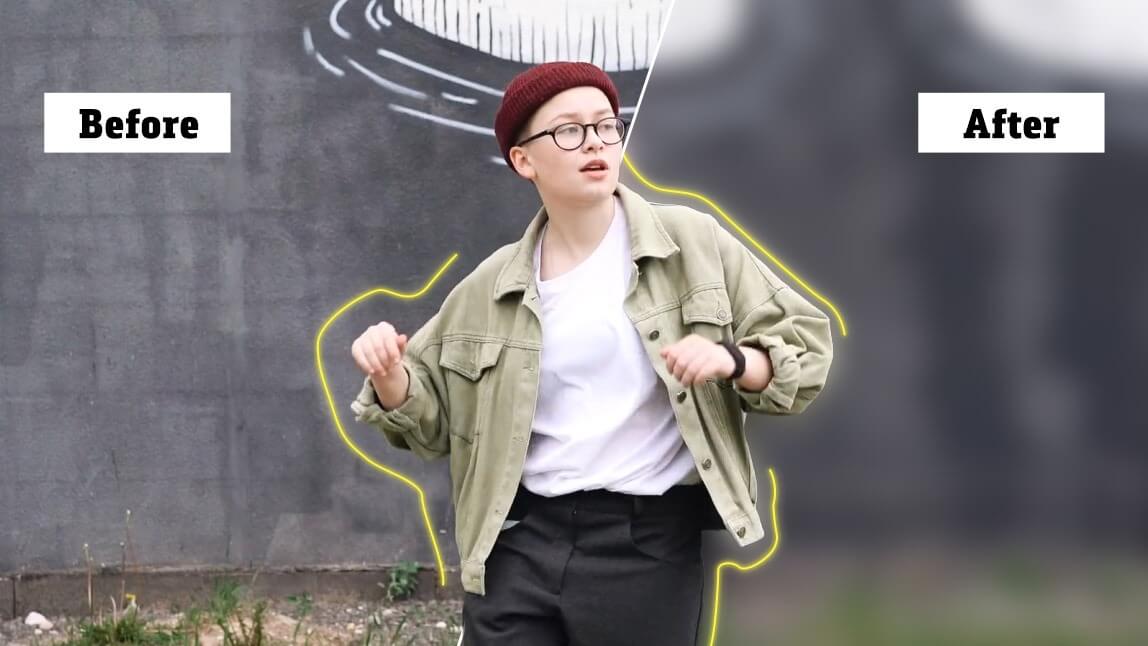
You just shot your best video yet. But as you replay the video, you realize that the background in your video is distracting. If this has happened to you, you’re not alone. And that’s when blurring video backgrounds can come in handy.
In this article, we’ll give you the tips you need to blur video background on iPhone using YouCam Video.

Why Blur Video Background?
Blurring the background in a video is a powerful technique that enhances the overall quality and focus of your content. It draws attention directly to the subject, minimizes distractions, and creates a professional, polished look.
- Focus on Subject: Highlights the main subject by reducing background distractions.
- Professional Look: Creates a polished, cinematic appearance.
- Privacy Protection: Conceals sensitive or unwanted background details.
- Improved Viewer Engagement: Keeps the audience's attention on the important elements of the video.
How to Blur the Background of a Video on iPhone
As of now, iPhones do not have a built-in feature specifically for blurring video backgrounds. However, you can easily download a video blur app to achieve this effect. Here's how you can blur the background of a video using YouCam Video:
- Step 1: Download a Video Background Blur App
- Step 2: Upload Your iPhone Video
- Step 3: Blur Background in iPhone Video Instantly
- Step 4: Save Video
Step 1: Download Video Background Blur App

The first step is to download one of the best apps to blur video background — YouCam Video. You can find this app in the App Store and download it.
Step 2: Upload Your Video

With YouCam Video downloaded, your next step is to upload your video to the app. Simply choose the video you want to apply blur effects to.
Step 3: Blur Video Background

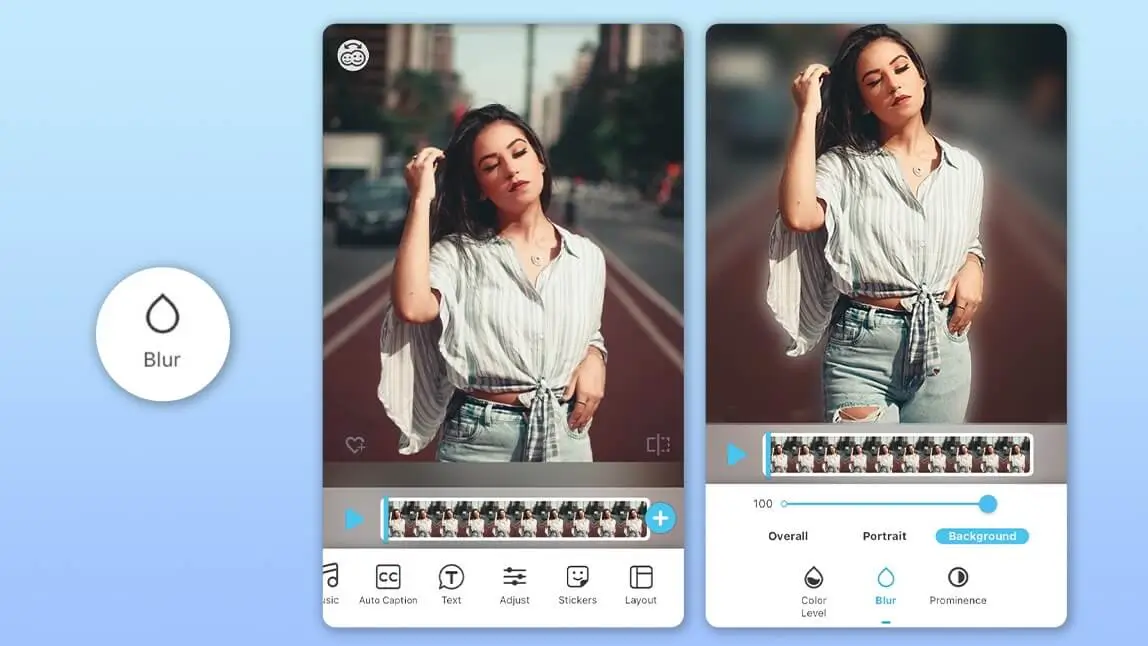
With the right video opened, it’s time to blur the video background. Tap the Adjust tab, then tap on Background. Here, you’ll see the Blur option.
Not only will the app automatically blur the background of your video for you, but you can also adjust the level of blur using the slider.
Test few different blur levels to see which one matches the vibe of your video best.
Step 4: Save Your Video
Once you feel like your background is at the right level of blur, all that’s left to do is save your video. You can share your edited video on social media or send it to friends.
Why YouCam Video Is the Best Free Background Blur App
YouCam Video is one of the best video editing apps for blurring video backgrounds on an iPhone. This free app uses AI to detect the background of the video allowing you to auto-blur video background by identifying the subject accurately.
Moreover, the slider can let you fine-tune the intensity of the blur effect, granting you the ability to emphasize your portrait within videos.
Change Video Background Color
Aside from blurring video backgrounds, it can also change the color of the video backgrounds easily without affecting the selected people in the scene.
Remove Video Background With AI
YouCam Video can also effortlessly remove the background from your videos using advanced AI technology.
In summary, with the advanced AI detection technology, YouCam Video makes all portrait video background editing easy.
Experience the convenience of achieving a clean and professional look in your videos as the AI seamlessly eliminates the existing background, allowing you to focus on your subject without any distractions.
Download the Best App to Blur Video Backgrounds
If you're ready to blur the background of any video, start by downloading YouCam Video, the best app for blurring backgrounds on iPhone. Try its Blur Background features, and let the AI blur your video background instantly and accurately!

More Video Background Editing Tips
- How to Change Background Color on Video
- How to Remove Video Backgrounds on iPhone Without Green Screen