Author:


Are you looking for a video background remover to remove the background from a video without using green screen? Removing the background from your video isolates the subject, creating a cleaner, more focused scene. This technique is perfect for everything from product showcases to personal vlogs.
With YouCam Video's video background remover, you can remove video backgrounds with ease and even replace it with a new backdrop without needing any expensive video equipment or setup. Here’s how to get started!
| In this Article |
|---|
How to Remove Background from Video on iPhone without Green Screen
To remove the background from your video, use the AI video background remover tool in YouCam Video.
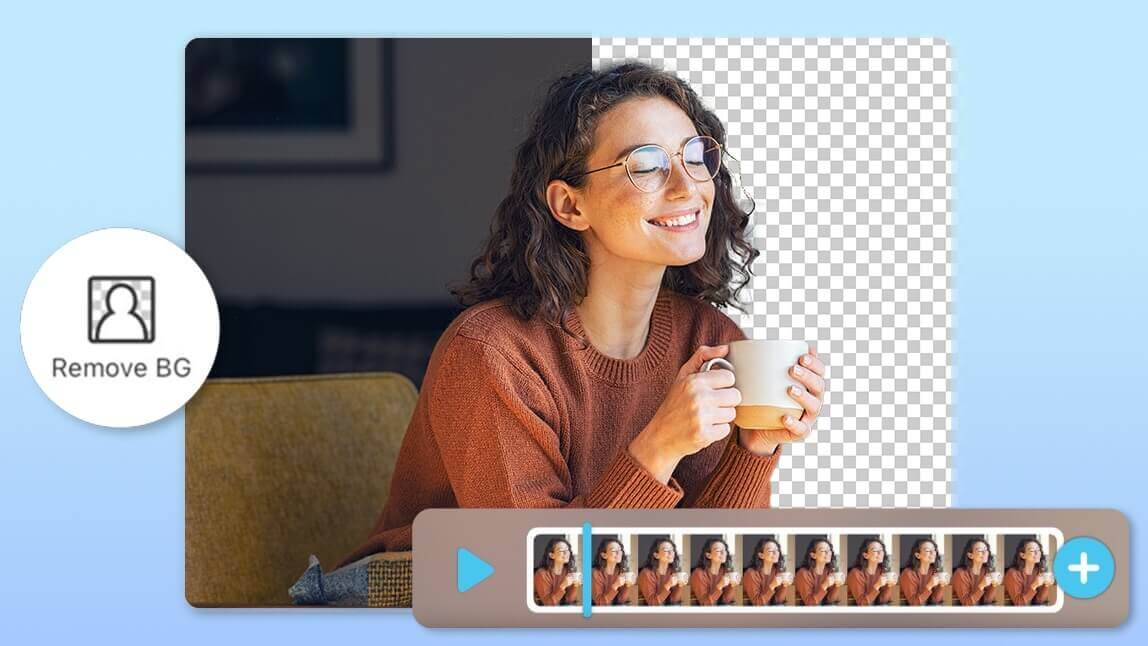
Simply upload your video to the app and select "Remove BG" to automatically erase the background.
Afterwards, you can add a new background to the video from either the app or your device.
- Step 1. Download YouCam Video
- Step 2. Upload a Video
- Step 3. “Remove BG” to Erase Video Background
- Step 4. Add a New Video Background
- Step 5. Save and Share the Video
Step 1. Download a Video Background Remover
Shared Materials by Strapi
*Adjust the size of images ONLY. Please go to Strapi to edit the materials info.
Download the YouCam Video app from the App Store and install it on your device to access its powerful video editing tools, including the Video Background Removal feature.
Step 2. Upload a Video
Open the YouCam Video app and select the option to upload the video that you want to edit from your device's gallery or camera roll.
Step 3. Tap “Remove BG” to Erase Video Background
Once the video is uploaded, locate and tap on "Remove BG" to initiate the AI-powered background removal process.
The app will automatically detect and remove the existing background, leaving the main subject intact.
Step 4. Add a New Video Background
Choose a new background from the app's library or upload a custom background to replace the background you've just revmoed.
Position and adjust the new background as needed to ensure a seamless integration with the main video content.
Step 5. Save the Video With a New Video Background
After finalizing the new background, tap the "Save" button to save the edited video with the new background.
The app will process the video with the updated background, allowing you to share or export the final result.
Tips for Better Video Background Removal
To make the background removal process more effective and efficient, consider implementing these essential tips for achieving a seamless and professional result.
Tip 1. Videos With Simple Background Color and Lighting
Opt for filming in environments with uncomplicated background colors and proper lighting to facilitate smoother background removal during the editing process.
Tip 2. Move Out Objects for a Clear Background
Ensure that any unnecessary objects are moved out of the frame to guarantee a clear and uncluttered background, making it easier for the software to accurately remove the background during editing
Tip 3. Maintain a Clear Distance
Position yourself or the subject at an optimal distance from the background to avoid unwanted blending during the removal process.
Tip 4. Check for Consistency
Ensure the subject's movements are consistent and avoid abrupt changes that might complicate the background removal process.
Download YouCam Video: the Best Video Background Remover
Shared Materials by Strapi
*Adjust the size of images ONLY. Please go to Strapi to edit the materials info.
Removing the background from your videos is a breeze with YouCam Video. Whether you’re a content creator, marketer, or just someone who loves making videos, this tool will help you create professional and captivating content. Download the app and start enhancing your videos with seamless background removal!
More Video Editing Tips and Ideas
- How to Add Auto Subtitles to a Video on iPhone
- How to Cartoonize a Video
- How to Enhance Video Quality on iPhone and Android
- 12 Best Free Green Screen Apps for iPhone and Android

![12 Best Green Screen Apps for iPhone & Android in 2025 [Free & Paid]](https://plugins-media.makeupar.com/smb/blog/post/2025-12-03/webp_3b79272e-3e01-4409-a181-234cdca73984.jpg)