Author:


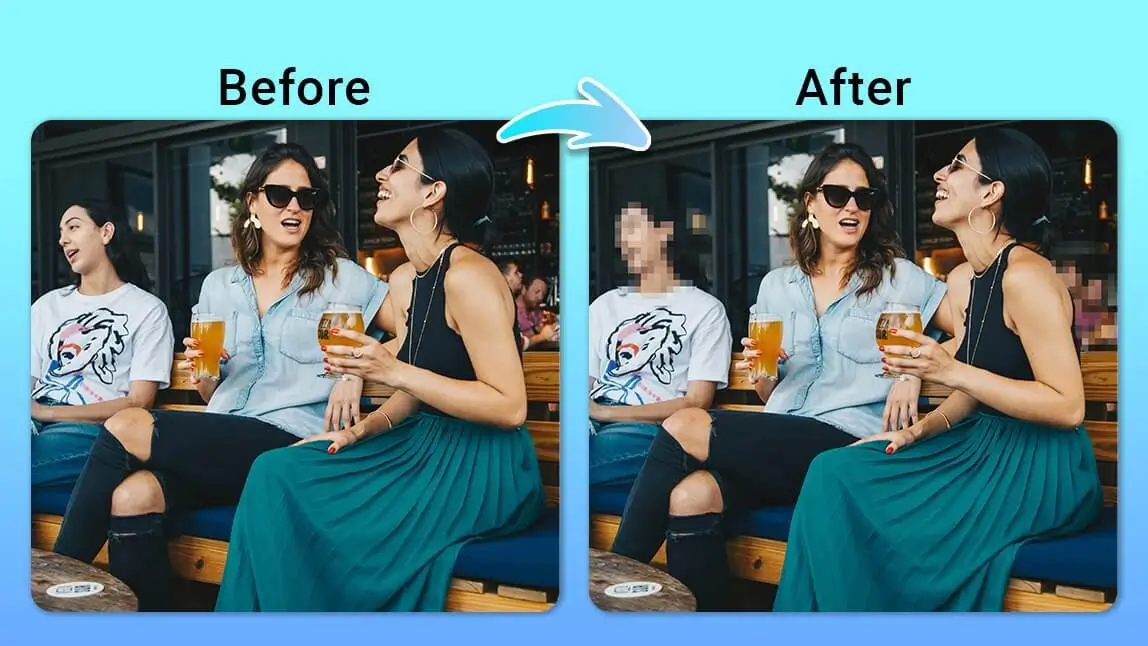
There are some occasions where you need to blur out faces in your video, whether it's footage of an interview or a crowd scene where you can't show everyone's faces.
This is exactly where a face blur video app comes into play. In this blog, we will show you how to blur faces in a video using YouCam Video. It also has an AI-powered auto-tracking feature, so the blur effect stays on the face no matter the movement. Let's dive in!
| Table of Contents |
|---|
How to Blur Faces in Video with YouCam Video
For those who have been struggling to find the right tool for censoring faces in video, you're in luck!

YouCam Video can automatically detect every face in the video and blur them out. Even better, the blurring effect will track facial movements, reducing the need for manual adjustments. Just follow these 5 simple steps to make it work.
Step 1: Open YouCam Video

First up, download YouCam Video and tap on the feature called ‘Mosaic Blur’.
Step 2: Upload Your Video

Choose a video you want to blur faces in. As soon as you click on the video, the app will automatically detect faces and blur them out.
Step 3: Try Mosaic Blur Effect
At this stage, the app will show you all the faces it has detected and blurred. You can click on each face to unblur it based on your needs.

Step 4: Adjust the Settings
Now, you have the option to adjust the Intensity or feathering of the blurring effect.
At the bottom, you'll find six different styles of blurring particles to apply to your video.

Step 5: Export Your Video
Once you are happy with the result and every face you want to blur has been blurred out, just export your video and save it to your device.
More Tips for Effective Face Blurring
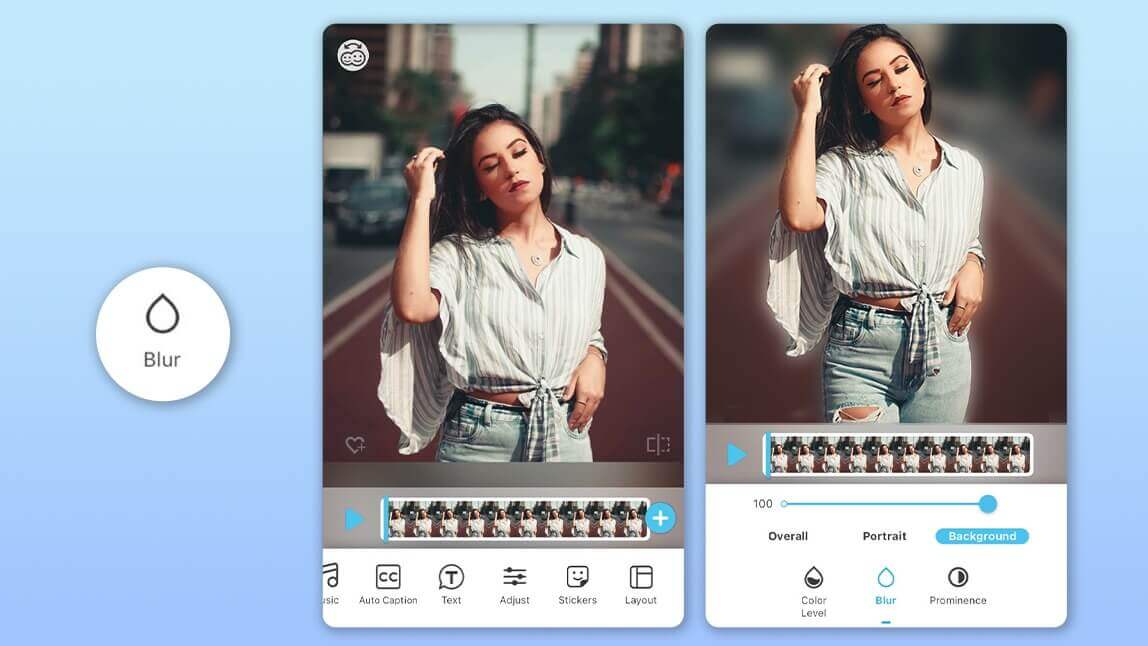
In the interface, you can see options to blur either the person or the background. This is helpful if you want to blur out either the whole person or just the background.
The portrait mosaic feature also includes automatic tracking, which can save you a lot of time by doing a frame to frame edit.
Why You Should Blur Faces in Videos
People often blur faces in videos to protect individual privacy and maintain confidentiality, particularly in sensitive situations or when featuring minors. By obscuring faces, creators can prevent the unauthorized use of personal images and help shield individuals from potential harassment or unwanted attention.
Additionally, blurring faces can shift the audience's focus away from the individuals and onto the main content of the video, such as events, products, or actions. This practice allows creators to convey their messages effectively while ensuring the privacy and safety of those featured.
Try Blur Faces in Videos Now
Ready to protect privacy in your videos?
Upload your footage now and blur any face automatically in just seconds.
Keep your content safe, professional, and share-ready — try it now!
More Blur Video Editing Ideas
- 7 Best Apps that Blur Faces in Videos (Honest Review)
- How to Blur Video Background on iPhone Free
- 3 Best Apps to Blur Video Background on iPhone