Author:


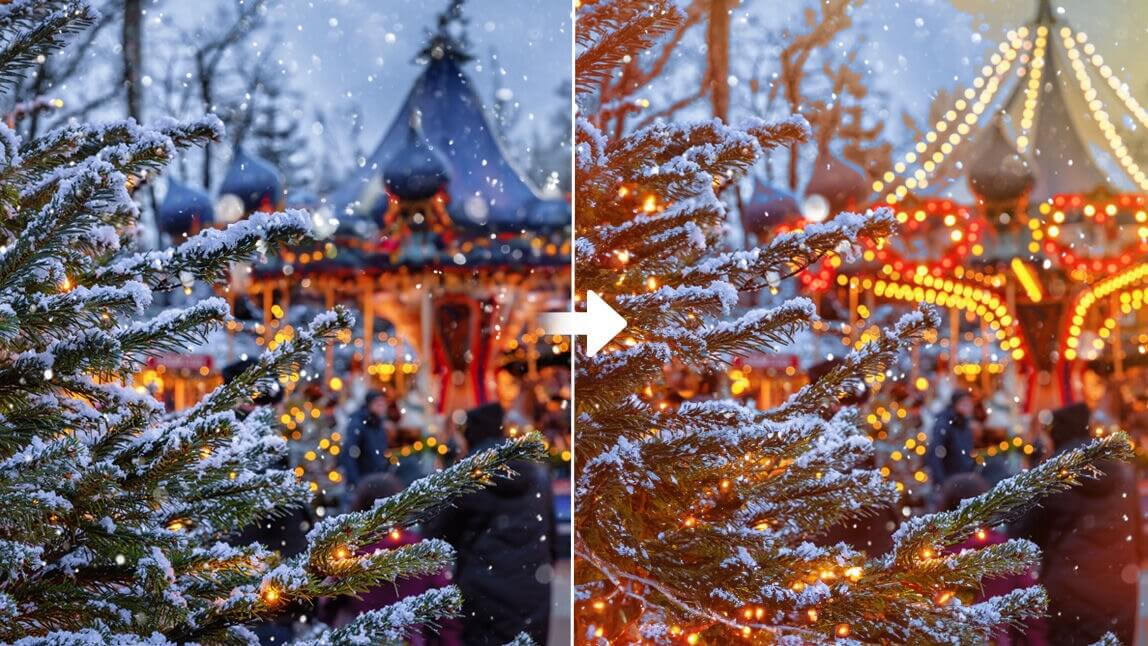
The holiday season brings families together, celebrates cherished traditions, and, most importantly, creates memories captured through photos. Adding a festive touch, such as glowing Christmas lights, can elevate these images to evoke warmth and joy.
Thanks to the AI Replace tool in YouCam Makeup, you no longer need advanced editing skills or complex software to add stunning effects.

Why Add Christmas Lights to Photo?
 Christmas light filters are popular for many reasons. They’re not just a visual upgrade; they bring a sense of magic and nostalgia.
Here's why they're a hit:
- Emotional Appeal: The twinkling of Christmas lights symbolizes warmth, hope, and festivity. Adding these effects to photos intensifies those feelings.
- Ease of Use: Modern tools like the AI Replace tool in YouCam Makeup make it accessible for everyone, regardless of skill level.
- Versatility: From selfies to group shots, these filters fit every type of photo, enhancing the holiday mood effortlessly.
How to Add Christmas Lights to Photo With Christmas Light Filter
YouCam Makeup is more than a beauty editor; it’s an innovative app that incorporates AI-powered tools for photo enhancements.
Here’s how you can use its Christmas light filter to add Christmas lights to your photos:
Step 1: Download YouCam Makeup
The app is available for both iOS and Android devices, ensuring compatibility with most smartphones.
Step 2: Upload an Image
For the best results, choose a well-lit photo and ideally make sure the image is clear and free of clutter. You can also use the AI Object Removal tool first to clean up your photo a little bit.

Step 3: Type in a Prompt

- “warm glowing fairy lights”
- “colorful Christmas string lights”
- “soft golden bokeh lights”
- “cool white winter lights”
- “multicolor holiday lights overlay”
- “sparkling Christmas fairy lights”
Experiment with different prompts until you get the look you like. The AI will seamlessly blend the lights into your image, creating a magical holiday scene in just a few taps.
Step 4: Save & Share Your Photo

Once you’re happy with the image, don’t forget to save your holiday masterpiece or share it directly on social media.
Bonus: Add “Merry Christmas” Text to Your Photo

If you want to make your holiday image even more festive, you can easily add Merry Christmas text or holiday-themed stickers using the YouCam Makeup app. Here’s how to do it:
- Step 1: Download the best Christmas photo editor.
- Step 2: Tap Photo Edit and upload the photo you want to edit.
- Step 3: Go to Edit and select Animation.
- Step 4: Scroll to find the Holiday collection.
- Step 5: Choose Effects or Stickers, then explore your favorite Merry Christmas text styles, animations, and festive sticker designs.
You’ll find a variety of seasonal text options such as glowing “Merry Christmas,” handwritten holiday greetings, sparkling accents, and other cheerful overlays to match your vibe.
Creative Ideas for Using Christmas Light Filter

Enhance Outdoor Holiday Scenes: Capture the beauty of decorated streets, Christmas trees, or snowy landscapes by overlaying lights that amplify their charm.
Social Media Ready: Tips for Sharing Your Edited Photos
- Use hashtags like #ChristmasMagic and #HolidayPhotos to gain visibility.
- Pair your photos with heartfelt captions to connect with your audience.
- Experiment with YouCam Makeup’s other features to add makeup effects or text overlays.
Add Christmas Lights to Photo with YouCam Makeup
With the AI Replace tool in YouCam Makeup, you can create breathtaking photos with magical Christmas lights. Whether you’re capturing intimate family moments or designing eye-catching social media posts, this innovative tool brings your festive vision to life.