Author:


'Tis the season for festive photo magic! Dive into the world of Christmas photo editing with the best Christmas photo editor and get into the holiday spirit with YouCam Makeup.
Discover how to add enchanting Christmas frames, borders, backgrounds and wallpaper to photos and make any photo Christmassy!
Christmas Photo Editor: 5 Ways to Make My Photo Christmassy
YouCam Makeup is the best Christmas photo editor to spruce up your photos and fine-tune them to get the exact holiday look you want.

1. Add Christmas Frames and Borders to Photos
Bring the magic to your pictures with a Christmas frame or border without overtaking the subjects in your photo. Decorate with Christmas-themed elements and spread the holiday cheer with creative illustrations and designs.

How to Add Christmas Frames and Borders
- Step 1: Download the best Christmas photo editor YouCam Makeup.
- Step 2: Tap "Photo Makeup".
- Step 3: Upload a photo from your gallery.
- Step 4: Tap the "Animation" tool for photo effects, "Background" for Christmas backgrounds and "Looks" for Christmas face filters.
2. Add 50+ Christmas Filters to Photos

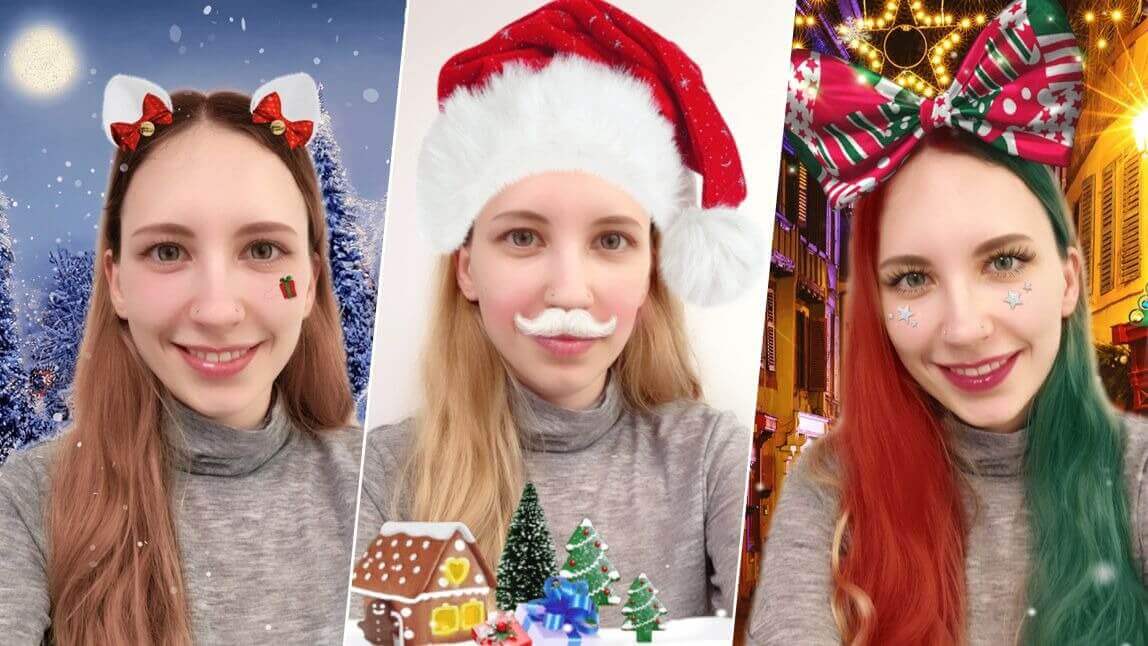
Experience the magic of the season with Christmas face filters. They're the perfect way to add some festive flair to your selfies.
Transform into a holiday character or enhance your features with joyful Christmas filters. From shimmering snowflakes to merry reindeer, the options are endless.

Christmas filters come with enchanting makeup looks and hair color filters, as well as cute accessories and backgrounds!
And if you're not quite satisfied with the results, you can always use the app's built-in face editing tools to make further adjustments.
3. Christmas Outfits for AI Christmas Photos

Get into the holiday vibe with YouCam Makeup's AI Christmas photo filters! Try them out to jazz up your photos with Christmas outfits and backgrounds using AI for a festive look that's super easy and fun.

Transform into a festive delight with YouCam Makeup's AI Avatar feature and create charming Christmas avatars in Reindeer, Santa, or Winter Wonderland styles.
How to Create Christmas Photos with AI Filters
- Step 1: Download the best Christmas photo editor YouCam Makeup.
- Step 2: Tap "AI Avatar" or "AI Fashion".
- Step 3: Choose 5 to 10 AI Christmas styles.
- Step 4: Upload your photo(s).
- Step 5: Let the AI generate your unique AI Christmas photos!
4. Add Christmas Frames and Borders to Photos
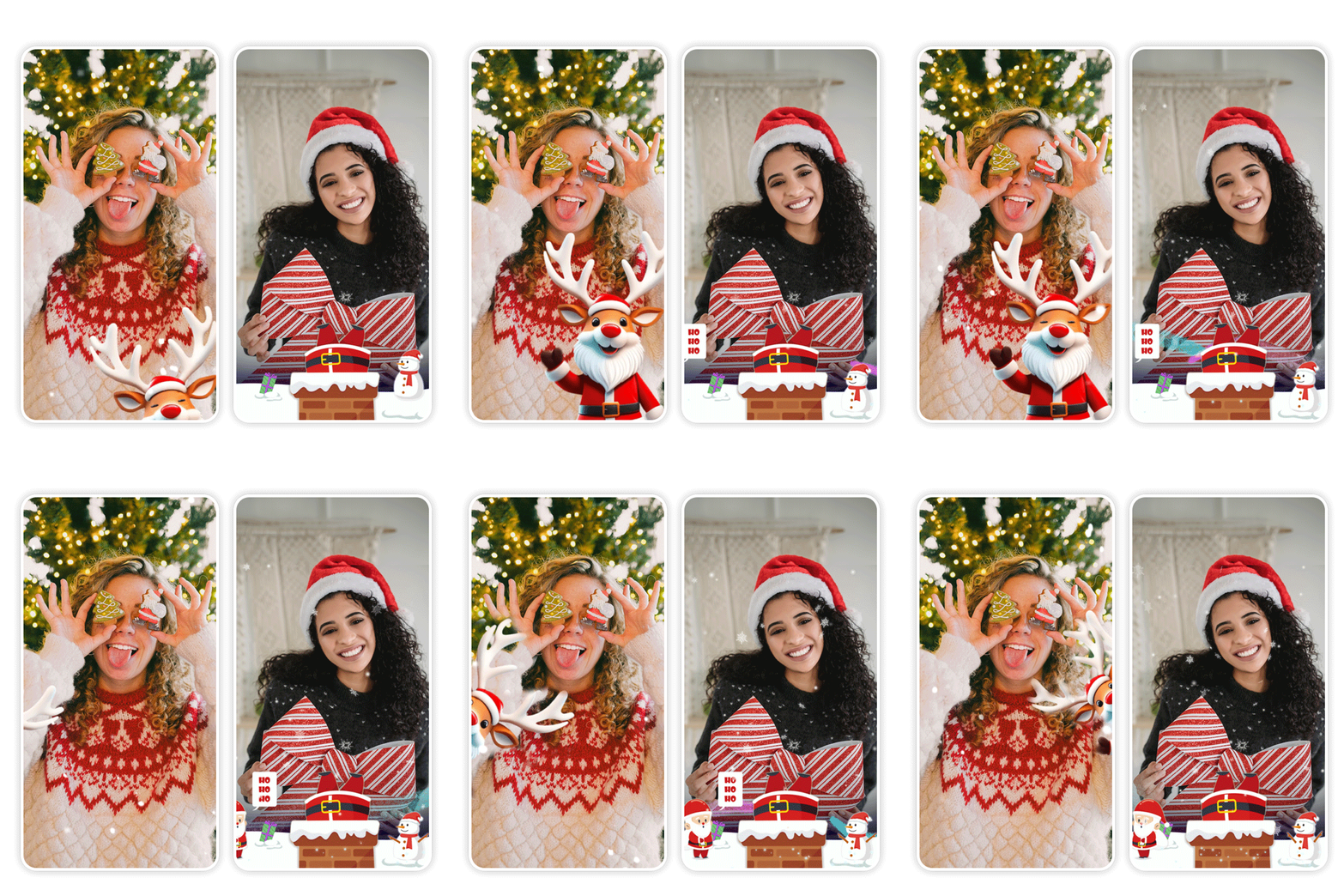
If you want to get really creative, you can use the app's advanced animation effects to create completely unique Christmas aesthetics.

Add moving mistletoes, animated Christmas lights, cute reindeers, adorable snowmen, falling snowflakes and more to your photos to get the perfect Christmas aesthetic.

5. Add Christmas Photo Backgrounds and Wallpapers
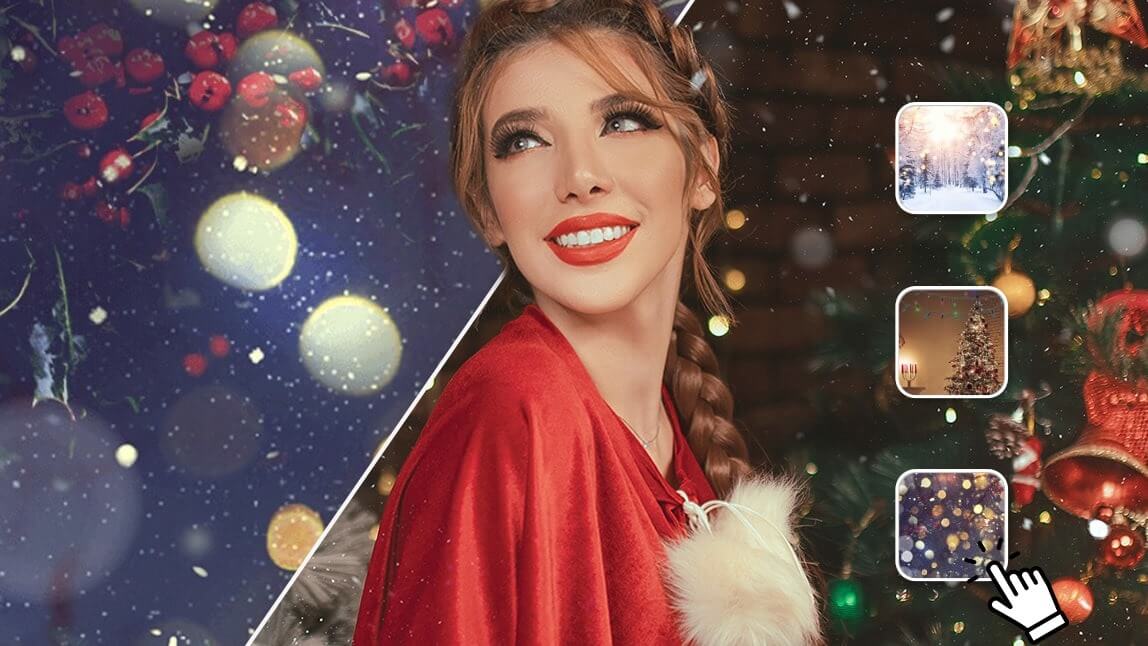
Elevate your holiday photos with YouCam Makeup's Christmas backgrounds!

Instantly transform your pictures into winter wonderlands with the best background changer app.

To use YouCam Makeup's Christmas backgrounds, simple open the app, tap "Photo Makeup" and then go to "Background" to choose from numerous magical Christmas backgrounds!
With its user-friendly interface, YouCam Makeup makes adding a touch of holiday magic to your photos quick, easy, and enchanting.
Best Christmas Photo Editor for AI Christmas Photos
YouCam Makeup is a free Christmas photo editor, available for iOS and Android. Try it today to add Christmas effects, backgrounds and filters to your photos!

More Christmas Photo Editor Ideas
- 3 Ways to Create AI Christmas Photos and Profile Pictures
- Best Christmas Background App: Add Christmas Backgrounds To Photo
- Best Christmas Filters For Your Christmas Photos & Selfies
- Best Christmas Filter Apps to Light Up Your Social Media