Author:


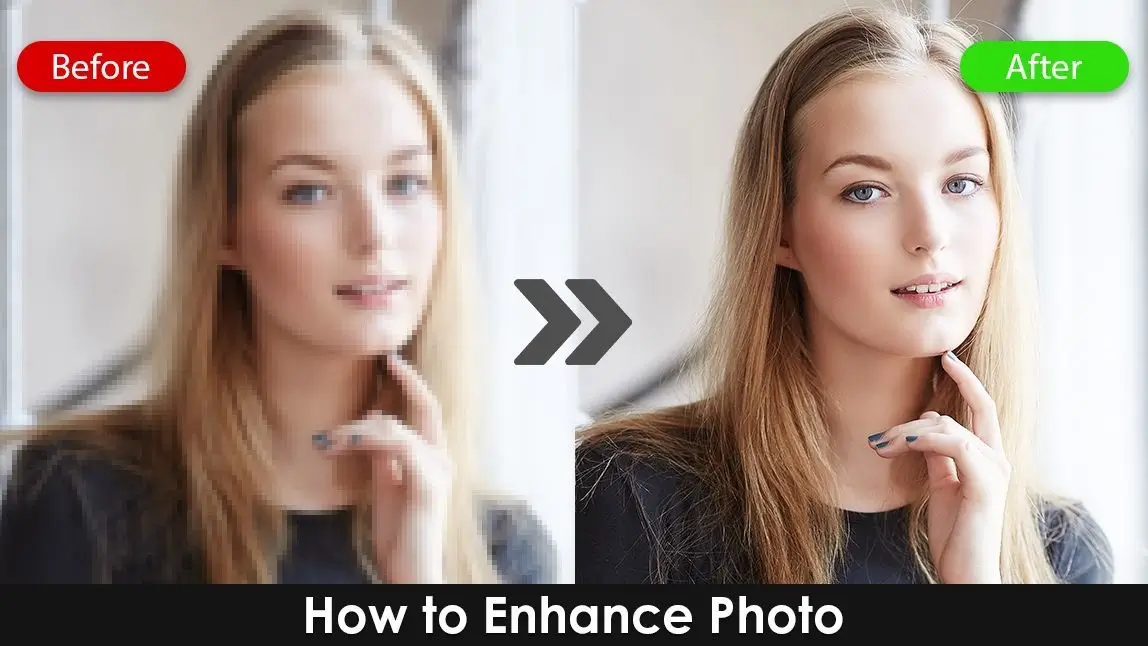
If you’ve ever taken a picture that should have been perfect, but ends up looking like it needs a pep talk - you're in the right place.
Today, you can get crisp, bright, distraction-free images straight from your phone with YouCam Enhance. Whether it's saving a backlit selfie, fixing a slightly chaotic background, or gently erasing that stranger who wandered into your shot right as you pressed the shutter, improving your photos is surprisingly easy.
Let’s break down how YouCam Enhance makes all of this quick, simple, and oddly satisfying.
Why Should You Enhance Photo Quality?
>
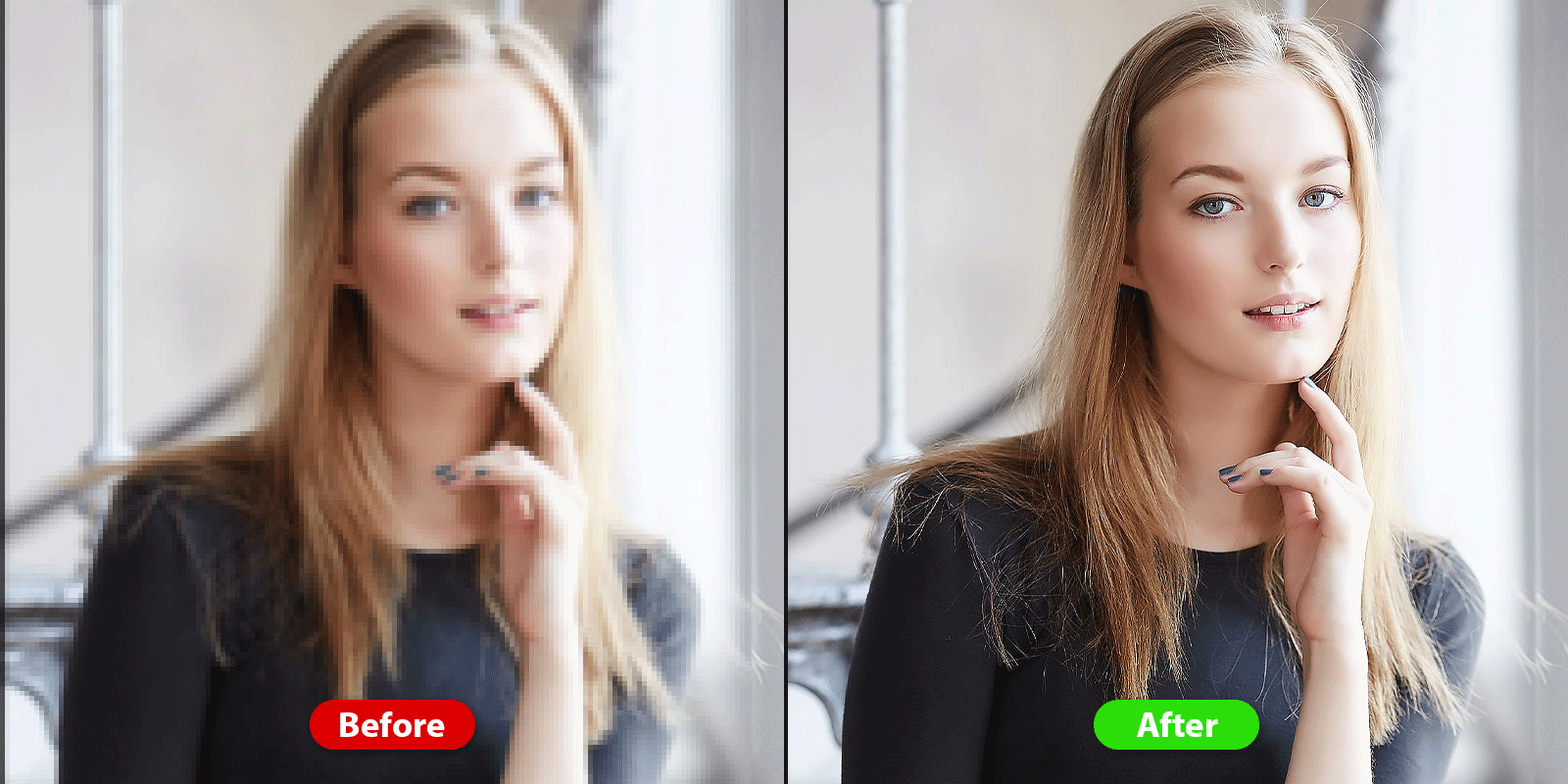
Not every photo you take will cooperate. That’s part of the charm of life and part of the chaos of smartphone photography.
Maybe the lighting was dramatic in a bad way, maybe your lens wasn’t as clean as you thought, or maybe your cat moved at the speed of light (again). Enhancing your photo means giving each image its best shot (literally).
Better lighting, sharper details, cleaned-up backgrounds, and removing little distractions can make the difference between posting confidently… and quietly sliding the photo into your “maybe someday” folder.
How to Enhance Photo: What Tools Actually Help?
YouCam Enhance offers a suite of beginner-friendly tools that work behind the scenes while you enjoy the results.
Here’s a quick look at the features you’ll lean on most.
AI Enhance (Your Instant Glow-Up Button)

AI Object Removal & Replace

AI Background Editing
Editing backgrounds isn’t just for creators. It's for anyone who wants cleaner, brighter, or more aesthetic images. Blur it, color it, swap it entirely, or refine what’s already there.
AI Lighting

How to Enhance Photo Step-by-Step
Here’s the part everyone loves: the quick guide. Enhancing your photos doesn’t have to feel like solving a puzzle.
Follow this simple process to get flawless results every time.
1. Download YouCam Enhance
Find YouCam Enhance in the App Store or Google Play. It’s lightweight, quick to install, and pretty much instantly ready to go.
2. Upload Your Photo
Open the app and tap to upload a picture from your gallery. Whether it’s a portrait, travel shot, food pic, or your pet doing something chaotic, everything works.
3. Navigate to AI Enhance
This is your image’s immediate spa treatment. Tap AI Enhance to automatically adjust clarity, lighting, and sharpness. In most cases, this one step already feels like a win.
4. Try Other Enhancement Tools
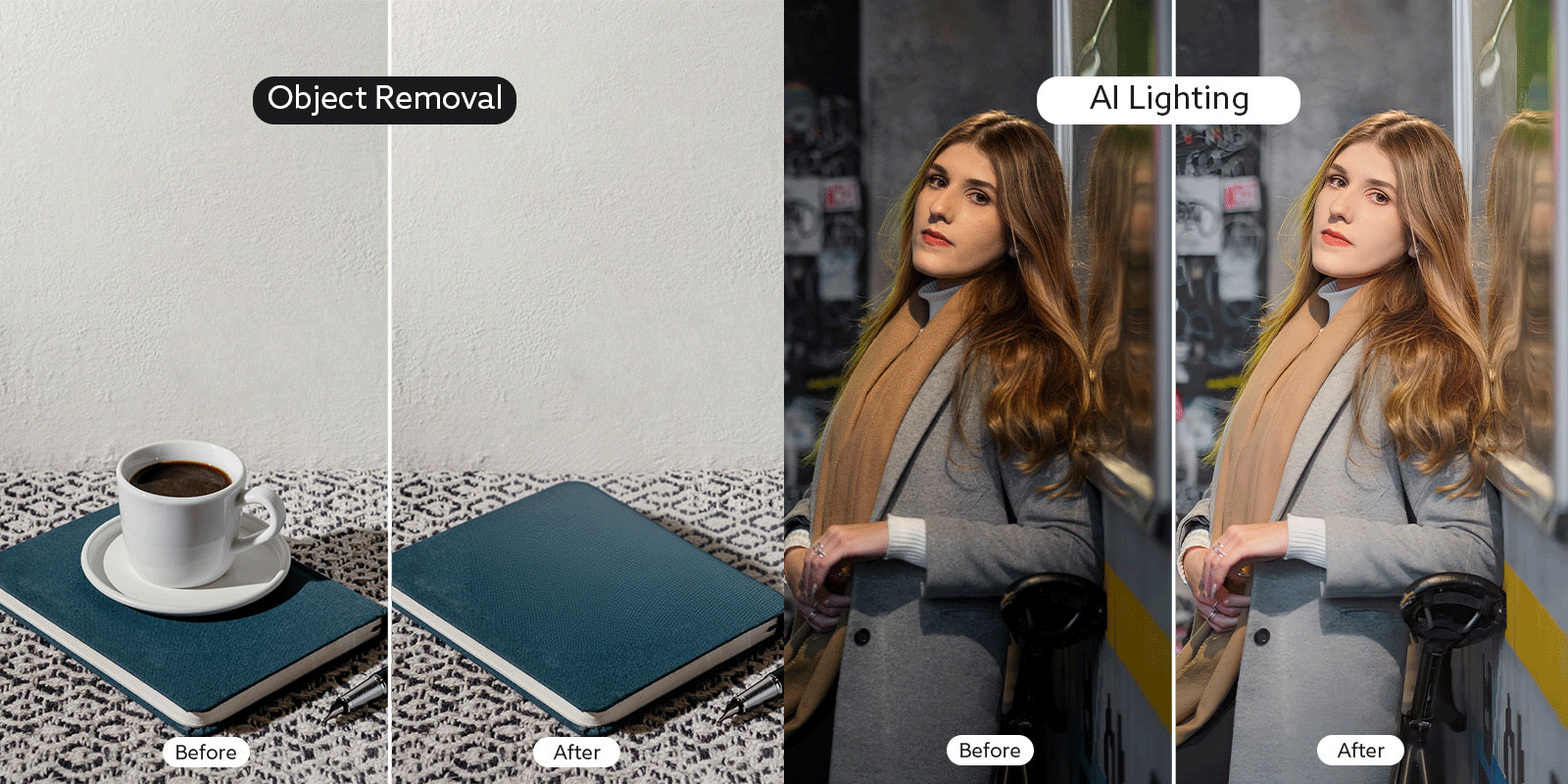
Here’s where you can level up your edit depending on what the image needs:
- Use AI Object Removal to erase unwanted items or people.
- Try AI Object Replacement if you want to swap an item for something more aesthetic.
- Adjust Lighting to give your picture the warmth, coolness, or balance it was missing.
- Modify the Background if your scenery needs a cleanup or a complete makeover.
Each tool is simple to use and designed to make editing feel fun rather than frustrating.
5. Save Your Enhanced Photo
Once you’re happy with the result (keep an eye out - it may be shockingly good), save the edited photo to your device. Share-ready, frame-ready, or simply ready to admire.
How to Enhance Photo Online

1. Visit YouCam AI Photo Enhancer page.
2. Upload Your Photo: Simply drag and drop your image onto the page.
3. Enhance Your Image: Select the "Enhance" option and let the tool automatically sharpen and improve your photo.
4. Save the Result: Download your upgraded image once the process is complete.
YouCam Online Editor offers a fast and convenient way to touch up your photos anytime, wherever you are.

Final Tips for Better Photos (Without Overthinking It)
- Keep your lens clean (yes, really - it's shocking how often this is the culprit).
- Don’t underestimate bright natural light.
- Take multiple shots; the best photo rarely comes from the first try.
- Aim to enhance, not overedit - YouCam Enhance makes subtle adjustments feel polished, not artificial.
Try YouCam Enhance Today
Enhancing your photos doesn’t have to be complicated. With quick tools for lighting, backgrounds, object removal, and instant clarity fixes, YouCam Enhance makes it incredibly easy to turn ordinary shots into flawless, share-worthy images.

![How to Fix Blurry Pictures [iPhone, Android & Online Tool]](https://plugins-media.makeupar.com/smb/blog/post/2025-12-24/webp_11e5c26a-6749-4aaa-9de1-90b9e9fd2eea.jpg)
![How to Unblur Text: 6 Best Ways to Make Blurry Text Clear [Online & App]](https://plugins-media.makeupar.com/smb/blog/post/2025-07-03/webp_22f6a32f-1fb6-4604-9936-f558f4fa506f.jpg)