Author:


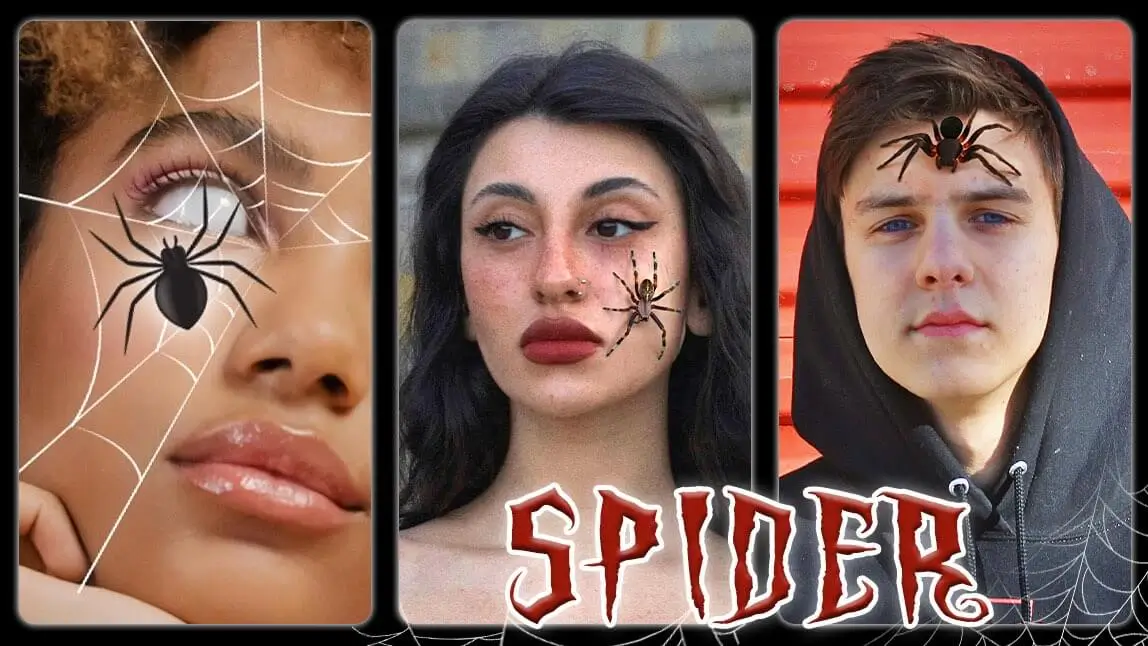
It’s no secret that photo filters have become a way for people to express their creativity. One trend that remains popular after its peak is the spider crawling on face filter.
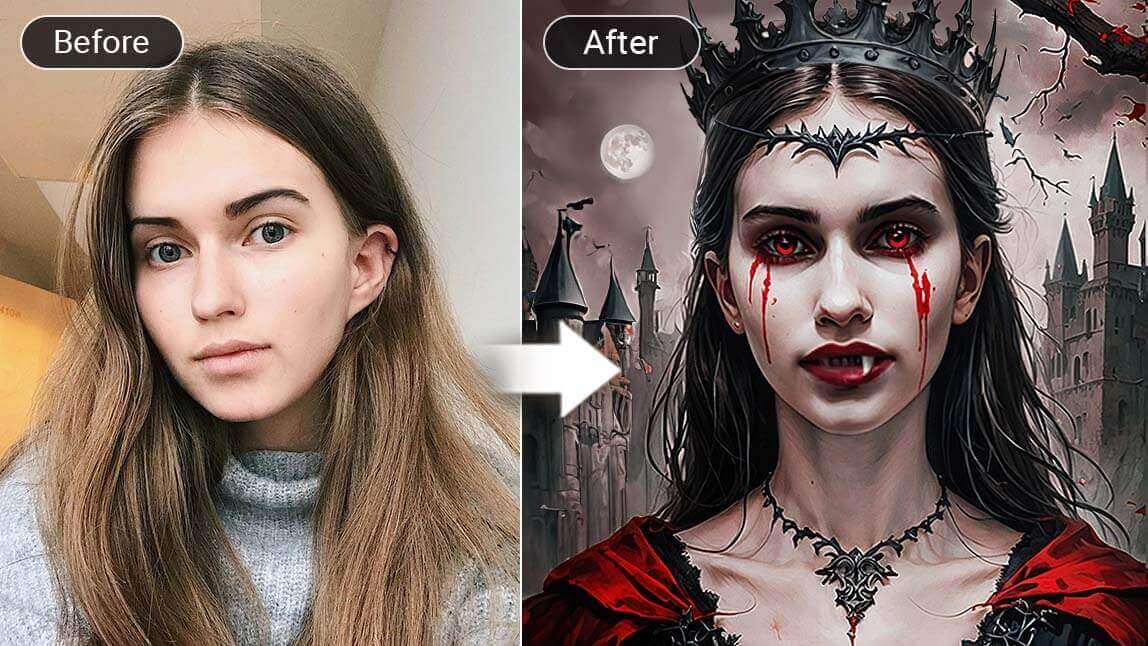
In this guide, updated for Halloween 2026 with my own test notes, I’ll explain how you can use the YouCam Perfect, a spider filter app to add a fun, creepy spider animation to your photos.
| Table of Contents |
|---|
🧪 How I tested this: For this Halloween 2026 update, I tried each spider option in YouCam Perfect on my own selfies — the spider web animation, the animated spider stickers and AI Replace. The animated stickers were the ones that actually made friends flinch, because the movement sells the scare in a way a still image can’t. Close-up, well-lit selfies worked far better than dim or wide shots, where the spiders looked small and easy to miss. I also found that a little restraint goes a long way: one well-placed spider was creepier than a face full of them.
Why Do People Love Spider Filters?

Spider filters have definitely gained popularity on social media, especially for their comedic and slightly spooky effect. The combination of surprise and humor makes them perfect for pranking friends and family. When someone suddenly "gets" a spider crawling on their face or appearing in their environment, it’s a mix of fright and laughter — exactly what makes for a viral moment.
Whether you want to prank your friends or add a spooky vibe to your selfie, spider filter or bug on face filter is a fun and unique way to transform your pictures.

How to Get Spider Crawling on Face Filter
YouCam Perfect isn’t just another photo editing app—it’s a powerhouse of creative tools. The app allows users to apply stunning effects, including the highly popular spider crawling on face filter, while maintaining ease of use.
So, here’s what you need to do:
Download YouCam Perfect
Open the App Store or Google Play Store and search for YouCam Perfect. Then, click the Install button.
Once downloaded, open the app and follow the on-screen instructions to set it up.

Choose a Photo
Select the photo you want to edit or take a new one using the app’s camera.
Add Spider Web Animation
- Click your way through 'Animation' and 'Effects'.
- And then go to ‘Holidays’ category.
- Scroll until you find the spooky spider filter animation.
- Adjust the spider filter settings to your liking, including animation speed.

Whether you're adding the spider animated effect to a group photo, a landscape shot, or even a selfie, it instantly adds a layer of excitement and creativity.
🧪 My test notes: The web animation looked most natural when it framed the edge of the photo instead of covering my face. A slower speed felt eerier to me than a fast one, which read as more cartoonish. Darker backgrounds made the web stand out much better than bright, busy ones.
Try Spider Crawling on Face Filter
Want even more spiders in your photo?
Navigate to ‘Stickers’ under ‘Animation’ and choose the ‘Holidays’ category. Here you have three creepy spider filter options for scary photo edits.
 You can resize and reposition the spider animated sticker on the image, making it fully customizable. You can enlarge the spider for a more dramatic effect or make it smaller for a subtle touch. You can also tweak the speed of the spider’s movement.
Slower animations tend to be creepier, while faster animations add a playful touch. Experiment to find the perfect balance!
🧪 My test notes: Placement made all the difference. A spider coming in from the hairline or the edge of the cheek looked like it was really crawling onto my face, while one dropped in the middle of my forehead looked pasted on. Sizing it down slightly also made it more believable.
Add Spider Filter or Bug on Face Filter with AI Replace

Whether you want a spider tattoo on your face or a realistic spider crawling across your cheek, this feature makes it happen with just a few taps.
Simply type your prompt, and the AI will generate the spider design directly onto your image, blending seamlessly with your look.

🧪 My test notes: AI Replace gave me the most realistic-looking spiders, but the prompt mattered. Describing the spider — for example, a hairy black spider on a shoulder — gave much better results than just typing “spider.” It’s a still result, so I used it for profile pictures and the animated stickers for pranks.
Save Your Spider Filter Photo
Once you're satisfied with your spider filter photo, don’t forget to hit the Save button.
Creative Ways to Use the Spider Filter on Social Media
Social media is a great platform for showing off your creativity with the spider filter. Here are some ideas:
🎃 Instagram Stories: Use the filter in a series of photos as a prank.
🎃 Snapchat Snaps: Send a snap to prank your friends using the spider filter.
🎃 Facebook Profile Pictures: Change your profile picture to a spooky, spider-filtered image.

🧪 My test notes: The reveal worked best as a sequence: a normal selfie first, then the spider version right after. Posting the spider photo on its own got a smaller reaction than setting up the surprise.
Unleash Your Inner Arachnophobe with TikTok Spider Filter
As we wrap up our exploration of spider filters, it’s hard to ignore the buzz around the TikTok spider filter.
This eerie effect allows users to playfully host giant, realistic spiders that crawl across their faces, making it perfect for pranking others.
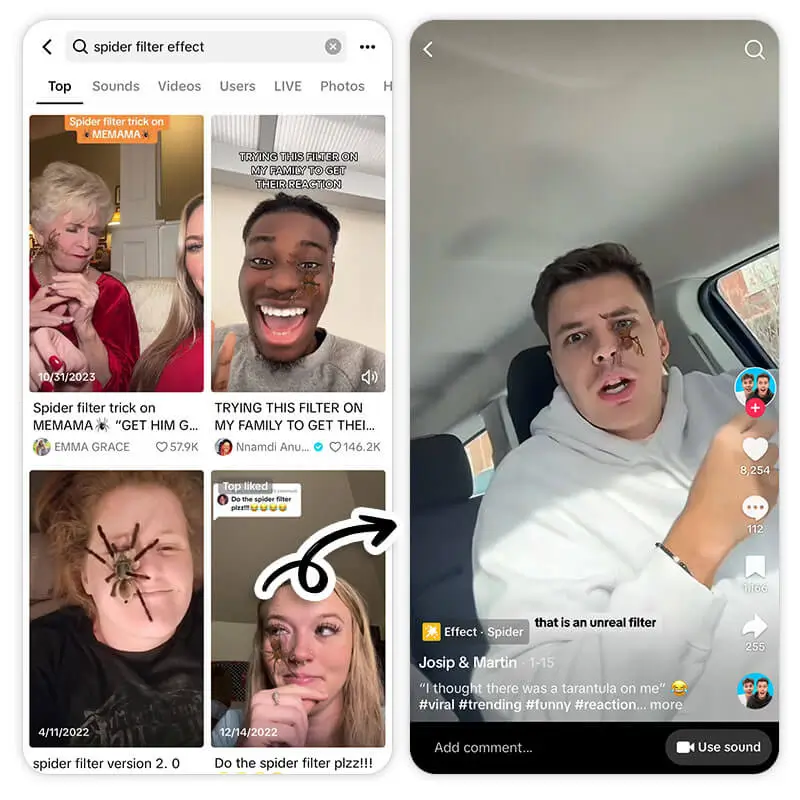
🧪 My test notes: A live video filter and a photo edit do different jobs. For a quick reaction video, a live effect is hard to beat; when I wanted a polished image I could reuse as a profile picture or Story, editing a photo in YouCam Perfect gave me more control over where the spiders went.
Add Spider Filter Animation to Your Pictures with YouCam Perfect
YouCam Perfect’s spider filter animation is a fantastic way to add a spooky, animated touch to your photos. With its easy-to-use interface and customizable features, it’s a tool that both casual users and professional photo editors can enjoy.
If you're looking for ways to create fun posts or enhance your social media presence, the spider animation offers endless creative possibilities.
Don't miss out—download YouCam Perfect and start creating today!
Spider Filter Options Compared: Which Option Is Best?
Each spider effect in this guide suits a different goal. Here’s how they compare after testing them.
| Option | Best For | My Verdict |
|---|---|---|
| Spider web animation (YouCam Perfect) | Spooky atmosphere around your photo | Subtle and moody; best as a frame rather than the main scare |
| Animated spider stickers (YouCam Perfect) | Pranks and “spider on my face” reveals | My top pick for scares; adjustable size, position and speed |
| AI Replace spiders (YouCam Perfect) | Realistic spiders blended into a still photo | Most realistic look; detailed prompts matter |
| TikTok spider filter | Live reaction videos recorded on the spot | Great for in-the-moment video; less control over placement afterward |
Verdict: For a classic spider-crawling-on-face prank photo, start with YouCam Perfect’s animated spider stickers. Use AI Replace when you want a realistic still image, and add the web animation as a finishing touch for extra Halloween atmosphere.
New for Halloween 2026: Spiders Are Everywhere This Season
Spider-Man is among this year’s most popular Halloween costume trends after returning to the big screen (Source: Yahoo Shopping, September 28, 2026), and spiderwebs are back as a go-to Halloween decor trend (Source: Yahoo Lifestyle, September 29, 2026). A spider-crawling edit fits right in with this season’s spooky feeds.
What Real Users Say
Here’s what App Store reviewers have said about YouCam Perfect’s effects and editing tools — the good and the constructive.
"Newer features include a mirror tool, new animated effects like rainbow lights, improved auto-detect (giving you sharper cut-outs for your portraits), and a range of new beautify presets and animated stickers and effects for premium members." — AJ$212, ★★★★★ (App Store review)
"you can make your eyes a different color but I think it looks a little flaky. It does a nice job whitening teeth as long as you don’t overdo it." — Stefanie0320, ★★★★★ (App Store review)
Pro Tips for Better Results
- Start with a bright close-up: A well-lit, front-facing selfie leaves room for spiders to crawl and makes them easy to see.
- Enter from the edges: Place spiders at the hairline, jaw or shoulder so they look like they’re crawling onto you, not pasted on.
- Slow it down: A slower animation speed tends to feel creepier and more realistic than a fast, jittery one.
- Less is more: One or two well-placed spiders usually beat a crowded screen.
- Be specific with AI prompts: Describe the spider’s size, color and where it sits for more realistic AI Replace results.
- Check before you post: Preview the saved file to make sure the animation plays as expected on the platform you’re sharing to.
Want more spooky edits? Try AI Replace in YouCam Online Editor to add creepy details on desktop, or get inspired by these Halloween photoshoot ideas.