Author:


Your Discord PFP (Profile Picture) is your first impression in every chat, server, and DM. Whether you're gaming, networking, or just vibing in your favorite community, having a sharp, stylish, and properly sized profile pic matters more than you think
Let’s break down how to optimize your PFP the right way and why the YouCam Perfect app is your secret weapon for creating profile pics that turn heads.
What is a Discord PFP?

Your PFP on Discord is your visual identity. It’s the small image next to your username that appears everywhere: servers, messages, friend lists, and more. Think of it as your personal logo. A good one can:
- Reflect your personality
- Show off your style or brand
- Help you stand out in a crowd
Why Optimize Your Discord PFP?
Well, looking pixelated is certainly not the vibe. Optimizing means:
- Clearer visuals on all screen sizes
- Faster load times
- Better aesthetic appeal
- Stronger branding if you’re a creator, gamer, or community leader
Ideal Discord PFP Size
Let’s get specific. The perfect size for your Discord profile picture ensures your image looks clear and crisp on all devices.

Official Size Requirements (2025 Update)
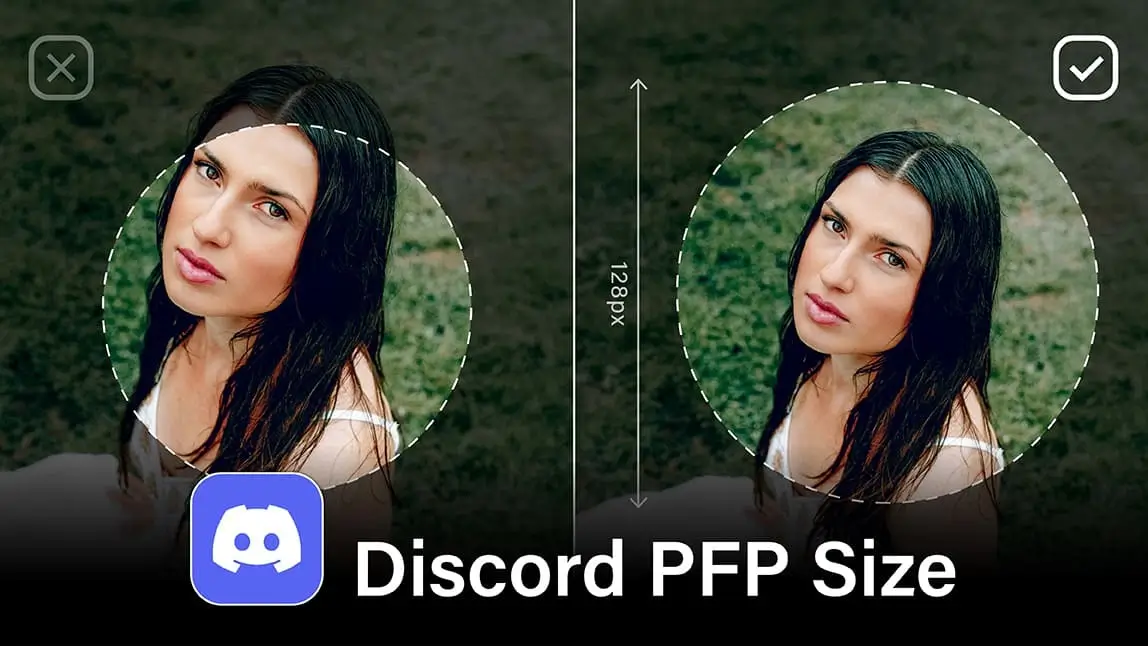
- Recommended dimensions: 128 x 128 pixels
- Minimum size: 80 x 80 pixels
- Maximum file size: 8 MB (for static images)
Aspect Ratio
- Stick with 1:1 (square) for best results
- Anything else risks awkward cropping or pixelation
Want a quick trick? Start with a 512 x 512 image and let Discord scale it down. That way, you get top-notch quality.
Supported File Types for Discord PFP
Discord allows several formats, but choosing the right one helps your image shine:
- PNG: Best for sharp quality
- JPG/JPEG: Good for photos, but some compression
- GIF: Used for animated PFPs (requires Nitro)
Pro tip: If your image has a transparent background, use PNG to preserve that look.
Mobile vs Desktop: Why Previewing Matters
Your Discord profile picture may appear slightly different depending on the platform. On mobile, the PFP circle can crop tighter around the edges compared to the desktop view.

Make sure to:
- Keep key elements (like your face or logo) centered
- Preview your PFP on both devices
- Avoid putting important details too close to the edge
Using a Discord PFP size converter like YouCam Perfect ensures your image looks great no matter where it’s viewed.
YouCam Perfect: Best Discord PFP Resizer
Want to level up your Discord profile picture from “meh” to “masterpiece”? Look no further than YouCam Perfect, the ultimate Discord PFP resizer and photo editor that makes your profile shine without needing any fancy Photoshop skills. It’s free, easy to use, and packed with tools to help you create a polished, eye-catching image.
Here’s how to get started:
- Download YouCam Perfect
Grab the app for free on both iOS and Android.

- Upload Your Photo
Choose your favorite selfie, pet pic, or any image you want to turn into your new Discord PFP.
- Step 3: Crop & Resize
Tap into the Crop & Rotate tool and select the 1:1 aspect ratio, which is the perfect size for Discord’s profile picture format. (This acts as a Discord PFP size converter too!)

- Remove or Replace the Background
Want a clean, minimalist look? Use the background removal tool for a crisp cutout. Or, swap in a custom background in just a few taps to match your vibe.
- Add Filters and Text
Give your photo a unique aesthetic with subtle filters or creative text: just keep it stylish, not overdone.

- Save and Upload
Once your image is picture-perfect, save it and upload it directly to Discord. Boom - new vibe, upgraded profile.
Whether you're going for edgy, artsy, or straight-up cute, YouCam Perfect makes it super easy to create the perfect Discord PFP in minutes.
Common Mistakes to Avoid
You might be sabotaging your PFP without knowing it. Avoid these:
- Uploading blurry or low-res images
- Using rectangular images that get awkwardly cropped
- Having too much text or too small elements
- Not checking how it looks on dark mode vs light mode
Create a PFP You’re Proud to Share Using YouCam Perfect
Your Discord PFP isn’t just a picture, it’s your identity in every conversation, raid, or server. With the right size, format, and tools like YouCam Perfect, you can create something that’s uniquely you.
Take a few minutes, play around, and upload a pic you’re actually proud of. Your future friends, teammates, and followers will thank you.