


 Author:


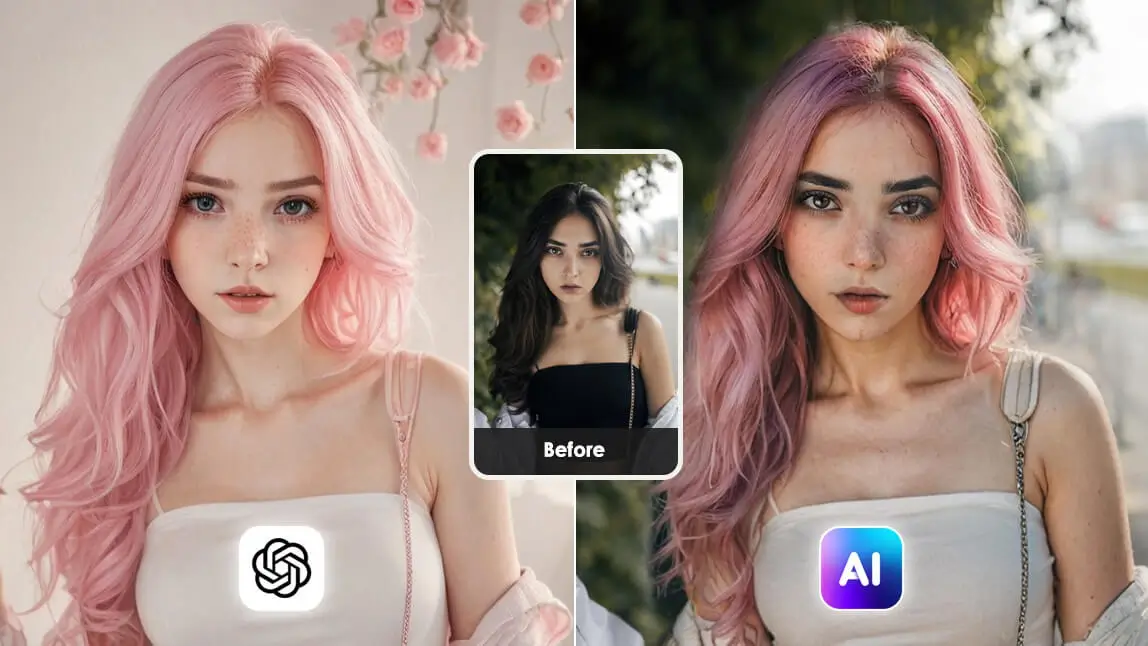
Have you ever tried editing a photo with ChatGPT, only to find it transformed your face into someone else’s? It’s frustrating, right? You’re not alone.
Across social media, users are buzzing about how ChatGPT’s image generation often tweaks facial features in unexpected ways, leaving them with results that don’t quite look like “them”.
Don’t worry—there’s a solution! In this blog, we’ll dive into why this happens, and show you how to keep your face intact using the best AI image editor out there: YouCam AI Pro. Ready to take control of your photo edits? Let’s get started!

Face-Preserving Prompt Builder
Pick what you want to change and how strong, and copy a ready-made prompt. These prompts are starting points, not guarantees. Prefer plain text? The face-preserving prompt lists further down cover the same ground.
1. What do you want to change?
2. How strong should the change be?
Age, subtle change
Copy this prompt into ChatGPT:
Make me look slightly older. Keep my face, skin texture, eye shape, nose and jawline exactly as in the uploaded photo. Do not change anything else.
Prefer not to rely on prompts? Try the same edit in a face-preserving editor.
Try the YouCam AI Pro alternativeAge, medium change
Copy this prompt into ChatGPT:
Make me look somewhat older. Keep my face, skin texture, eye shape, nose and jawline exactly as in the uploaded photo. Do not change anything else.
Prefer not to rely on prompts? Try the same edit in a face-preserving editor.
Try the YouCam AI Pro alternativeAge, strong change
Copy this prompt into ChatGPT:
Make me look noticeably older. Keep my face, skin texture, eye shape, nose and jawline exactly as in the uploaded photo. Do not change anything else.
Prefer not to rely on prompts? Try the same edit in a face-preserving editor.
Try the YouCam AI Pro alternativeHair, subtle change
Copy this prompt into ChatGPT:
Change my hair color to a subtle, natural shade. Keep my face, skin texture, eye shape, nose and jawline exactly as in the uploaded photo. Do not change anything else.
Prefer not to rely on prompts? Try the same edit in a face-preserving editor.
Try the YouCam AI Pro alternativeHair, medium change
Copy this prompt into ChatGPT:
Change my hair color to a clearly different shade. Keep my face, skin texture, eye shape, nose and jawline exactly as in the uploaded photo. Do not change anything else.
Prefer not to rely on prompts? Try the same edit in a face-preserving editor.
Try the YouCam AI Pro alternativeHair, strong change
Copy this prompt into ChatGPT:
Change my hair color to a bold, bright shade. Keep my face, skin texture, eye shape, nose and jawline exactly as in the uploaded photo. Do not change anything else.
Prefer not to rely on prompts? Try the same edit in a face-preserving editor.
Try the YouCam AI Pro alternativeExpression, subtle change
Copy this prompt into ChatGPT:
Give me a slight smile. Keep my face, skin texture, eye shape, nose and jawline exactly as in the uploaded photo. Do not change anything else.
Prefer not to rely on prompts? Try the same edit in a face-preserving editor.
Try the YouCam AI Pro alternativeExpression, medium change
Copy this prompt into ChatGPT:
Give me a relaxed, natural smile. Keep my face, skin texture, eye shape, nose and jawline exactly as in the uploaded photo. Do not change anything else.
Prefer not to rely on prompts? Try the same edit in a face-preserving editor.
Try the YouCam AI Pro alternativeExpression, strong change
Copy this prompt into ChatGPT:
Give me a big, open smile. Keep my face, skin texture, eye shape, nose and jawline exactly as in the uploaded photo. Do not change anything else.
Prefer not to rely on prompts? Try the same edit in a face-preserving editor.
Try the YouCam AI Pro alternativeStyle, subtle change
Copy this prompt into ChatGPT:
Add a light change to my outfit only. Keep my face, skin texture, eye shape, nose and jawline exactly as in the uploaded photo. Do not change anything else.
Prefer not to rely on prompts? Try the same edit in a face-preserving editor.
Try the YouCam AI Pro alternativeStyle, medium change
Copy this prompt into ChatGPT:
Change my outfit to a different style. Keep my face, skin texture, eye shape, nose and jawline exactly as in the uploaded photo. Do not change anything else.
Prefer not to rely on prompts? Try the same edit in a face-preserving editor.
Try the YouCam AI Pro alternativeStyle, strong change
Copy this prompt into ChatGPT:
Change my outfit and the background completely. Keep my face, skin texture, eye shape, nose and jawline exactly as in the uploaded photo. Do not change anything else.
Prefer not to rely on prompts? Try the same edit in a face-preserving editor.
Try the YouCam AI Pro alternativeWhy Does ChatGPT Change My Face?
ChatGPT's image generation builds a new image from your photo and your request, so when you ask for an edit it can redraw parts of the picture, including your face. OpenAI's current model, ChatGPT Images 2.5 (GPT-Image-2.5), launched on September 8, 2026. OpenAI says it is better at changing only what you ask for and at keeping people recognizable from reference photos. That does not guarantee your face comes out unchanged, so always compare the result with your original. Last updated: October 13, 2026.
How do I keep my face the same in ChatGPT?
To keep ChatGPT (ChatGPT Images 2.5) from changing your face, use identity-lock prompts such as: "Preserve original facial landmarks and bone structure exactly. Do not alter eye shape, jawline, or skin texture." If you need tighter control over one area of a photo, a dedicated editor like YouCam AI Pro may be a better fit.
The ChatGPT Common “Face Change” Frustrations

If you’ve hopped on the AI image editing trend, you’ve probably noticed ChatGPT’s knack for creating stunning visuals. But there’s a catch: when you ask it to tweak a photo—like changing your outfit or background—it sometimes decides to “reimagine” your face entirely.
Users often encounter:
- Minor edits that drastically change their facial appearance.
- ChatGPT generating an entirely different face than the original.
- Challenges maintaining facial identity in headshots or professional photos.
This issue has sparked plenty of chatter online, especially on platforms like Reddit and Threads, where users vent about their edited selfies looking like strangers. It’s not just a minor glitch; it can derail your creative vision, especially if you’re aiming for a professional headshot or a personalized social media post.
The ChatGPT Face-Changing Issue Example

Picture this: you’ve got a great photo, and you want to do some minor edits to it. You upload the photo to ChatGPT and prompt it: “Change hair color to black.” Sounds simple, right? But when the result pops up, your face looks… off.
This kind of experience is all too common. Users love the idea of AI-powered editing but hate losing control over their appearance. The good news? There’s a better way to edit your photos without sacrificing your face.
Pro-Level 2026 ChatGPT Prompts for Face Preservation
To prevent ChatGPT from changing your facial features, use explicit instructions like "do not alter facial structure," "preserve original features," and "do not change face," often in all caps, alongside your image upload.
Key Prompting Strategies
- Without changing my facial features AT ALL.
- Preserve original facial features and skin texture.
- DO NOT alter my freckles/eye shape/nose.
- Keep the face identical to the reference image.
Face-preserving prompts:
- “Edit this photo without changing my facial features ChatGPT prompt.”
- “Keep my original face intact while changing hair, background, or style.”
- “Do not alter eyes, nose, jawline, or other facial contours.”
- “Chat GPT photo editing prompt: preserve facial identity exactly as in the reference photo.”
These prompts guide ChatGPT to focus on style changes instead of altering your facial identity.
How to Avoid ChatGPT from Changing Your Face: Meet YouCam AI Pro
Say goodbye to unwanted face swaps with “YouCam AI Pro”, the ultimate AI image editor app designed to give you precise control over your photo edits. Unlike ChatGPT, YouCam AI Pro’s “Image to Image” feature will keep your face the same as your reference photo. No matter which style you select, this Face Mode ensures your face stays “you”.
- Nano-Banana Pro Model: A specialized model optimized for hyper-realistic skin textures, preventing the "plastic" look common in GPT-generated images.
- AI Replace with Precision Masking: Manually swipe over an outfit or hair to change it while the AI Beauty Agent ensures your face remains 100% "you."
Here’s how to get started with YouCam AI Pro:
Step 1. Download the Best AI Image Editor App: YouCam AI Pro

AI Image & Video Generator App
Turn Fantasy into Reality instantly.
Supports Text-to-Image & Image-to-Video.
Head to your app store and download the app. It’s available for both iOS and Android, making it super accessible.
Step 2. Tap "AI Photo" & "Image to Image

Step 3. Select AI Model & Upload Your Photo

YouCam AI Pro now supports the leading AI models in the market, and select the one you prefer.
We highly recommend Nano Banana Pro to prevent changing your face.
Step 4. Enter Prompts to Guide AI

- Type in a clear prompt to tell the AI what you want.
- Be specific to get the best results.
- Add the magic prompts to avoid face changing: Without changing my facial features AT ALL./ Preserve original facial features and skin texture./ DO NOT alter my freckles/eye shape/nose./ Keep the face identical to the reference image.
Step 5. Generate & Save

Hit the generate button, review your edited photo, and save it to your device. You’ll be amazed at how seamlessly YouCam AI Pro blends your changes while keeping your face true to you
ChatGPT Photo Trend: ChatGPT Caricature Trend

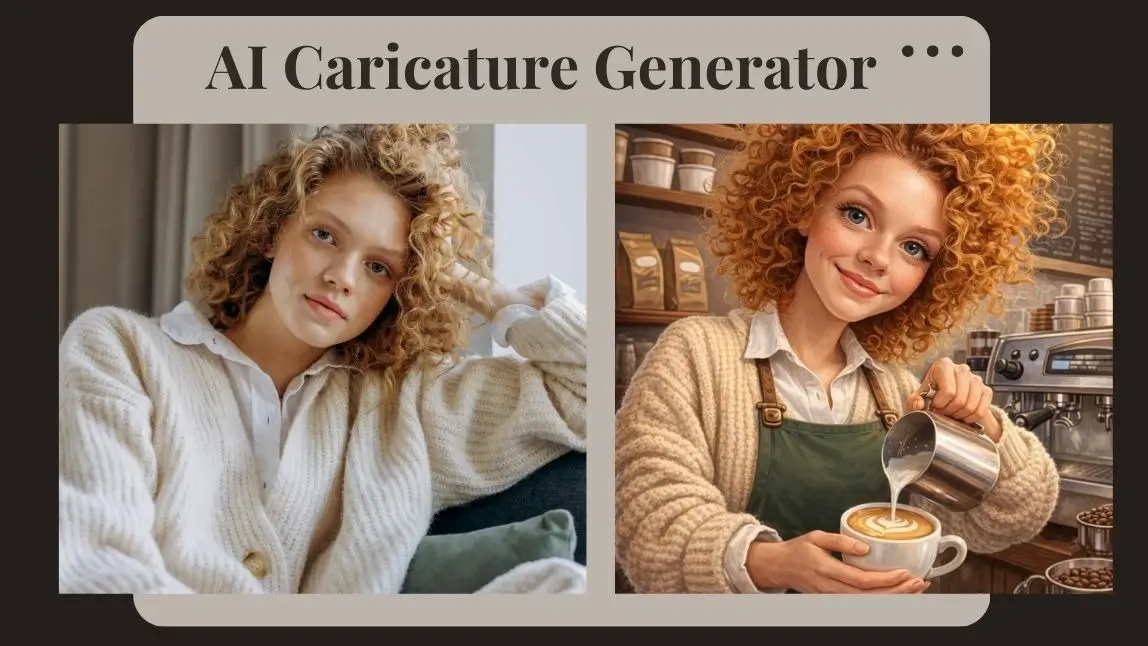
A major trend emerging in ChatGPT photo editing is AI‑generated caricatures — playful, exaggerated portraits that reflect your personality, profession, or interests. Early 2026 saw this trend go viral on Instagram, TikTok, and Facebook, with people asking ChatGPT to turn their selfies into quirky caricature art based on their identity and chat history.
📌 Example Prompts to Join the Trend
Use these to generate your own AI caricatures:
- “Create a 3D Pixar‑style caricature of me as a [job title].”
- "Turn my photo into an exaggerated cartoon with oversized features.”
- “Generate a caricature of me and my [favorite hobby] in bold colors.”
Why is YouCam AI Pro the Best Choice to Edit Images?

Best App for Photo Editing Keep Face Unchanged
Its AI Replace feature uses advanced algorithms to focus only on the areas you select, leaving your facial features untouched. Unlike ChatGPT, which might generate a whole new image, YouCam AI Pro prioritizes precision and user control. Plus, it offers a range of AI features to spark your creativity, all while ensuring your photo stays authentic.
ChatGPT vs YouCam AI Pro: Which Keeps Your Face Better?
| ChatGPT Images 2.5 | YouCam AI Pro | |
|---|---|---|
| Face fidelity | OpenAI says Images 2.5 keeps people more recognizable from reference photos. | Works on the area you select with AI Replace, so the rest of the photo is left as it was. |
| Cost | Available on all ChatGPT plans (OpenAI, September 8, 2026). | See the app's store listing for current pricing. |
Verdict: ChatGPT is a good fit when you want creative changes and are happy to check the face against your original. A dedicated editor like YouCam AI Pro is worth trying when you want to change one area and leave the rest of the photo alone. Perfect Corp makes YouCam AI Pro.
Bonus Tips: More Preserve Facial Features Image Editing
1. AI Replace

Unlike ChatGPT, YouCam AI Pro’s “AI Replace” feature lets you modify specific parts of your image while keeping your facial features intact. Whether you’re tweaking backgrounds, outfits, or accessories, this tool ensures your face stays “you”.
2. AI Face Swap

YouCam AI Pro's Face Swap feature gives you unparalleled control over your photo edits. It detects each face in group photos, letting you select precisely for accurate swaps. Get high-quality output that looks realistic, even with difficult lighting or angles. Plus, you have flexible source photos, so you can use your own selfies or AI-generated images. YouCam AI Pro makes face swapping easier and more precise, giving you fantastic results every time.
- Head to “Face Swap” under AI Editing section.
- Upload your image.
- Choose the face you want to use for the swap.
- Upload the target photo you want it swapped into. Repeat for other faces if needed.
- Save your masterpiece and share it!
Use face swap responsibly: Only swap faces with people who have agreed, and never use Face Swap to impersonate someone or to create misleading images.
Learn How to Get ChatGPT to Not Change Your Face with YouCam AI Pro
AI Image & Video Generator App
Turn Fantasy into Reality instantly.
Supports Text-to-Image & Image-to-Video.
Don’t let ChatGPT’s face-changing quirks hold back your photo-editing dreams. With YouCam AI Pro, you can make precise, professional-grade edits without worrying about losing your identity.
Whether you’re creating a viral social media post or polishing a headshot for your portfolio, this tool has you covered. Ready to see the difference? Download YouCam AI Pro now and start editing with confidence. Your perfect photo is just a few clicks away—try it today!
About the Editors

The PERFECT Corp. Editorial Team
We are a team of experts on photo and video editing apps. Our goal is to deliver engaging content on everything from stunning selfie edits to eye-catching video effects. We cover the latest trends and share niche tips to help you master digital creation.


