Author:


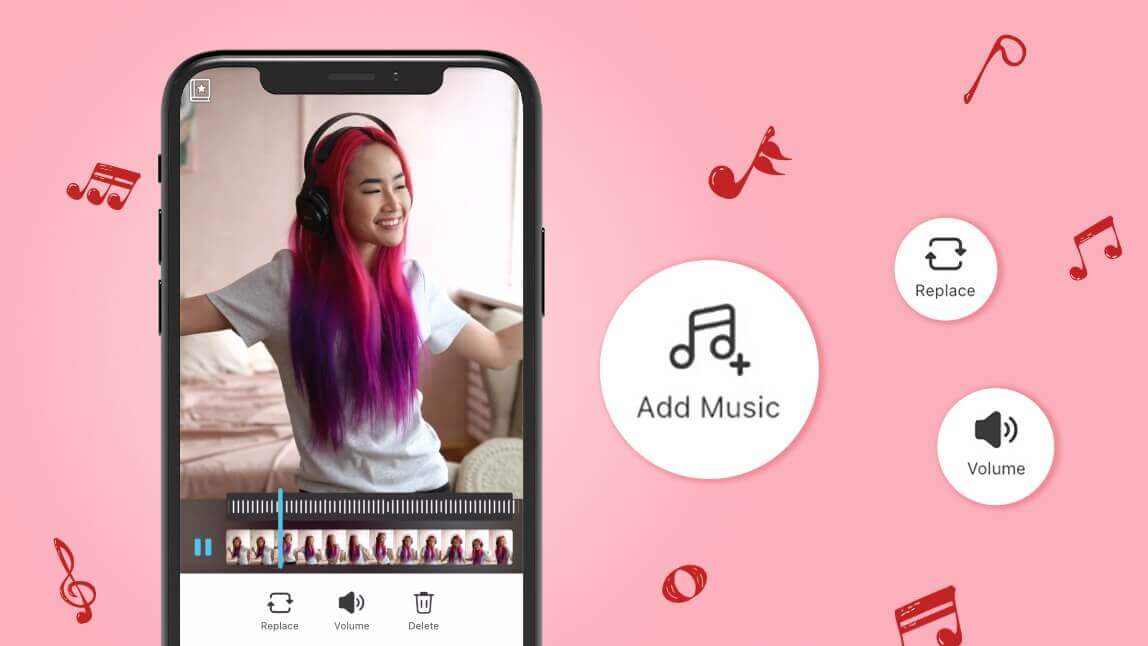
To add music to a video on iPhone for free, the easiest method is to use a video editing app like YouCam Video. Simply download the app, import your video, tap the "Music" feature, and choose from hundreds of royalty-free tracks or upload your own song.
Looking for the best free way to add music to a video on your iPhone? A great soundtrack can turn a simple clip into something special, but finding the right app can be tricky.
In this guide, we'll show you how to add a song to your iPhone videos, with and without iMovie, using the best apps to add music to video in 2025.
Comparison of Top Apps to Add Music to Videos
| App | Best For | Key Feature |
|---|---|---|
| YouCam Video | Largest free music library & AI music creation | 700+ royalty-free tracks & unlimited AI music |
| iMovie | Advanced, professional-style editing | Built-in Apple ecosystem integration |
| Clips | Beginners and quick social edits | Simple record-and-edit interface |
| CapCut | TikTok video creators | Trending sounds and TikTok integration |
| Unfold | Instagram Stories and Reels | Aesthetic templates and trendy music |
| Filmora | Creating a cinematic feel | Extensive library of cinematic scores |
| Viva Video | Vloggers and energetic content | Vibrant pop and dance music tracks |
Why Add Music to Your Videos?
Adding background music to your videos can completely transform your content in several powerful ways:
- Enhances Emotion: Music is incredible at evoking emotions and setting the right mood for your video.
- Increases Engagement: A catchy soundtrack can hook viewers, keeping them engaged and interested for longer.
- Professional Touch: The right music adds a polished, professional feel to your videos, making them look more high-end.
- Storytelling: Music helps tell your story, amplifying the message and making your video more memorable.
7 Free Ways to Add Music to iPhone Videos in 2025
- Using YouCam Video: Best with Over 700 Music Options & Unlimited AI-Created Music
- Using iMovie: Apple’s Advanced Editor for Professionals
- Using Clips: Apple's Video App for Novice Editors
- Using Capcut: Best for Editing Music in TikTok Videos
- Using Unfold: Best for Instagram Stories and Reels Enthusiasts
- Using Filmora: Best for Adding Cinematic Music to Videos
- Using Viva Video: Best for Adding Vibrant Music to Vlogs
Discover these 7 free ways for adding music to your iPhone videos. Each app is designed for different needs, so you can find the one that best suits your creative style.
1. Add Music With YouCam Video: 700+ Music Options & Custom AI Music
YouCam Video is one of the best apps for adding music to videos on your iPhone or Android device.
With over 700 royalty-free music tracks and support for importing music from your own device, it’s easier than ever to create videos with the perfect vibe.
Plus, with the rise of AI music generators, you now have access to unlimited customizable AI-created music — all copyright-free.
Whether you're creating content for social media or personal projects, you'll never run out of unique soundtracks.
(The Music Feature is currently available for iOS only.)
▲ With YouCam Video, easily extract and add music to your video
🎵 Key Music Features in YouCam Video:
- Access to 700+ royalty-free songs in a wide range of genres — from pop and chill beats to indie rock
- Import music directly from your phone
- Extract audio from any video and reuse it as background music
- Compatible with custom AI-generated music — giving you endless creative control with no copyright hassle
How to Add Music to Videos on iPhone
Step 1: Download the YouCam Video App

Begin by downloading the YouCam Video app from the App Store. Once it's installed, open the app.
Step 2: Import Your Video
Import the video you want to add music to by tapping the "Import" or "Add Video" button within the app.
Step 3: Add Music to Your Video
Locate the "Music" icon. Tap it to access YouCam Video's extensive music library, which offers over 700 free music options.
Browse through the selection and choose the music that best suits your video.
If you create your own AI music, you can also add it from the 'AI Music' list.
Read more: How to Create AI Music with AI Music Generator
Step 4: Edit the Volume of Music

After adding your chosen music track to your video, you can adjust its volume to achieve the perfect balance with your video's original audio.
This ensures that the music complements your video effectively.
Step 5: Save Your Video
Once you're satisfied with your video and the added music, save your project.
YouCam Video provides options for saving or exporting your video in various formats and qualities.
After saving, you can share your video with friends or on social media platforms.
2. Add Music With iMovie: Advanced Editor for Professionals

- Available Platform: iOS
- Rating: 3.9
iMovie is Apple's free video editing app, perfect for users seeking advanced, multi-track editing capabilities. Beyond its editing prowess, iMovie provides access to a variety of themes and soundscapes to enhance your video projects.
How to Add Music to Videos on iPhone With iMovie
- Step 1: Open the iMovie app on your iPhone.
- Step 2: Start a new project or select an existing one.
- Step 3: Import the video you want to edit.
- Step 4: Tap the "Audio" icon, and choose "Soundtracks."
- Step 5: Browse through the available music, select your desired track, and it will be added to your video timeline. Adjust the music's volume and timing to synchronize it with your video.
3. Add Music With Clips: Apple's Video App for Novice Editors

- Available Platform: iOS
- Rating: 3.8
Designed for novice editors, Apple's Clips app simplifies the process of adding music to videos. It excels at “Record and Edit Directly,” perfect for selfies and vlogs. While it's user-friendly, it doesn't skimp on music options, making it easy for beginners to incorporate fun soundtracks into their creations.
How to Add Music to Videos on iPhone With Clips
- Step 1: Launch the Clips app on your iPhone.
- Step 2: Record your video clips.
- Step 3: Tap the "Music" icon and explore the music options. Choose a suitable track from various genres and add it to your video by selecting it.
- Step 4: Adjust the music's volume to achieve the desired balance with your video.
4. Add Music With Capcut: Best for Editing Music in TikTok Videos

For those focused on TikTok videos, Capcut is the go-to app. Its specialization in editing music and sound effects for short-form content ensures that you can effortlessly integrate popular TikTok tracks and trending music genres, such as rap and EDM, into your videos.
How to Add Music to Videos on iPhone With Capcut
- Step 1: Open the Capcut app on your iPhone.
- Step 2: Create a new project and import your video.
- Step 3: Tap the "Audio" icon and then "Sounds" to explore the app's music library, which includes popular TikTok tracks.
- Step 4: Select your preferred music, adjust its timing and volume, and overlay it onto your video.
5. Add Music With Unfold: Best for Instagram Story and Reels Enthusiasts

Instagram Story and Reels enthusiasts will love Unfold. This app is tailor-made for social media, providing a seamless way to add music to your Instagram content. With a selection of trendy and catchy music genres like pop and hip-hop, it's perfect for keeping your followers engaged.
How to Add Music to Videos on iPhone With Unfold
- Step 1: Launch the Unfold app on your iPhone.
- Step 2: Select a template and add your video or image.
- Step 3: Tap the "Music" icon and explore the available music library.
- Step 4: Pick a track that suits your content and add it to your video.
6. Add Music With Filmora: Best for Adding Cinematic Music to Videos

Filmora excels in adding cinematic flair to your videos through its impressive music library. It offers an array of cinematic music genres, such as orchestral arrangements and epic soundtracks, allowing you to infuse a dramatic and professional touch into your creations.
How to Add Music to Video on iPhone With Filmora
- Step 1: Open the Filmora app on your iPhone.
- Step 2: Create a new video project or open an existing one.
- Step 3: Import the video you want to edit.
- Step 4: Tap the "Audio" icon and select "Music." Browse through the cinematic music genres, choose your desired track, and overlay it on your video.
- Step 5: Adjust the music's volume and timing.
7. Add Music With Viva Video: Best for Adding Music to Vlogs

Viva Video stands out as the ideal choice for vloggers looking to add lively music to their content. With an emphasis on vibrant music genres like pop, dance, and indie, Viva Video helps you maintain an energetic and engaging vibe throughout your vlogs.
How to Add Music to Video on iPhone With Viva Video
- Step 1: Launch the Viva Video app on your iPhone.
- Step 2: Start a new project and import your video footage.
- Step 3: Tap the "Music" icon and explore the vibrant music genres available.
- Step 4: Select a track that complements your vlog and add it to your video.
More Video Editing Ideas
- 10 Music Selection Tips for Video Editing Beginners
- How to Add Auto Subtitles to Videos
- How to Extract Audio From Video
- How to Create Lyric Videos on iPhone
About the Editors

The PERFECT Corp. Editorial Team
We are a team of experts on photo and video editing apps. Our goal is to deliver engaging content on everything from stunning selfie edits to eye-catching video effects. We cover the latest trends and share niche tips to help you master digital creation.