Author:


To see what you would look like with green eyes, the easiest method is to use a free green eye filter app like YouCam Video, which lets you realistically apply various green shades and patterns to your videos and photos in seconds.
Green eyes are one of the rarest and most captivating eye colors, found in only about 2% of the world's population. This rarity, caused by a low concentration of melanin and a unique light-scattering phenomenon, makes them a desirable feature often associated with mystery, creativity, and allure. Ever caught yourself wondering, "what would I look like with green eyes?"

Instead of just imagining, you can see for yourself in stunning detail. Thanks to modern AI technology from companies like Perfect Corp., trying on a new eye color is as simple as tapping a button on your phone. In this complete guide, we’ll show you exactly how to use a green eye filter with the YouCam Video app, how to choose the perfect shade for you, and how to achieve a look so natural no one will know it's a filter.
TL;DR: How to Use a Green Eye Filter
- Download a Trusted App: Get a specialized eye color changer app like YouCam Video, known for its realistic results.
- Upload Your Media: Open the app and import a well-lit video or photo of yourself where your eyes are clearly visible.
- Apply the Filter: Navigate to the "Eye Color" feature and browse through the extensive library of green eye filters.
- Customize Your Look: Use the sliders to adjust color intensity and iris pattern to achieve the most hyper-realistic effect.
- Save & Share: Export your new look in high resolution and share it on TikTok, Instagram, or with friends!
Why Try a Green Eye Filter?
A green eye filter is more than just a novelty; it's a powerful tool for self-expression. Here’s why people are loving this trend:
- Risk-Free Experimentation: Curious about colored contacts but worried about the cost, discomfort, or commitment? A filter lets you test-drive the look instantly with zero risk or expense.
- Elevate Your Social Media: Create a unique aesthetic for your Instagram Reels or TikTok videos. A striking eye color change can stop the scroll and make your content stand out.
- Match Your Style & Fashion: Coordinate your eye color with your outfit, a new hair color, or a specific makeup look. It's the ultimate accessory for themed events, from fantasy cosplay to St. Patrick's Day celebrations.
- Boost Your Confidence: Sometimes a small change can make a big difference. Trying a new eye color can be a fun way to see yourself in a new light and boost your confidence before a night out.
How to Change Your Eye Color to Green Step-by-Step
Trying a green eye filter is incredibly simple with the right app. We’ll use YouCam Video as our example to guide you through the process seamlessly for the most realistic results.
Step 1: Download a High-Quality Eye Color Filter App

Your first step is to download an app that specializes in realistic virtual beauty effects. The YouCam Video app is a top choice because its advanced AI ensures the filter tracks your eyes perfectly, even when you move. It’s available for free on both iPhone and Android.
Step 2: Import Your Video or Photo

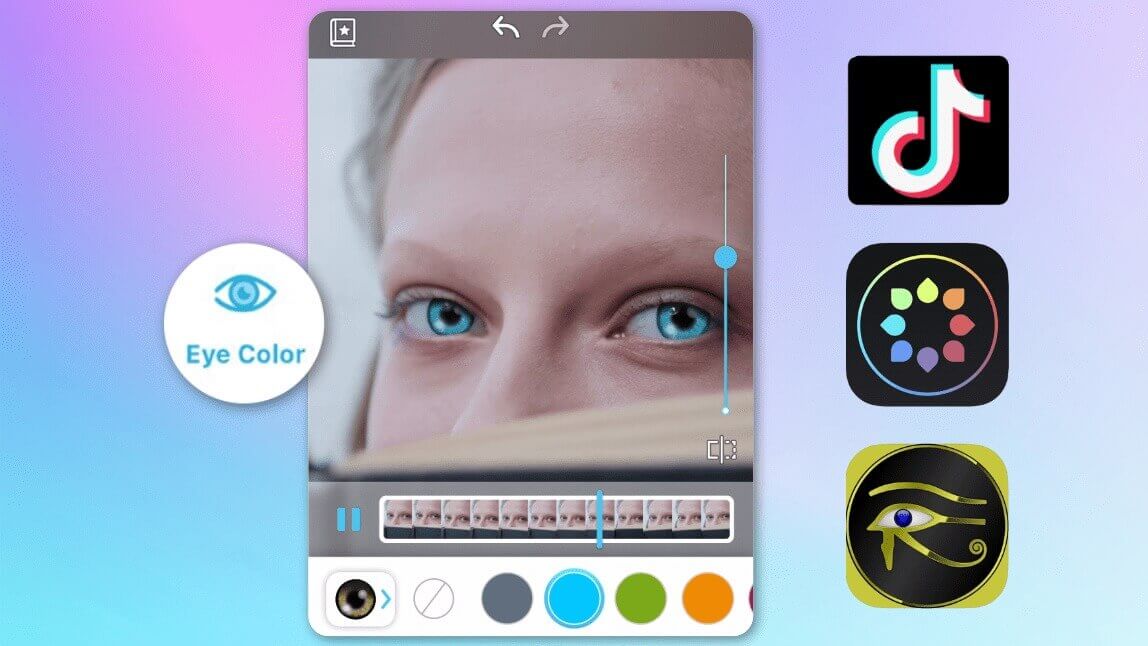
Open YouCam Video and tap the "+" icon to import your video from your camera roll. For the best results, choose a clip with good, even lighting where your face is clearly visible. Once loaded, find the "Makeup" feature in the bottom toolbar, then tap "Eye Color".
Step 3: Try Different Green Eye Filters

Now for the fun part! You can explore a wide variety of green eye colors. Don't just settle for the first one. Scroll through the dozens of options and tap each one to see how you'd look with different shades—from subtle olive and mossy tones to vibrant lime and electric emerald.
Step 4: Adjust the Color Intensity for Realism
This is the pro tip that separates a good edit from a great one. Once you find a green eye filter you love, use the slider to adjust the color intensity. A setting of 70-80% often looks far more natural than 100%, as it allows some of your original eye texture to show through, creating a more believable blend.
Bonus Tip: Experiment with Detailed Iris Patterns
To take your edit to the next level, explore the iris patterns. With YouCam Video, you can change the pattern of your iris in addition to the color. The app offers over 30 different eye patterns, letting you create a truly unique look that mimics expensive custom contact lenses without any of the hassle.

How to Choose the Perfect Shade of Green For You
Not all greens are created equal. The most flattering shade for you will depend on your unique features. Here's a quick guide:
- For Fair Skin Tones: Bright, clear greens like emerald and jade create a beautiful, striking contrast.
- For Medium or Olive Skin Tones: Richer, deeper greens like forest green or earthy, hazel-green shades will look incredibly natural and warm.
- For Dark Skin Tones: Vibrant, jewel-toned greens and bright lime shades will pop beautifully and create a stunning, high-fashion look.
- If You Have Red Hair: A classic, true emerald green is a timeless combination that will always look amazing.
- If You Have Dark Hair: Deep, rich greens complement your hair color, while a bright, neon green can provide a bold and exciting pop of color.
Green Eye Filter Apps: A Quick Comparison
While YouCam Video is our top pick for video editing, other popular apps offer green eye filters with different strengths.
YouCam Makeup: The sister app to YouCam Video, this is the gold standard for applying green eye filters to photos. It uses the same powerful AI for hyper-realistic results and offers even more customization for still images.
Snapchat: Best for quick, fun, and often over-the-top filters to share with friends. The filters are easy to find but offer almost no customization and are often bundled with other makeup or AR effects.
TikTok: A great place to find filters that are part of a viral trend. You can find many natural-looking green eye effects, but like Snapchat, they are pre-set and cannot be adjusted.
| App | Best For | Customization | Platform |
|---|---|---|---|
| YouCam Video | High-Quality Videos | High (Color, Intensity, Pattern) | iOS / Android |
| YouCam Makeup | Realistic Photos & Selfies | High (Color, Intensity, Pattern, Size) | iOS / Android |
| Snapchat | Quick, Fun Social Filters | Low (Pre-set looks) | iOS / Android |
| TikTok | Trending Video Effects | Low (Pre-set effects) | iOS / Android |
Key Takeaways: Getting the Best Green Eye Look
- Prioritize Realism: Choose an app like YouCam Video that offers high-quality, natural-looking filters and precise AI eye tracking.
- Adjust Intensity: Don't just slap on a filter. Use the intensity slider to blend the color seamlessly with your natural look for better results. A lower intensity often looks more real.
- Find Your Shade: Experiment with different greens to see which best complements your unique skin tone and hair color.
- Check the Details: A subtle iris pattern can make the effect look much more convincing than a flat, solid color.
Green Eye Filter Questions, Answered (FAQ)
- What app has the best green eye filter?
- For videos, YouCam Video is the best app for green eye filters due to its high level of customization, including color, intensity, and iris patterns. For photos, its sister app, YouCam Makeup, offers the same powerful and realistic technology.
- How can I see what I would look like with green eyes?
- The fastest and most realistic way is to use an eye color changer app. Download YouCam Video, upload a video or photo of yourself, and tap through the different green eye filter options to see an instant, realistic preview.
- How do I make the green eye filter look natural?
- To make a green eye filter look natural, use an app with precise eye tracking like YouCam Video. Choose a shade that complements your skin tone, lower the filter's intensity to 70-80%, and select a subtle iris pattern instead of a flat color. Good lighting in your original video is also key.
- Is there a green eye filter online for free?
- While some websites offer basic filters, the best experience for a realistic green eye filter is through a free-to-download mobile app like YouCam Video, TikTok, or Snapchat. These apps use your phone's camera for a live augmented reality preview that is far more accurate.
- Can I change my eye color to green in a video?
- Yes! Apps like YouCam Video are specifically designed to change eye color in videos. The app's advanced AI technology tracks your eyes in motion, ensuring the green eye filter stays perfectly in place throughout the entire clip without glitching.