Author:


A transparent image is essential for product photos, logos, and social media content. Knowing how to make an image transparent helps you create clean, professional visuals. Using a transparent background maker makes it easy to remove backgrounds and blend your images seamlessly.
In this article, we will show you the simplest way to make an image transparent with the best background changer app in just a few taps.
Why Remove Background From Images?
A transparent background offers endless design possibilities. It lets you easily layer images, add creative effects, and focus on the subject. Here’s why it’s so popular:
- For Selfies: Ideal for integrating your profile photo into graphics like social media posts or profile headers, with room for custom backgrounds.
- For Product Photos: Perfect for e-commerce, showcasing products without distractions, and easy to update for different themes.
- For Logos: Essential for placing logos on various backgrounds, ensuring a clean, professional look without borders.

Best Free Transparent Background Maker for iPhone and Android
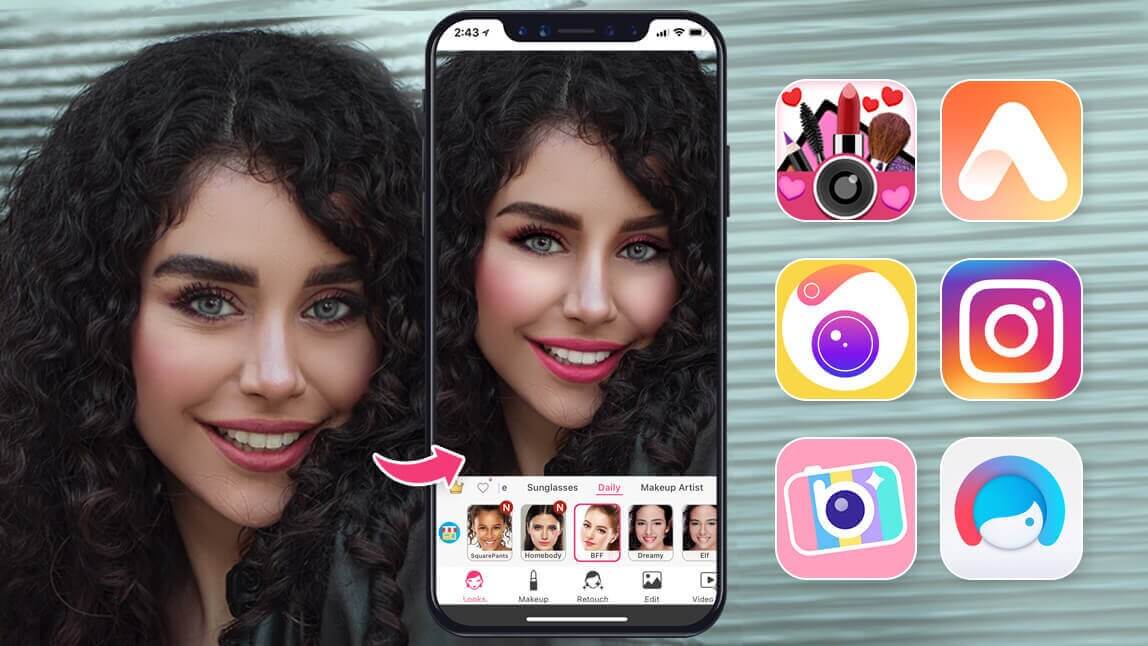
If you’re looking for an easy, reliable transparent background maker, YouCam Makeup is the best transparent background maker app out there.
Known for its powerful, AI-powered editing tools, YouCam Makeup makes removing backgrounds quick, accurate, and seamless. You can precisely outline your subject, adjust details, and create a high-quality transparent background in just a few taps.

How to Make an Image Background Transparent With YouCam Makeup
Creating a transparent background with YouCam Makeup is simple and straightforward. Here’s a step-by-step guide to getting it done:
- Step 1: Download YouCam Makeup
- Step 2: Upload Your Image
- Step 3: Select Background Editing Tool
- Step 4: Refine the Edges
Step 1: Download YouCam Makeup
Start by downloading the YouCam Makeup app if you haven’t already.

Step 2: Upload Your Image
Open the app and select ‘Photo Edit’ to upload the photo you want to edit.
Step 3: Select Background Editing Tool
Go to Edit and select Background. Tap on the transparent background option, and the AI tool will automatically remove the background, leaving just your subject.

Step 4: Refine the Edges
Adjust any areas if needed with the brush tool to ensure a smooth, precise outline. Then save your edited image with a transparent background, ready for any creative or professional use!

Download the Best Transparent Image Maker
Making a transparent background is one of the best ways to enhance your photos, whether you’re working with selfies, product shots, or social media designs. With YouCam Makeup, achieving that clean, versatile look has never been easier, thanks to its precise AI editing features.
Download the app, try out the background editing tool, and take your photo edits to the next level!