


 Author:


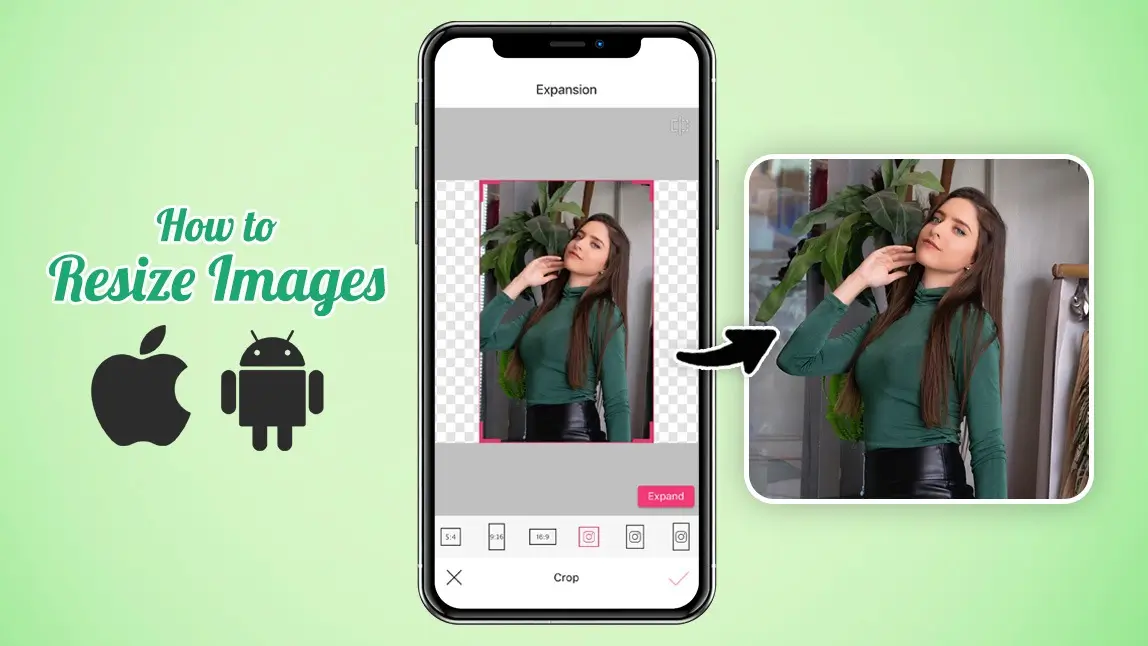
Ever uploaded a photo only to find it’s the wrong size? Whether you need to resize an image on iPhone and Android or adjust it for social media, it’s easier than you think.
While built-in tools help with basic resizing, free image resizer apps offer more precision, including exact pixel dimensions. This guide covers how to enlarge photos using the Photos and Gallery apps, plus the best AI tool to make images bigger without losing quality.
Quick Comparison: Built-in vs. AI Resizing
| Feature | Photos/Gallery App | YouCam Makeup (AI) |
| Speed | Instant | Fast (Seconds) |
| Precision | Aspect Ratio only | Exact Pixels + Ratio |
| Enlargement | Leads to pixelation | AI-powered sharpening |
| Edge Filling | None (requires cropping) | AI Image Expansion |
How to Resize an Image on iPhone? (Photos App)

The iPhone Photos app has a built-in crop tool that lets you resize images quickly. Here’s how:
- Step 1: Open the Photos app and select the image you want to resize.
- Step 2: Tap Edit in the top-right corner.
- Step 3: Select the Crop & Rotate tool at the bottom.
- Step 4: Tap the Aspect Ratio icon (rectangle at the top).
- Step 5: Choose a preset ratio or customize the dimensions.
- Step 6: Tap Done to save your resized image.
How to Resize an Image on Android? (Gallery App)

Android users can resize images using the Gallery app. Here’s how to get started:
- Step 1: Open the Gallery app and select your photo.
- Step 2: Tap Edit > Resize or Crop (options may vary by device).
- Step 3: Choose a preset size or enter custom dimensions.
- Step 4: Save your resized photo.
Beyond Basic Cropping: Why Use AI?
While iPhone and Android have basic resizing tools, they come with limitations:
- Limited Customization: Built-in tools don’t let you enter precise pixel dimensions.
- No High-Quality Enlargements: Making an image bigger often leads to pixelation or blurriness.
- No AI Enhancement: Photos resized in default apps lose sharpness and detail.
That’s where an advanced tool like YouCam Makeup’s AI Expand comes in! It not only resizes but also enhances images using AI, ensuring crisp, high-quality results.
How to Resize Images without Cropping?
For a high-quality image resize, YouCam Makeup’s AI Expand is the best option. Unlike standard resizing, this AI-powered tool enlarges photos while keeping details sharp and natural.
Follow the steps below to resize an image with YouCam Makeup.
Step 1: Download YouCam Makeup from the App Store or Google Play.
Step 2: Open the app and tap ‘Photo Edit’ to upload your image.
Step 3: Select the Expansion feature under the ‘Edit’ tab to resize or make the image bigger without losing quality.
Step 4: Tap on an aspect ratio and let AI intelligently fill in missing details.

Step 5: Tap “✔” to save your resized images to your photo album.
With YouCam Makeup, you can enlarge a photo for Instagram, Facebook, and Pinterest with no pixelation or blurriness!
Best Image Resizer App to Make Images Bigger
Resizing photos doesn’t have to be a hassle! Whether you use built-in tools or a free image resizer app, you can easily resize an image on iPhone and Android without losing quality.
For the best results, try an AI-powered tool that ensures high-resolution enlargements. Now, you’re ready to adjust any photo to fit your needs effortlessly!

About the Editors

The PERFECT Corp. Editorial Team
We are a team of experts on photo and video editing apps. Our goal is to deliver engaging content on everything from stunning selfie edits to eye-catching video effects. We cover the latest trends and share niche tips to help you master digital creation.
Discover more about us:


