


 Author:


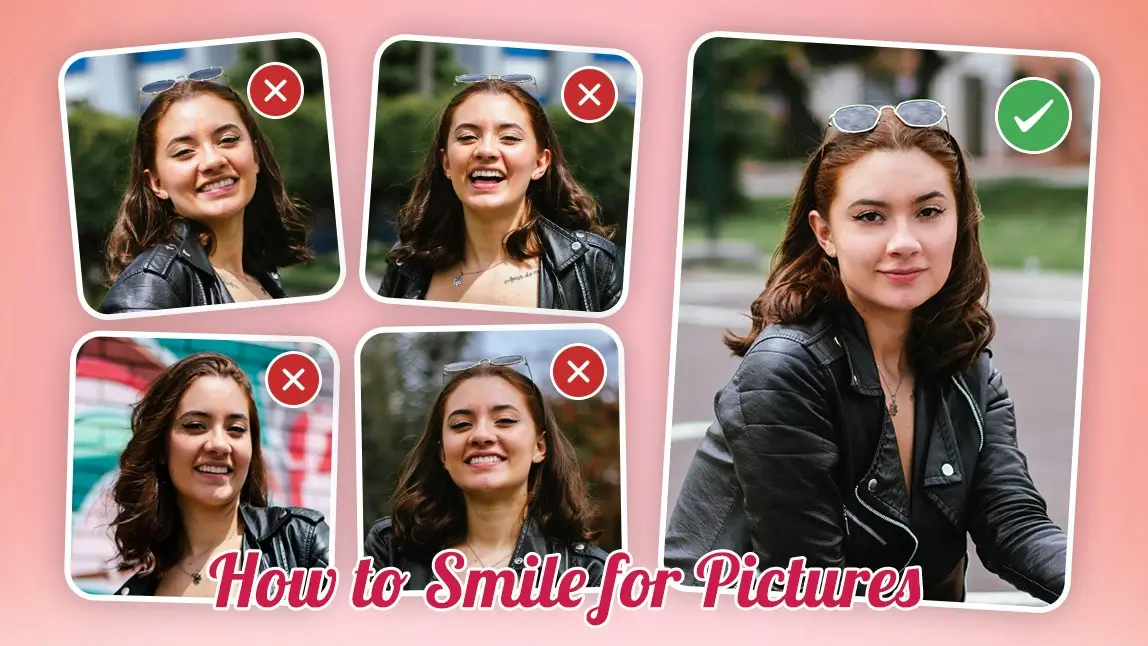
Struggling to get a natural, confident smile in pictures? You’re not alone! Knowing how to smile for pictures can make all the difference in capturing a flattering and effortless expression. The right technique can enhance your look, making your photos appear more genuine.
Whether you prefer a toothy grin or a subtle smirk, this guide will help you master the art of smiling naturally. Plus, with YouCam Makeup’s AI Retake feature, you can adjust and perfect your smile in any photo with ease!
How to Smile for Pictures by Showing Teeth
If you often feel unsure about showing your teeth in photos, you’re not alone! A genuine, toothy smile exudes confidence and approachability. Follow these steps to achieve the perfect smile:
- Relax Your Face – Tension can make your smile look unnatural. Take a deep breath and relax your facial muscles before posing.
- Slightly Part Your Lips – Avoid a stiff, wide grin by slightly parting your lips for a more effortless look.
- Say the Right Words – Instead of “cheese,” try words like “money” or “chocolate” to create a naturally flattering smile.
- Engage Your Eyes – A true smile involves your eyes! Let your eyes slightly squint for a more genuine expression.
- Practice in the Mirror – Experiment with different smiles in front of a mirror or take selfies to find the best angle.

How to Smile for Pictures Without Showing Teeth
Not comfortable with a toothy grin? A closed-mouth smile can still look warm and engaging! Here’s how:
- Relax Your Expressions – A stiff face can make your smile look forced. Keep it natural by softening your facial muscles.
- Perfect the Lip Position – Gently press your lips together without clenching to achieve a natural, relaxed smile.
- Use Your Eyes – Slightly squinting adds warmth to your expression, making your smile look more natural.
- Think Happy Thoughts – Imagining a funny moment or someone you love can bring out a genuine smile.
- Lift Your Chin – Holding your head high exudes confidence and improves your photo composition.

How to Fix Your Smile in Photos With YouCam Makeup
Even with the best preparation, sometimes your smile just doesn’t turn out the way you’d like. That’s where YouCam Makeup’s AI Retake feature comes in!
Whether your smile is too stiff, too subtle, or missing altogether, this powerful tool lets you correct it effortlessly. Here’s how:
Step 1: Download the Best App to Fix Smile in Photo
Download the YouCam Makeup app free from the App Store or Play Store.

Step 2: Upload Your Photo
Tap on ‘Photo Edit’ and select the picture you’d like to fix from your gallery. Then, find the AI Retake feature under the editing tools.

Step 3: Choose Your Ideal Smile
Upload a picture of yourself with your ideal smile to swap out your bad photo. Let the magic happen!

Step 4: Adjust & Save
Fine-tune your picture with other editing tools and makeup features, then save and share your perfected photo!
Download the Best App to Fix Smile in Photos
Now that you know how to smile for photos and how to make your photos look better, it’s time to put these tips into practice. Whether you prefer a subtle grin or a bright, beaming smile, confidence is key! And with YouCam Makeup’s AI Retake, achieving the perfect smile in any photo has never been easier.


