Author:


Want to know how to whiten teeth in photos on iPhone and Android for a picture-perfect smile? With the best free teeth whitener app, you can instantly brighten your smile and whiten teeth in photos with just a few taps.
Whether you're getting ready to post a selfie or enhance a portrait, YouCam Makeup makes it easy to look your best. In this guide, we’ll show you how to use a free teeth whitening photo editor to get natural results in seconds.

Best Free Teeth Whitener App to Make Teeth Whiter in Photo
YouCam Makeup is the best teeth whitening app to whiten teeth on photos naturally and easily. Powered by the most advanced AI photo retouching technology, the app can auto-detect your teeth in the photos, so no manual editing is needed.
Edit Teeth in Photos with AI Teeth Whitening
With YouCam Makeup, whitening your teeth in a photo is as easy as a tap! The app will auto-detect your teeth in the photo. Once the AI has detected your teeth, you can adjust the teeth whitening intensity easily with a slide bar for the most natural, customized effect.

Free Teeth Whitening in Live-Camera Mode

Experience teeth whitening in a whole new way with YouCam Makeup's live-camera try-on! Try out free teeth whitening using the 'Teeth' tool under the 'Reshape' tab to capture the perfect photo or video!
It's also great if you're considering whitening your teeth in real life, giving you a realistic preview of the results before making any changes!
How to Whiten Teeth in Photo on iPhone and Android
Perfecting your smile is easy with the best teeth whitening photo editor, YouCam Makeup. Follow the steps below to whiten your teeth in photos on iPhone and Android:
- Step 1: Download the Best Teeth Whitening App
- Step 2: Upload Your Photo
- Step 3: Adjust Teeth Whitening Intensity
- Step 4: Save Your Photo
Step 1: Download Free Teeth Whitener App
To whiten teeth in photos, start by downloading the free YouCam Makeup app, available for both iPhone and Android.

Step 2: Upload Your Photo
Open the app, tap 'Photo Makeup', and upload your photo. Then choose the 'Teeth Whitener' Tool.
Step 3: Make Teeth Whiter in Photo

Tap Retouch on the toolbar, and navigate to Teeth Whiten feature. From there, you can use a toggle to adjust the brightness and intensity to find the perfect natural white to fit your complexion.
Step 4: Save Your Photo
Once you're happy with your retouched photo and perfectly whitened teeth, tap save to store it in your phone’s gallery. Share your radiant smile on social media, with friends, or in professional profiles effortlessly!
More Tips to Edit Teeth in Photos
Aside from teeth whitening, the YouCam Makeup app also offers other editing tools to get your smile on photos to the next level.
1. Add Lip Color for Teeth Bleaching
Vibrant lip color is a perfect compliment to frame a bright white smile. It creates a natural frame that makes your teeth the focus.

YouCam Makeup is the best app to add lip color filters to photos, with precise face-detecting technology and 55+ lip color options.
You can choose from single color, two-toned lips, and ombre effects, along with 7 lipstick textures (incl. gloss, shine, and matte) to find the perfect lip color match to pair with your smile.
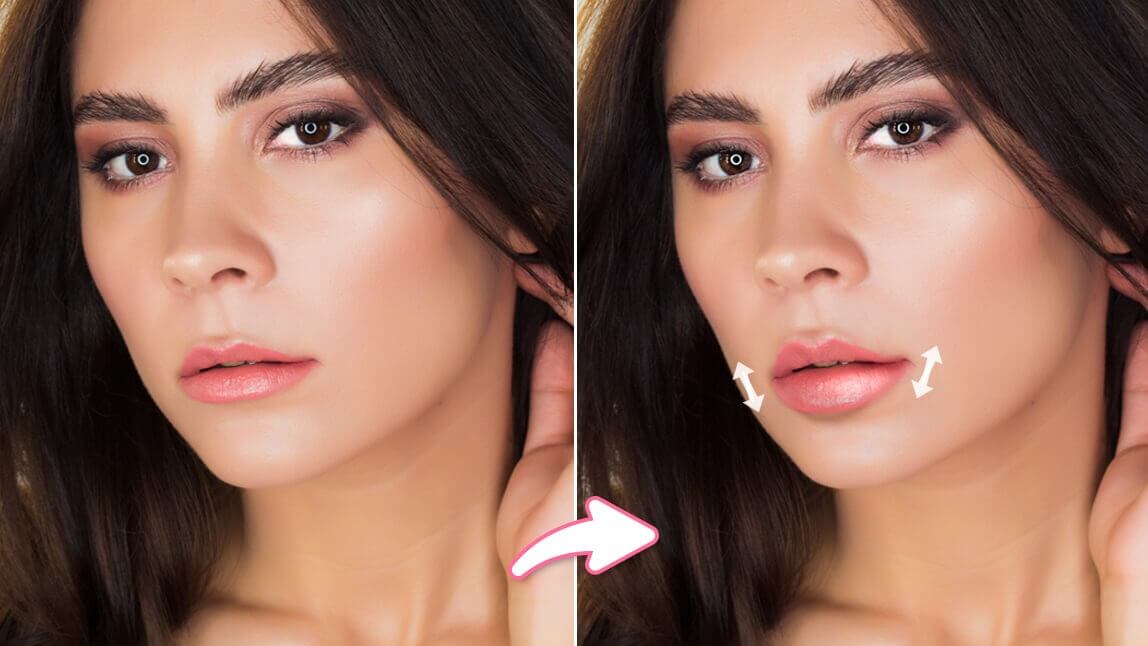
2. Adjust the Shape of Your Smile

YouCam Makeup’s advanced smile editing features also allow you to adjust the shape of your smile. This means editing that little smirk into a natural full-blown, face-filling smile with a tap.
Best Free Teeth Whitening App to Whiten Teeth in Photos
Achieve a flawless, radiant smile effortlessly in just seconds, whether for selfies, professional shots, or social media. With powerful retouching features, YouCam Makeup makes it easier than ever to enhance your smile and boost your confidence!
Download YouCam Makeup free and transform your photos with its advanced teeth-whitening tools.