Author:


If you’ve ever wanted to erase a background, highlight a subject, or create an eye-catching design with just a few taps, image masking is your secret weapon. It’s a powerful photo editing technique that lets you separate parts of an image without permanently deleting anything—kind of like having an “undo” button for creativity.
While image masking used to be reserved for pros with fancy software, today it’s easier (and more accessible) than ever.
One standout option? YouCam Perfect—a completely free app that makes high-quality image masking incredibly simple, even if you’ve never edited a photo before.
Let’s take a closer look at what image masking is and what makes YouCam Perfect a go-to choice for seamless masking on the go.

What is Image Masking?
Image masking is a technique used to hide or reveal parts of an image. Think of it like a digital stencil—only the part you want to show remains visible, and the rest disappears like magic.
 Without it, you might struggle with messy edges, uneven cuts, and clunky backgrounds. Whether you're a pro photographer or just love perfect Insta pics, masking helps make photos clean, crisp, and share-ready.
Challenges in Manual Image Masking
- Dealing with Complex Edges
Hair, feathers, or anything frizzy can be a nightmare manually.
- Time-Consuming Process
Good masking takes time—and patience.
- Risk of Losing Details
Sloppy edges = unprofessional vibe.
How to Use Image Masking in YouCam Perfect
1. Download YouCam Perfect
First things first—make sure you have the YouCam Perfect app installed on your phone. It’s available for both iOS and Android, so you’re good to go no matter what device you’re using.
2. Tap “Photo Edit”

Launch the app and tap on “Photo Edit” from the main screen. Choose the image you want to work with from your gallery.
3. Navigate to “Remove Background” to Begin Image Masking
Once your photo is loaded, scroll through the editing options and select “Remove Background.” This is where the image masking magic happens!
 The app’s smart AI will automatically detect your subject and cleanly separate it from the background with impressive precision—no need to trace or cut manually.
4. Refine or Get Creative
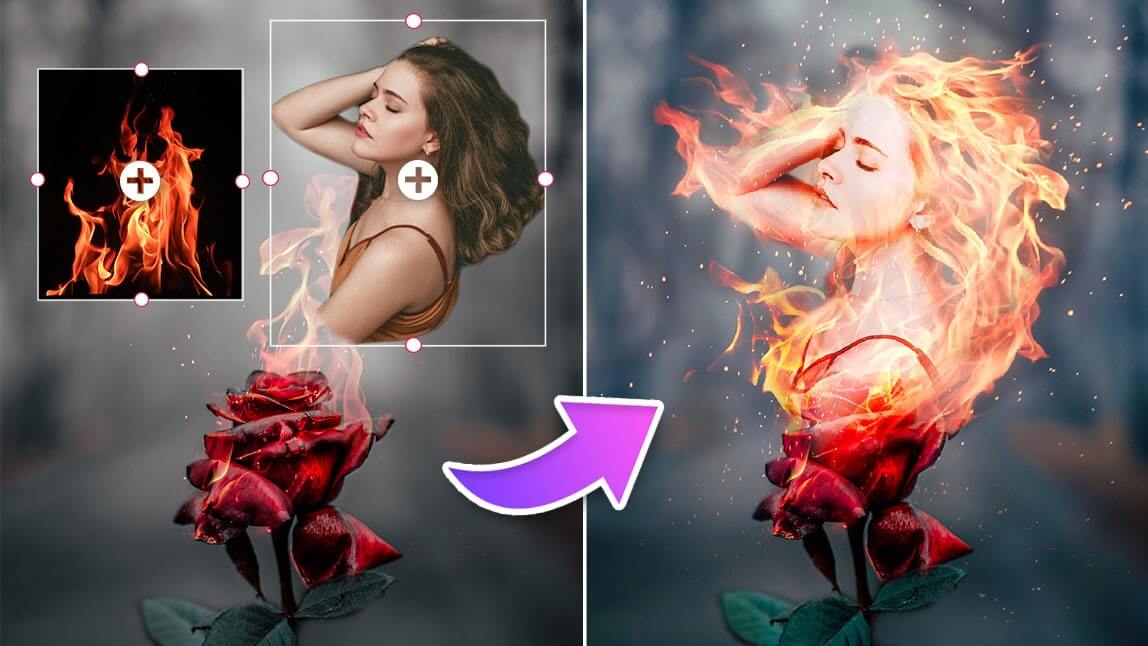
Want to take things a step further? Try the Blending tool to mix your subject with different effects or backgrounds for a more artistic, eye-catching look. It’s a quick way to create stylized edits or surreal scenes with just a few taps.

5. Save or Swap the Background
Once you're happy with the masked image, you can either save it as-is or replace the background entirely. Choose from the app’s built-in backgrounds, upload your own, or leave it transparent—perfect for profile pics, product photos, or fun collages.
Expert Tips for Better Image Masking Results
- Use high-resolution images for better detail. You can use the AI Enhance tool to boost the quality of your image.
- Take photos with contrasting backgrounds for easy separation.
- Zoom in while editing to avoid jagged edges.
- Don’t rush. Even AI needs a little help sometimes!
Try Image Masking with YouCam Perfect
Image masking doesn’t have to be intimidating. With apps like YouCam Perfect, anyone can pull off professional-looking edits in just a few taps.
Whether you’re touching up a selfie, creating marketing content, or just having fun, smart tools make it easier, faster, and better. And the best part? It’s free!