


 Author:


Ever wondered, “What would I look like without freckles?” With the photo editing apps YouCam Perfect & YouCam Makeup, you can easily add or remove freckles and moles from your photos using its powerful AI Retouch, AI Removal and AI Freckle features.

Whether you're just experimenting with different looks or considering how your skin would appear with or without freckles, these tools makes it effortless to achieve natural-looking results. Try it now and discover a new version of yourself in just a few taps!
See What You Would Look Like With and Without Freckles
YouCam Perfect makes it easy for you to remove freckles and moles from a photo to create the look you want. Here, we’ll show you how to add or remove freckles from your photo in just three easy steps using the YouCam Perfect app.

With YouCam Perfect, you can do more than just remove freckles. Impress friends and followers with the right photo filter, background, collage, and other effects. Popular features include its powerful Face Retouch and AI Removal tools.
The AI Removal feature lets you erase unwanted people or objects from photos—like photobombers, text, watermarks, glare, and even wrinkles on clothes. Meanwhile, the Face Retouch tools help smooth skin by removing acne, pores, and oiliness, plus you can easily remove freckles and moles for a flawless look. Keep reading to learn how.
How to Remove Freckles & Moles on Your Face

Sometimes you want to know "what I would look like without freckles," especially if you want to accent other features. If you're after a more polished look, YouCam Perfect can help with that, too. Even if you don't want to remove all your freckles, the app lets you lighten them and change your skin's texture to make you glow.
Here's how you can remove freckles and moles from photos:
- Download the YouCam Perfect app.
- Upload your photo.
- Select the Beautify tab.
- Then, select the Acne and Smooth tools to remove freckles in your photos.
- The Acne feature will automatically detect any freckles and remove them.
You can make your own manual edits, too, if you’re not totally happy with what the app does on its own. When you select the Manual option, all you have to do is tap the places you want to lighten and you’ll be freckle-free in no time!
Additionally, you can use the AI Removal tool to remove freckles or blemishes from your face.
How to Add Cute Freckles & Moles on Your Face

When you want that fresh, summery look or just want to see how freckles look on you, YouCam Perfect lets you add freckles with a few steps.
- To add freckles or moles, first upload your image.
- Then, tap Add Photo to add another photo of a face with freckles.
- Next, use the Eraser tool to remove everything except the area with the freckles you want to add to your own photo.
- Then, blend the images using the Blender tool to create a seamless, double-exposure effect.
You can even add unique backgrounds to give your photo an atmospheric effect. Don’t forget, if you go overboard, you can always remove the ones you don’t want.
Try Freckle Filters Easily on YouCam Makeup

The YouCam Makeup app offers an even easier feature for adding freckles to photos. With it's AI Freckle feature (iOS only) you can add 10+ different AI freckle filters to your photo to see what you would look like with freckles. Here's how it works:
- Download the YouCam Makeup app.
- Upload your photo.
- Tap "Retouch".
- Tap the "Freckle" feature and try 10+ different freckle filters on your face.
- Tap "Color" to try 18+ different freckle colors.
Explore all the different freckle filters to see which pattern and color look best on you. This is a great way to experiment with a new look and make sure you’re happy with it before getting permanent freckle tattoos!
Remove Freckles Form Photo Online with YouCam Online Editor
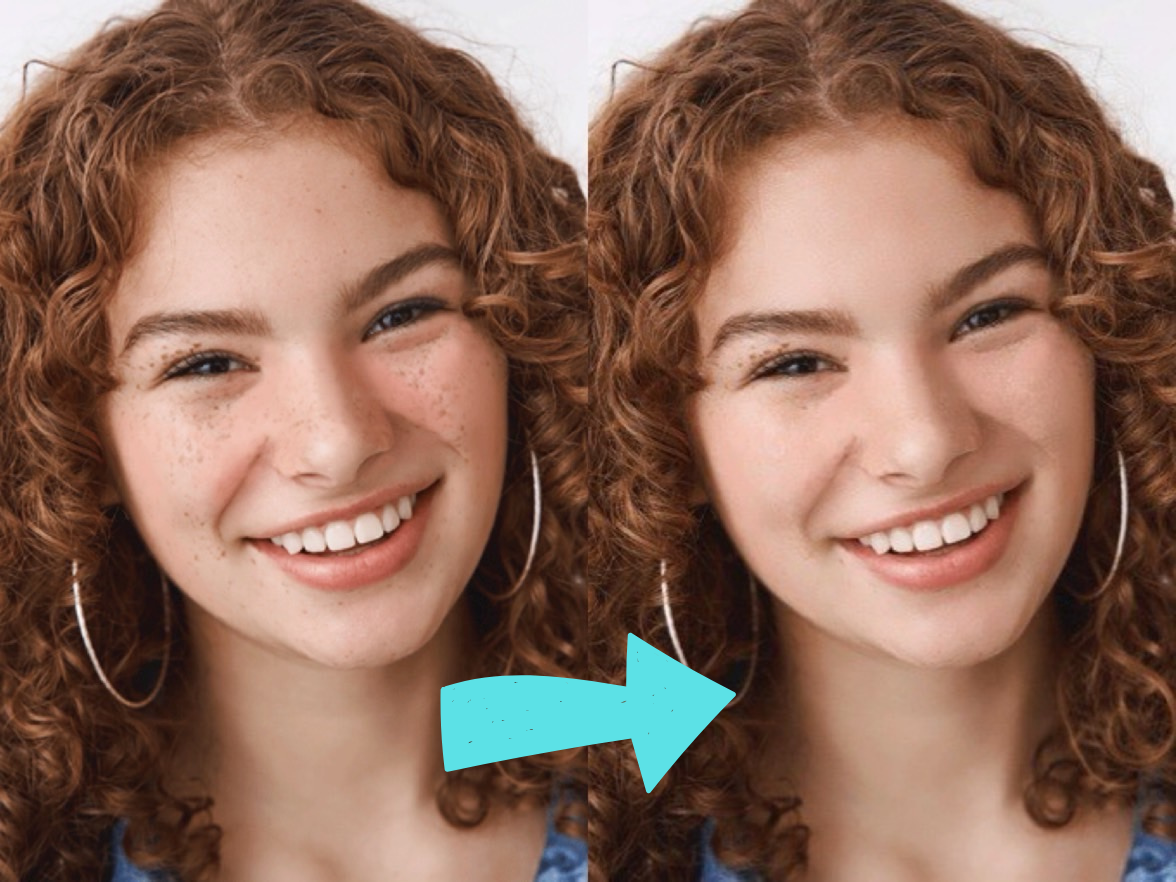
If you want to edit out your freckles easily online, YouCam Online Editor is a great choice. It’s simple to use and gives you control over how natural or smooth you want the result to be. Just follow these steps:
- Open YouCam Online Editor in your browser.
- Upload your photo.
- Choose the “Spots” and “Texture” options to manually adjust the strength.
- Apply the effect once you’re satisfied and save your edited photo.
It’s that easy to get a polished, flawless look in just a few clicks!
More Retouching & Editing Ideas
- Eye Editor: How to Edit Eyes in Photos Using AI
- How to Add Virtual Tattoos In Pictures
- How to Whiten Teeth in Photos
- 3 Tips on How to Retouch Your Body in a Photo


