Author:


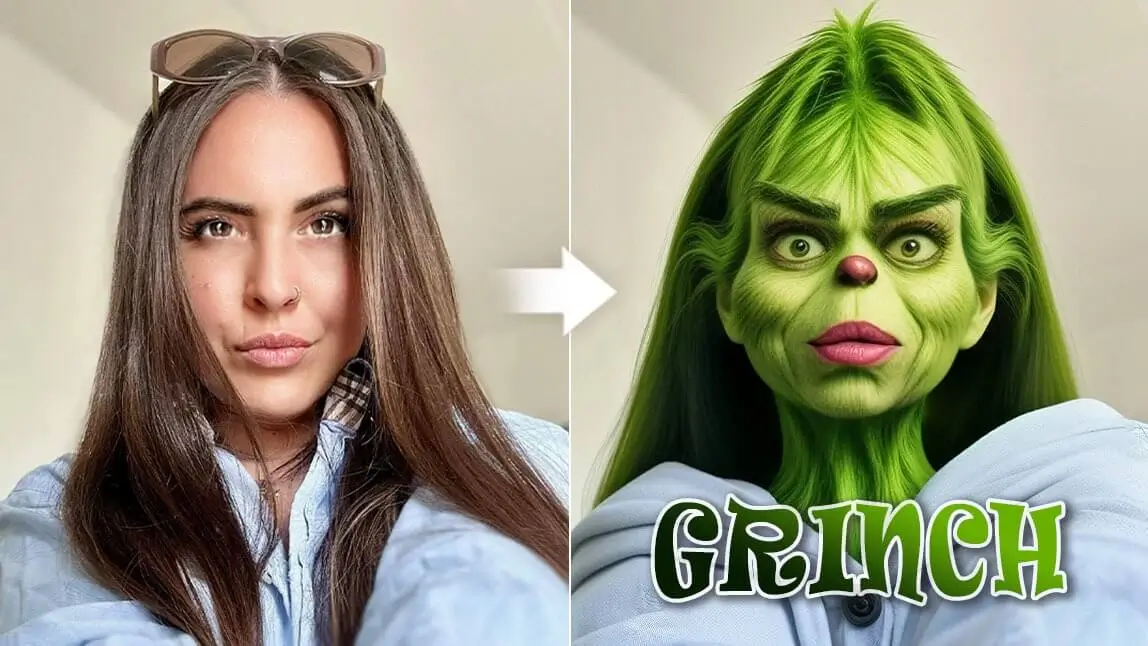
Merry Grinchmas! The Grinch always plays a crucial role in the Christmas season. Today, we’ll talk about Grinch filters on social media and how to add Grinch face filter to photos!

[New Trend] Add Grinch to Your Photo

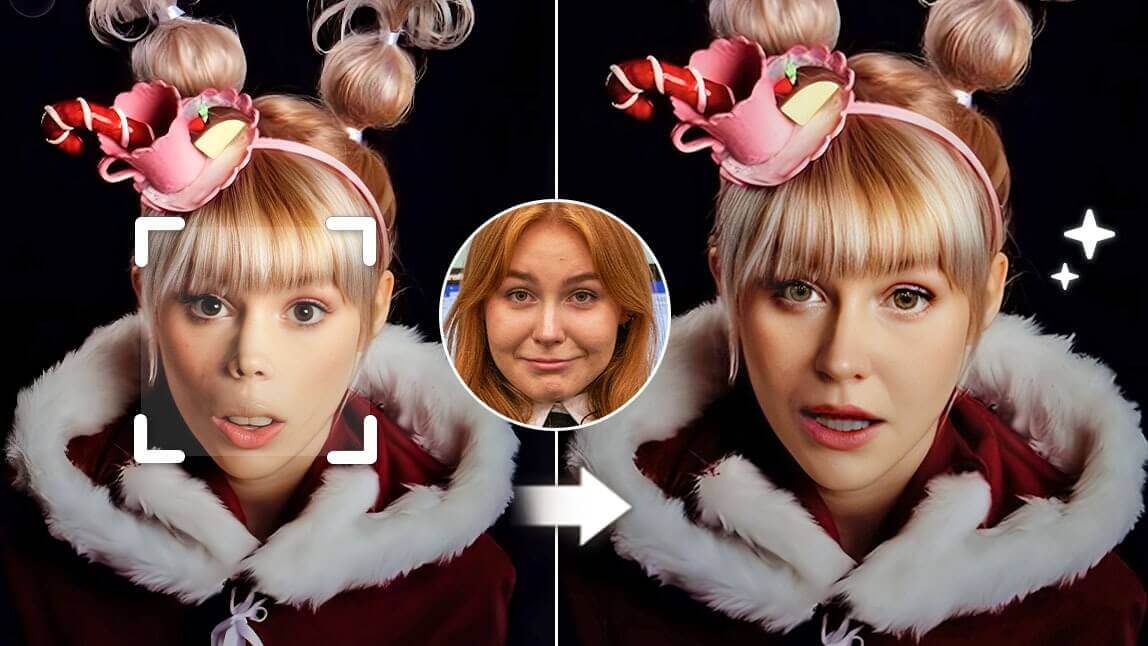
And the best part? You don’t need any editing skills. With AI Agent in YouCam Perfect, you can drop the Grinch into your photo in just a few taps—and the results look surprisingly real (and funny).
How to Add the Grinch to Your Photo
Just follow these 4 super easy steps:
1. Open YouCam Perfect and select “AI Agent.”
2. Upload the photo you want to use.

4. Generate and save your Grinch holiday photo!

Grinch Face Swap: How to Add Grinch Filter to Photos
You can add Grinch filter to photos by using the Artistic Avatar feature in YouCam Perfect. You will see yourself turn into a green and furry Grinch effortlessly! Read on to learn how you do Grinch Face Swap with YouCam Perfect!

- First, get the Grinch filter app YouCam Perfect for free.
- Next, find Artistic Avatar on the home page and upload one of your photos.
- Then, select the Grinch style to get the Grinch filter.
- Wait for the AI tool to add Grinch filters to your photo!

Are There Grinch Filters to Grinch Yourself?
Grinch face filters can help you turn yourself into the Grinch in photos and videos. Below are some social media platforms that have the Grinch Filter.
1. TikTok
If you’re a Grinch lover, you should definitely try the Grinch filter on TikTok! The AI filter, provided by CapCut, turns your photos into cute, cartoonized Grinches.
Simply search for the grinch filter, and tap the ‘Try this Template’ button. And then, you will be directed to the CapCut template. Upload your photo and start transferring yourselves into Grinches!

2. Snapchat
Snapchat offers a variety of Grinch filters or Grinch-themed lenses. I recommend trying the “Grinch Mood” lens. It applies a Grinch face filter with your eyes and mouth. Alternatively, you can try “The Grinch Lens”, which adds a small, moving Grinch character next to you.

If you want to try Grinch filters in some other styles, use the Grinchmas app, YouCam Perfect!
Grinch Face Filter
With the AI Replace feature in YouCam Perfect, you can do Grinch face swap easily. Follow the steps below to Grinch yourself!

- Download the Grinch Christmas Photo Editor, YouCam Perfect.
- Go to Photo Edit and select your photo.
- Tap AI Replace and paint over your face and hair without covering your eyes and mouth.
- Click ‘Replace’ and let AI generate your Grinch Christmas photo!
Read more: Whoville Filter: How the Grinch Stole Christmas
Grinch Filter: Turn Yourself Into the Grinch
If you prefer editing your Grinch photo step by step, YouCam Perfect can also help you with this!
Step1: Get the Grinch Christmas Photo Editor App on App Store or Google Play.
Shared Materials by Strapi
*Adjust the size of images ONLY. Please go to Strapi to edit the materials info.
Step2: Go to Photo Edit and find AI Selfie.
Step3: Choose the Toon style in the Cartoon category and apply it to your photo.

Step4: Tap Beautify and click skin tone to adjust it into green.

Step5: Then, click “makeup” and find “eye color” to change your pupil color.

Step6: Save and share your Grinch photo!
Read more: Catch Santa in My House: How to Add Santa to Photos
Grinchmas Christmas Photo: Christmas Look Ideas
YouCam Perfect allows you to change simple outfits in photos into Christmas looks.
Simply tap “AI Studio” on the homepage, and upload your photo. Go to the holiday category and select from the Christmas looks. Then, the AI tool would generate a photo of you in Christmas outfits!

Bonus: Christmas Outfit Virtual Try-on
Would you like to see how you’d look in Christmas outfits? Try the AI Fashion feature in YouCam Perfect! This tool allows you to virtually try on several types of Christmas looks before committing to one!

Final Thoughts
There are so many fun Grinch filters available on social media and YouCam Perfect. Try as many as you can to find your favorite!
Don’t forget to explore the Christmas outfit generator and virtually try on different holiday styles to get ready for the season. Merry Grinchmas!