Author:


A tattoo is a great form of self-expression and a way for many to celebrate and commemorate important people and life events. However, as cool and meaningful as tattoos are, they are a major commitment that many people are not ready for.
Also, add fear of needles to the list! Luckily, there’s YouCam Perfect and its feature — virtual tattoo stickers, which you can easily add tattoos to photos and avoid any tattoo regrets! In this article, we’ll introduce the Tattoo feature and show you how to add cool virtual tattoos to pictures with the YouCam Perfect app in just a few clicks.
| About Tattoo Placement App |
|---|
Youcam Perfect: The Best Virtual Try-On Tattoo App
 ▲ Add tattoos to photos
You may think you need to be a photo editing whiz to add something like a virtual tattoo to your photo, but now you can without the hassle thanks to the YouCam Perfect appMeet the hyper-realistic virtual tattoo stickers that you can add to your pictures on your iPhone in just a few taps.
YouCam Perfect is one of the best tattoo placement apps, whether you want to add a flower or a butterfly tattoo sticker. Here are the five tattoo styles and some tips to master your virtual tattoo pictures.
5 Cool Tattoo Styles to Add to Your Photos
If you’ve been looking to add a tattoo to your picture, there are so many options in the YouCam Perfect app to choose from.
- Flower Tattoo Sticker
- Butterfly Tattoo Sticker
- Love Tattoo Sticker
- Animal Tattoo Sticker
- Simple Tattoo Sticker
Few things are as timeless as a beautiful floral tattoo, like the bold red rose. If you want to show you’re a free spirit, go for one of the butterfly tattoos. Wear your heart on your sleeve with a love tattoo. Show how much you like animals with a cuddly fox or flying bird tattoo. For a trendy tattoo, minimalist designs are the best choice. Let’s learn more about each of these five cool tattoo types.
1. Flower Tattoo Sticker
 ▲ Flower & Butterfly Style Tattoos
Check out the different types of flower tattoos you can put on your body, including the ever-popular rose. Go for a bold red rose on your back or try a simple black and white rose on your inner wrist.
2. Butterfly Tattoo Sticker
 ▲ Butterfly & Love Style Tattoos
The butterfly tattoo is a fan favorite. Try the group of blue butterflies trailing down your thigh. Go for the spirited yellow butterfly on your foot.
3. Love Tattoo Sticker

If you're a hopelessly romantic, the love tattoos are for you. Put a small black and white heart on your index or ring finger or use the love and infinity design on your chest.
4. Animal Tattoo Sticker
 Calling all animal lovers: There are so many cute animals to choose from to decorate your body using virtual ink. Have the sweet floating otter look playful on your belly. Add the roaring dragon and watch it soar on your bicep or inner arm. That bee is sure to make a buzz on your face without the sting of any needles.
5. Simple Tattoo Sticker
 ▲ Butterfly & Simple Style Tattoos
One of the trendiest tattoo designs nowadays is minimalist tattoos. Try putting the paper airplane on your pointer finger. The single-line tattoo of a woman’s face will make you look whimsical and creative when it’s sitting nicely on your hip.
How to Add Virtual Tattoos to Photos on iPhone
It’s as easy as that! You don’t need to download a special separate tattoo app when the YouCam Perfect app does all of that and more. Follow these steps:
- Simply download the app on the Apple App Store.
- Then select the Tattoo in Beautify tab on the main screen.
- You’ll be able to see all the different tattoos located there, along with five categories to choose from.
How to Make Tattoo Pictures More Natural
 ▲ Make your tattoo look more natural
You can easily adjust your tattoo sticker size using these points to make tattoos look more natural on your body:
- Flip the tattoo in reverse by using the rotating tool to turn it 180 degrees.
- Use the Opacity and Brightness tool to make the look more realistic on your body.
- Stretch it to make it bigger or smaller to your liking.
Erase Extra Parts of the Tattoo Using the Eraser Tool
If the tattoo happens to be larger than your body or body part, you can also use the Eraser tool to remove any extra parts.
▲ Remove the Extra Part of the Tattoo
By playing with all of these tools, the tattoo filter won’t look like a filter after all.
Make an AI Tattoo Avatar
Maybe you don't want tattoos in real life but still want your online personality to rock them. Using the 'Artistic Avatar' tool in YouCam Perfect, you can create avatars with tattoos that look just like you!
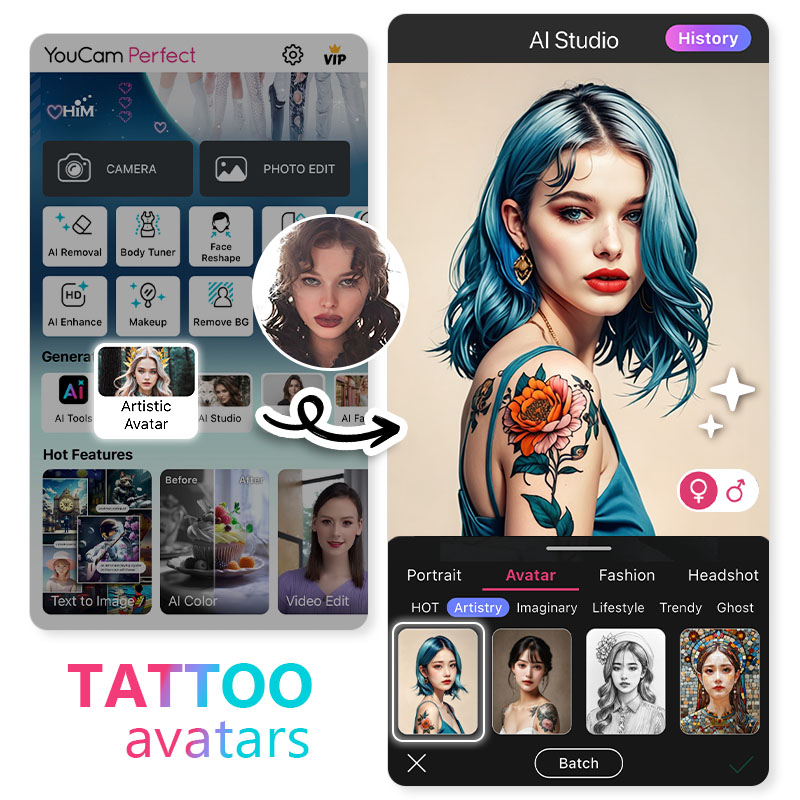 All you have to do is:
- Download the best Tattoo Avatar App
- Click 'AI Studio' on the home screen
- Upload a photo of your liking
- Tap 'Avatar' then 'Artistry' where you will find two different avatar styles with tattoos!

- Save and use your new profile pic on social media!
Remove Unwanted Tattoos from Photo Using the Removal Tool
 ▲ Remove Tattoos with Removal Tool
If you have an unwanted tattoo and want to remove it from your photo, don't worry! Follow the steps to remove it quickly. Go to Photo Edit and navigate to the Removal tool to get started. Highlight the tattoo part, and YouCam's Removal tool will automatically get rid of the tattoo in your picture.
Read more: How to Remove Tattoos from Photo With AI
More Than Just a Tattoo App
YouCam Perfect has a lot more to offer than tattoo stickers. The app provides many easy-to-use editing tools that let you create amazing photos like:
Object Removal
This feature allows users to remove unwanted objects or people in pictures.

Body Tuner
Body Tuner helps you to achieve a more satisfying body shape in photos.

Vintage Filters
YouCam Perfect also provides filters of all kinds like vintage filters, polaroid filters, and more!
 YouCam Perfect is one of the best free photo editing apps on the market for doing all your edits in one place. Download the app and give it a try today!
Get the Tattoo Placement App to Add Tattoos to Photos