Author:


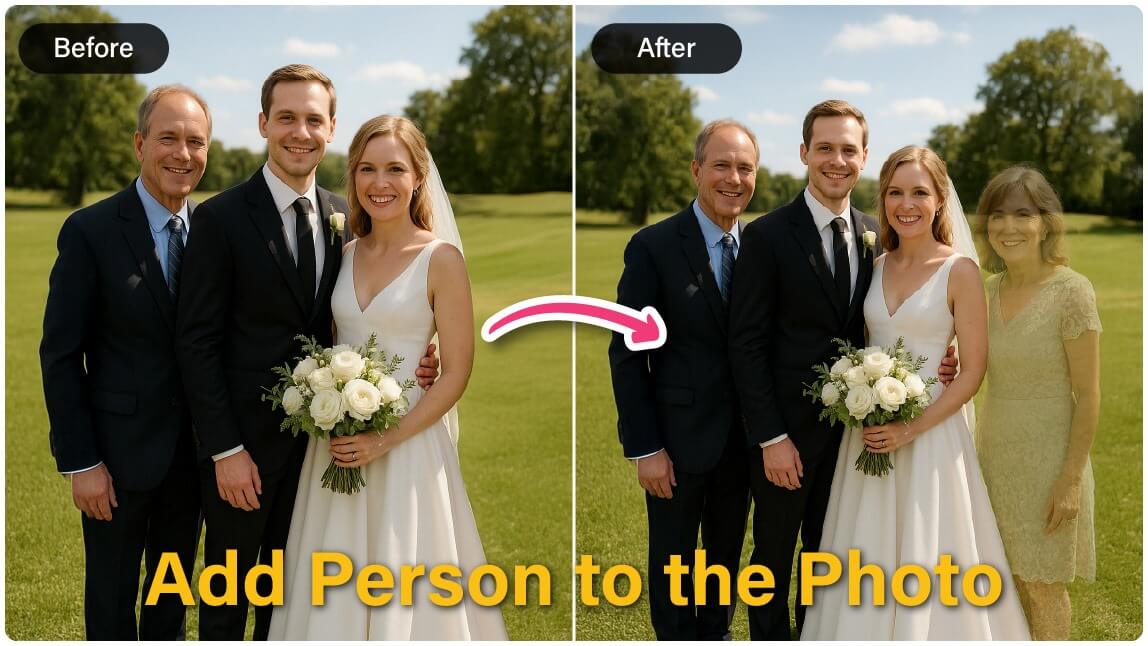
Have you ever wished you could add a person to a photo, like your friend or family member? In the past, this required expensive software and expert editing skills. But now, you can do it with the free YouCam Perfect photo editor to insert someone into a picture.
In this blog post, updated for 2026 with my own test notes, we’ll show you how to use the app to seamlessly add people to photos using AI.
🧪 How I tested this: For this 2026 refresh, I added a friend who missed a group shot into the photo three different ways in YouCam Perfect: a one-sentence AI Agent command, the manual Cutout and Add Photo route, and AI Replace. The AI Agent was the quickest route to a believable result when both photos had similar lighting. The manual method took more fiddling but gave me the most control over size and placement. I've added what worked, what looked off, and what I'd do differently throughout the guide.
How to Add a Person to a Photo with AI
If you’re searching for how to add a person to a photo, how to photoshop a person into a picture, or how to edit someone into a picture, AI photo editing is now the easiest solution.
With YouCam Perfect, you can add someone to a picture for free on iPhone and Android—no Photoshop, no manual cutouts. The AI handles all the complex work for you, including subject detection, background blending, and color correction, so the final image looks natural and realistic. Follow these steps to create realistic, seamless images:
Open the AI Agent

Best AI Photo Editor
The Best AI Photo Editor & Selfie Camera.
Remove objects, apply filters & more.
Launch YouCam Perfect and select AI Agent on your device. This smart assistant understands simple instructions, so you don’t need to switch between multiple editing tools.
Upload Your Photo
Select your background photo first, such as a group photo or scenic image. Then upload the photo of the person you want to add.
Enter a Simple Command
Describe what you want in one sentence, for example: “Add this person to the group photo and make it look natural.” The AI will take care of positioning, sizing, and blending.4. Let the AI Work Its Magic
Generate and Save
Once the edit is complete, review the result. If you’re happy with it, save the photo to your device or share it instantly with friends and family.
🧪 My test notes: The AI Agent did best when my command named where the person should go, like "next to the person on the left," rather than just "add this person." When the two photos were taken in very different light, the added person looked pasted in, so I'd pick a source photo with similar brightness and direction of light. If the first result isn't right, rephrasing the command was faster for me than starting over.
How to Photoshop a Person into a Picture Manually

Best AI Photo Editor
The Best AI Photo Editor & Selfie Camera.
Remove objects, apply filters & more.
Prefer more control? Here’s how to manually edit someone into a photo using AI tools.
Photoshop a Person into a Picture

▲ Photoshop someone into a picture just like this
Next, tap Photo Edit, and select the photo that you want to add people to. This image will be the background layer for your result image.
You can choose a photo that you’ve already taken, or take a new one using your phone’s camera. Then press "Add Photo" to add a figure picture.
Add the Person to Another Photo

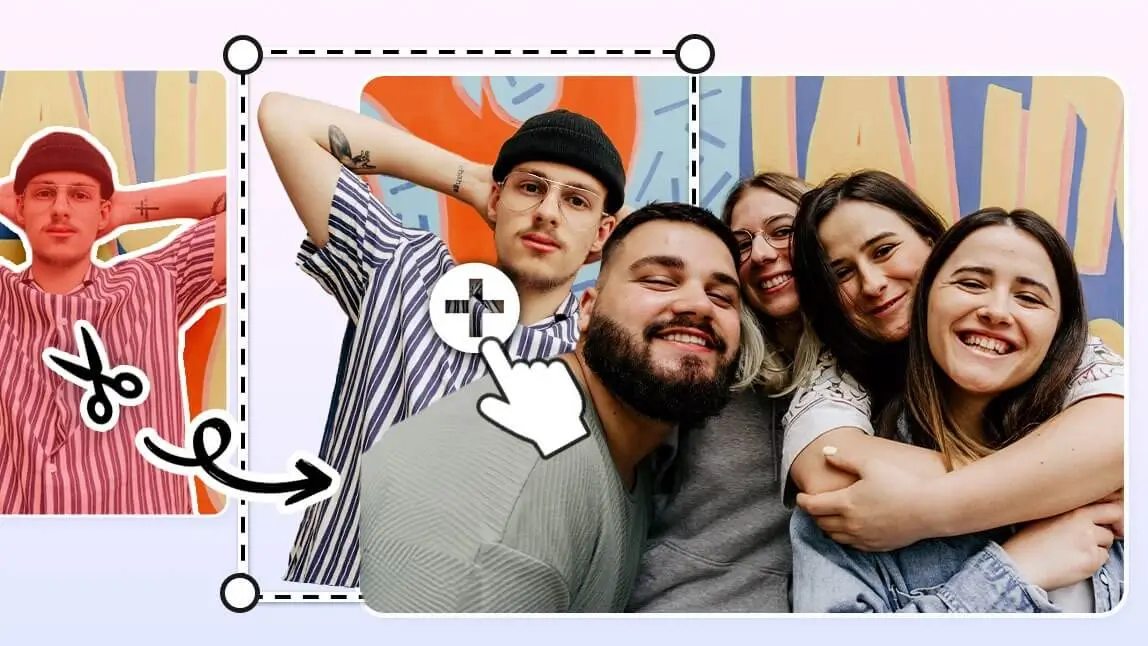
Once you have added the second photo to your background, you can use the Cutout tool in the app.
The YouCam Perfect cutout tool is powered by AI, which means it will automatically detect the subject and leave it clean and ready to be added to the first photo or background.
👉 Read more: How to Cut Out Faces and Objects From Images
Save the Photo with Person Added

The result is so natural that no one will even realize that you've just cropped a person into a picture!
🧪 My test notes: Cutout detected the person cleanly when they stood against a simple background; busy backgrounds and loose hair needed a bit of touch-up along the edges. The step that sold the edit was resizing: I compared the added person's head size to the people beside them and adjusted until it matched. I'd also place them slightly behind someone else when possible, since a little overlap hides imperfect edges.
Why Add People to Photos? 6 Use Cases
Adding people to photos can not only be used to complete a group photo but also for other creative uses! Explore now and find some inspiration for your next photo edit!
Photoshop Someone into a Picture

The tool used for adding people to the photo can also be used to clone the person in the photo! Adding more photos and repeating the process can make it seem like you are everywhere in the photo for a surreal effect.
👉 Read more: How to Add a Picture to a Picture for Free
Add a Person to Group Photo

The most useful case is of course photoshop someone into a group photo. With the YouCam Perfect app, you can also easily adjust the lighting and color for the added photo, so the effect can be the most natural!
Photoshop Someone into Background

Think you will look good in certain scenery? With the YouCam Perfect app, you can photoshop someone into any background seamlessly. It can also be used to test if your outfit matches a certain backdrop, which is useful for wedding and photoshoot planning.
Photoshop Yourself to a Great Body

And lastly, you can always use Photoshop to give yourself a fun new look. Why not? It's a great way to see yourself in different outfits or body shapes, and the possibilities are endless.
Or, you could even Photoshop your friend's face onto a celebrity in a movie scene just to give them a good laugh!
How to Add a Boyfriend (or Girlfriend) to a Photo
To add a boyfriend or a girlfriend to your photo, you can try 2 features: AI Replace, and Cutout.
👉AI Replace
- Tap on the feature "AI Replace", which you can find at the homepage
- Upload a photo of yourself
- Use the brush to highlight the area you want to replace
- Type in prompts like "a handsome guy" and click on Replace

Add Passed Away Loved Ones to a Photo
YouCam Perfect also makes it easy to add a photo of a deceased loved one into another image using the Cutout and Add Photo features.

The steps are similar, make sure to:
- Tap Add Photo and select the cutout you saved.
- Drag to position and resize it as needed.
- Use editing tools like shadow or opacity to blend it naturally.
🧪 My test notes: For group photos, I got the most natural results when the person I added was photographed from roughly the same height and distance as the group. AI Replace was fun for playful edits, but for real memories I preferred using an actual photo of the person with Cutout so they looked like themselves.
Ways to Add a Person to a Photo Compared: Which Option Is Best?
YouCam Perfect gives you a few ways to add someone to a picture. Here's how they compared when I tried each one.
| Option | Best For | My Verdict |
|---|---|---|
| AI Agent (one-sentence command) | Fast, natural-looking group photo fixes | My pick for most people: quickest path to a blended result, with less manual adjusting. |
| Cutout + Add Photo (manual) | Precise control over size, position, and layering | Takes more time, but best when placement matters or the AI result isn't quite right. |
| AI Replace | Playful or imaginative edits from a text prompt | Fun for creative ideas; it generates a new person rather than using a real photo of someone. |
| YouCam Online Editor | Editing in a browser on desktop | Convenient on a computer when your photos aren't on your phone. |
Verdict: Start with the AI Agent for everyday group photos, switch to Cutout + Add Photo when you need exact placement, and save AI Replace for creative edits.
What Real Users Say
Here's what two App Store reviewers said about editing with YouCam Perfect.
"Newer features include a mirror tool, new animated effects like rainbow lights, improved auto-detect (giving you sharper cut-outs for your portraits), and a range of new beautify presets and animated stickers and effects for premium members." — AJ$212, ★★★★★ (App Store review)
"It's very user-friendly, no it is not going to make you look like a movie star." — Stefanie0320, ★★★★☆ (App Store review)
Pro Tips for Better Results
- Match the light: Choose a photo of the person lit from the same side and with similar brightness as the background photo.
- Match the angle and distance: A person photographed at eye level and a similar distance blends in far better than a close-up selfie.
- Scale by head size: Compare the added person's head to the people around them and resize until they match.
- Ground them with shadow: Use shadow or opacity tools so the person looks like they are standing in the scene, not floating on it.
- Use overlap to hide edges: Placing someone slightly behind another person or object disguises imperfect cutout edges.
- Save at full quality: Export the highest-resolution version before sharing, since social apps compress images again.
New in 2026: More Room to Work With in Your Photos
Photo editing on phones keeps getting more AI-powered. Apple's iOS 27, released in September 2026, added an "Extend" option to the Photos app that uses Apple Intelligence to expand a photo beyond its original borders, along with a rebuilt Clean Up tool for removing larger objects. If a group shot is framed too tightly to fit one more person, extending the scene first can give you space before you add someone with YouCam Perfect. (Source: MacRumors, September 23, 2026)
Want cleaner cutouts to start with? Try the cutout images tool or remove the background from an image before placing someone into a new scene.
Add People to Photos with YouCam Perfect
Whether you’re fixing a group shot, adding a friend who couldn’t be there, or just having fun with edits, YouCam Perfect makes it simple. With tools like AI Cutout, your picture will look natural in just a few taps. This is a great example of how the AI Photo and Video Apps are transforming everyday editing, making advanced tools accessible to everyone.
So next time someone misses out, don’t worry—just open the app and add people to your photos to keep the memory complete. 🎉
About the Editors

The PERFECT Corp. Editorial Team
We are a team of experts on photo and video editing apps. Our goal is to deliver engaging content on everything from stunning selfie edits to eye-catching video effects. We cover the latest trends and share niche tips to help you master digital creation.
Discover more about us: