Author:


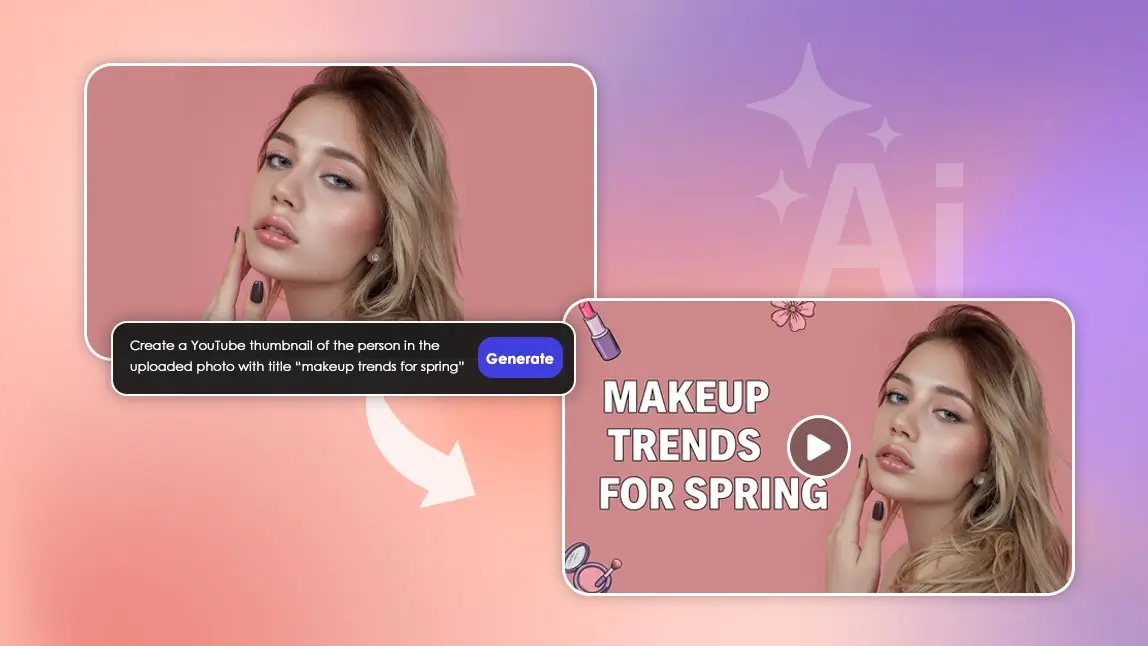
Thumbnails are the handshake of your video. They’re the first thing viewers see, and they often determine whether someone actually clicks to watch. A strong thumbnail can instantly boost your click through rate, improve viewer retention, and increase your overall visibility on YouTube.
Now that creators have access to advanced AI tools, making scroll stopping thumbnails is easier and faster than ever. YouCam AI Pro comes with Nano Banana Pro integrated, which means you can generate dynamic, high impact thumbnails with a single prompt and get visuals that match your video’s tone, emotion, and aesthetic.
Below, you’ll find practical tips and ready to use Nano Banana Pro prompts to help you create thumbnails that stand out in any feed.
7 Prompts to Create Viral Thumbnails with Nano Banana Pro
- 1. Highlight the Key Emotion
- 2. Zoom in on the Action
- 3. Leverage Contrasting Colors
- 4. Add a Call to Action Element
- 5. Showcase Before and After Transformations
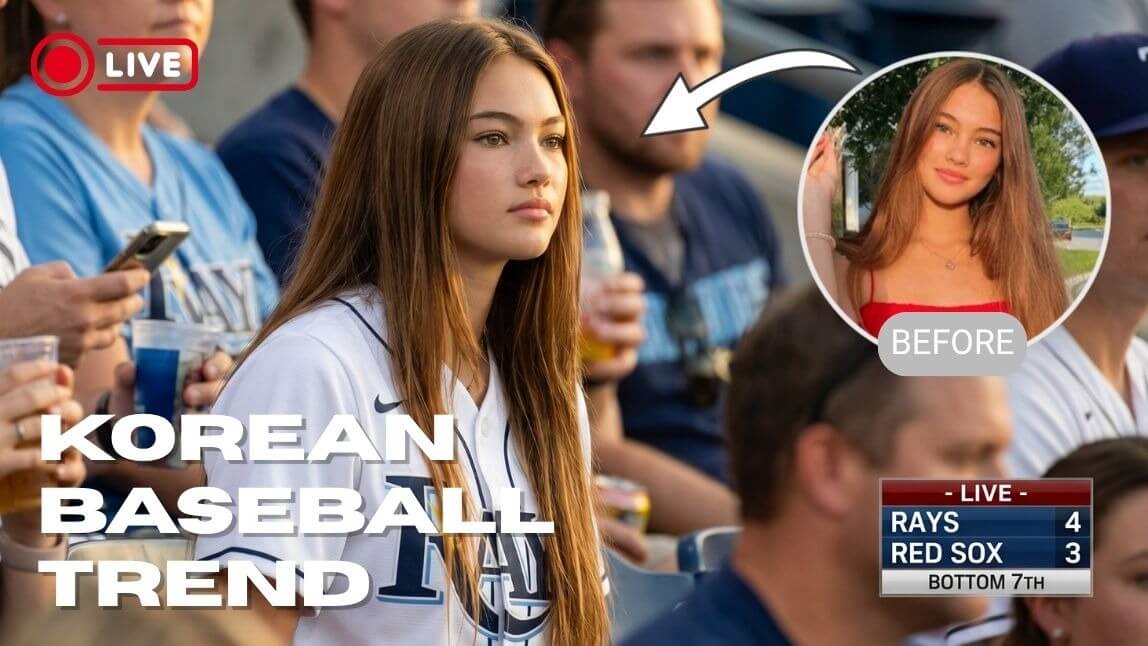
- 6. Incorporate Trending Themes
- 7. Dramatize the Unexpected
1. Highlight the Key Emotion
Why it works:
People respond instantly to emotions. Excitement, shock, joy, disbelief, or curiosity can make your thumbnail irresistible. Nano Banana Pro can amplify expressions, lighting, and color intensity in one step.
Prompt Example:
“Create a YouTube thumbnail of a surprised person with wide bright eyes, vibrant lighting, colorful background shapes, and an excited upbeat mood.”
Pro Tip:
Upload a reference photo in YouCam AI Pro for a more personalized and on brand thumbnail.
2. Zoom in on the Action
Why it works:
Close up thumbnails draw attention to something specific, making the content easy to understand at a glance. Perfect for cooking, DIY, tech, and tutorial videos.
Prompt Example:
“Generate a thumbnail close up of hands fixing a device with glowing highlights, crisp details, and strong depth of field.”
Pro Tip:
Adjust Nano Banana’s realism level to balance dramatic flair with natural accuracy.
3. Leverage Contrasting Colors
Why it works:
Contrasting colors instantly boost visibility. Bright objects against dark backgrounds, or vice versa, perform very well on YouTube’s crowded interface.
Prompt Example:
“Design a thumbnail featuring a neon glowing object on a dark background, high contrast colors, sharp edges, and strong visual impact.”
Pro Tip:
Try a few color variations in YouCam AI Pro and evaluate which one looks best in small preview size.
4. Add a Call to Action Element
Why it works:
Visual cues like arrows, spark effects, circles, and highlights direct viewer attention to the most important part of the frame. These elements can significantly raise CTR.
Prompt Example:
“Generate a thumbnail with a bold red arrow pointing toward a glowing mystery box with spark effects and clear contrast lighting.”
Pro Tip:
Keep the design clean and make sure your focal point stands out clearly.
5. Showcase Before and After Transformations
Why it works:
Transformation thumbnails are instant scroll stoppers. Viewers love visual contrast, and before versus after layouts are perfect for cleaning, organizing, glow up, editing, and renovation videos.
Prompt Example:
“Create a split screen thumbnail with a messy workspace on one side and a clean organized workspace on the other, bright lighting, vivid colors.”
Pro Tip:
Make sure both halves look consistent in exposure and style for a polished finish.
6. Incorporate Trending Themes
Why it works:
If your thumbnail taps into a trending topic or aesthetic, it becomes instantly relatable and discoverable. Trends help your content feel fresh and current.
Prompt Example:
“Design a thumbnail with a retro gaming theme, pixel art, neon accents, and nostalgic lighting.”
Pro Tip:
Watch your niche’s trending topics and use Nano Banana Pro inside YouCam AI Pro to generate timely thumbnail concepts quickly.
7. Dramatize the Unexpected
Why it works:
Unexpected visuals generate curiosity. Even small exaggerations can make viewers pause and want to know what happened in the video.
Prompt Example:
“Generate a thumbnail of a chef dropping a cake with dramatic flour explosion, dynamic motion, and warm stage lighting.”
Pro Tip:
Keep the exaggeration fun but still relevant to the video to maintain trust with your viewers.
How to Use Nano Banana as an AI Thumbnail Maker
YouCam AI Pro fully integrates Nano Banana Pro, giving you a powerful all in one workflow for creating high performance thumbnails.
Here’s how to get started:
Step 1: Download YouCam AI Pro
Download the YouCam AI Pro app which features all the best AI models, including Gemini Nano Banana Pro, for image generation all in one app.
Step 2: Select Nano Banana Pro Model
Tap on the AI Image feature and select the Nano Banana Pro model from the drop down menu.
Step 3: Paste your Nano Banana prompt
Use one of the prompts above or customize it based on your video’s theme. You can also upload a photo of yourself or any subject that appears in the video to keep your branding visually consistent.
Step 4: Adjust style preferences
Adjust lighting, realism, color intensity, and mood to match your channel aesthetic by optimizing your prompt.
Create YouTube Thumbnails with Nano Banana Pro Prompts
Creating a powerful YouTube thumbnail doesn’t require expert design skills. With YouCam AI Pro and its built-in Nano Banana Pro engine, you can generate eye-catching visuals, highlight emotions, create transformations, and experiment with trends using simple prompts.

![Best Nano Banana Pro Prompts & How to Use it [Ultimate Guide]](https://plugins-media.makeupar.com/smb/blog/post/2025-11-25/webp_ab8e965b-f3f7-4667-a2ac-7ef468b01de1.jpg)
![AI Video Prompt Guide: How to Write AI Prompts for Videos [Prompt Included]](https://plugins-media.makeupar.com/smb/blog/post/2025-11-20/webp_62349699-b4c4-42f7-85c9-271ea9f76e27.jpg)