Author:


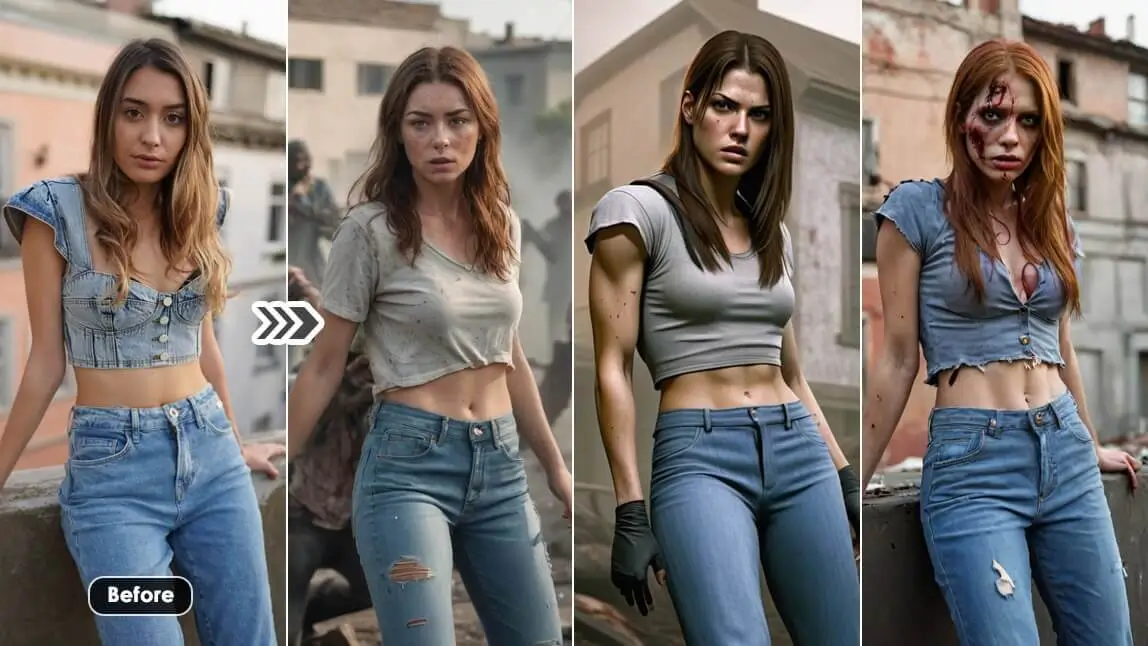
Have you ever wondered what you'd look like as a character in an indie horror game? With Halloween approaching and the viral TikTok trend taking over, now's your chance to find out. This blog will show you how to use the Horror Game Filter on TikTok and explore AI filter apps like YouCam AI Pro to see yourself in various horror styles. Get ready for Halloween!


🧪 How I tested this: For this Halloween 2026 refresh, I tried the TikTok Resident Evil template and then ran one selfie and one prompt through all four horror styles in YouCam AI Pro. Keeping the photo and prompt the same made it easy to see what each style actually changes. Some styles kept my face recognizable better than others, and the prompt wording mattered more than I expected. Here are my honest notes, including what I'd do differently.
How to Get the Horror Game Filter on TikTok: Resident Evil Filter

Find the Horror Game Filter on TikTok for Resident Evil 4 Filter

What's the most horror game filter on TikTok? The Resident Evil Filter is getting viral these days! Open TikTok first, and in the search bar, type "Horror Game Filter" or "Resident Evil Filter". Look for the filter with the most uses and positive feedback.
Apply the Horror Game Filter (Resident Evil Filter)

Tap “Try the Template" on top of the user's handle and tap "Use the Template". Now you can apply it by uploading your video or image. The AI filter will apply the filter right away.
🧪 My test notes: The template is quick and very shareable, but it's the same treatment for everyone — I couldn't steer it toward a specific game or character. A still, front-facing clip in steady light held the effect far better than footage where I moved around.
Record & Share the Horror Game Filter (Resident Evil 4 Filter)

Press the record button to capture your spooky transformation. Add any additional effects, music, or text to enhance your video. Share your creation with your followers and use relevant hashtags like #HorrorGameFilter #Halloween2026 #residentevil #residentevil4 #ps5 #residentevilfilter #ps5filter to reach a wider audience.
More Horror Game Filters on TikTok: Indie Horror Game Filter

The “Indie Horror Game Filter” is a popular effect on TikTok that transforms your appearance to look like a character from an indie horror game. This filter typically uses pixelation and other visual effects to give you a creepy, retro horror game look. It’s a fun way to see how you’d fit into the eerie and atmospheric world of indie horror games.

Best AI Horror Game Filter App for Halloween 2026: YouCam AI Pro

YouCam AI Pro is an AI-powered app perfect for creating personalized horror game transformations. For those looking for more customization and variety, YouCam AI Pro is the go-to app. Here’s why:
Supports 4 different Horror Game styles for Halloween

Designed for Halloween, it features 4 unique horror styles to suit various preferences. Whether you want to look like a zombie or a character from a classic horror game, YouCam AI Pro has you covered. The app quickly transforms your photos into horror masterpieces, enabling endless creative possibilities.
Using the Same Prompt with Different Styles
One of the standout features of YouCam AI Pro is its versatility in generating diverse images from a single prompt. By switching up the style, you can produce a variety of horror-themed images, each with its own distinct flair. Here are some examples using the same prompt:
🧪 My test notes: Running one prompt through all four styles was the most useful test I did. It showed that the style controls the overall "game look," while the prompt controls the story — outfit, setting, blood and mood. If a result felt off, changing the style usually fixed it faster than rewriting the prompt.
Zombie Style: Fallout Filter
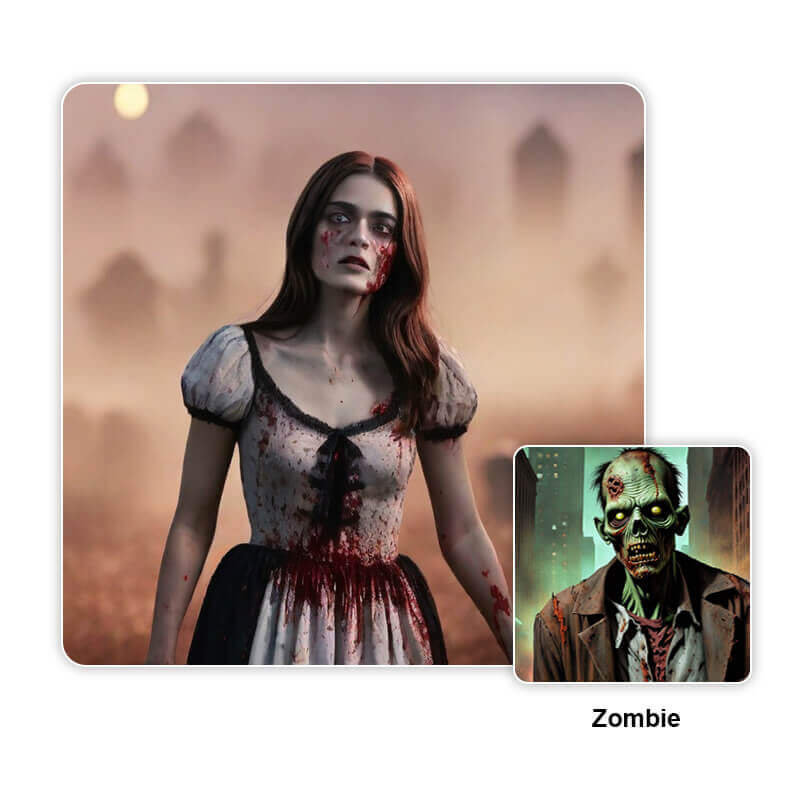

If you've always envisioned yourself surviving a post-apocalyptic world, the Zombie Fallout Style is for you. This style adds a gritty, eerie vibe to your transformation, ideal for horror fans who enjoy a classic undead theme. The AI analyzes your features and applies a realistic zombie effect, featuring decaying skin and haunting eyes.
Console Play PS2 Style: Resident Evil Filter
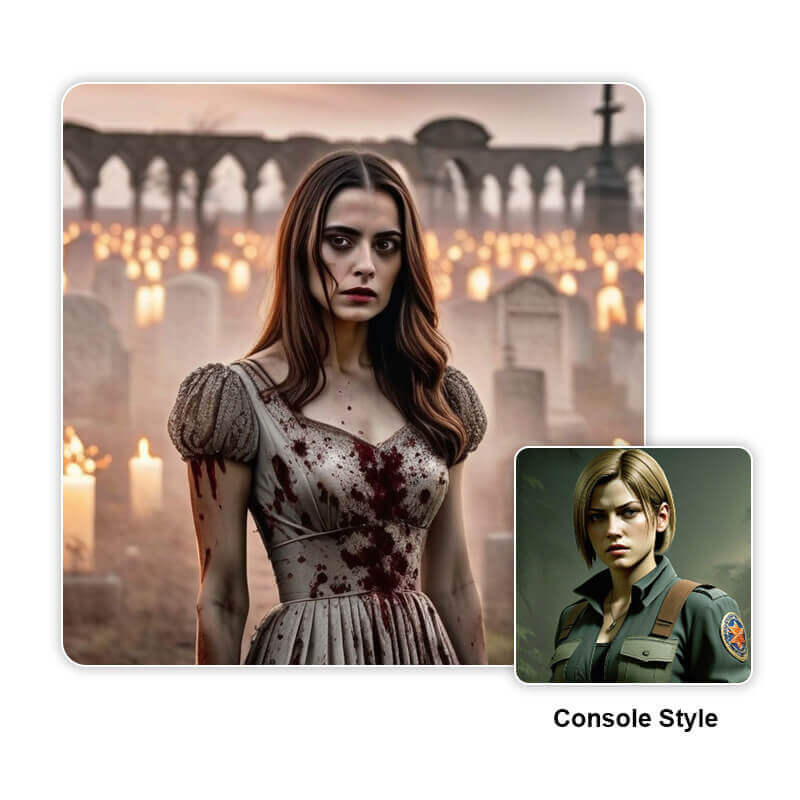

For a nostalgic touch, the Console Play Style is perfect. This filter replicates the classic graphics of early 2000s console games PS2, transforming your image into a retro masterpiece. It’s great for gamers who want to relive the charm of vintage gaming.
Pixel Art Style: Indie Horror Game Filter
🧪 My test notes: Pixel Art was the most fun to share but the least "me" — fine facial details naturally get simplified in an 8-bit look. I'd use it for a playful post and pick Console Play or Horror Play when I want people to recognize my face.
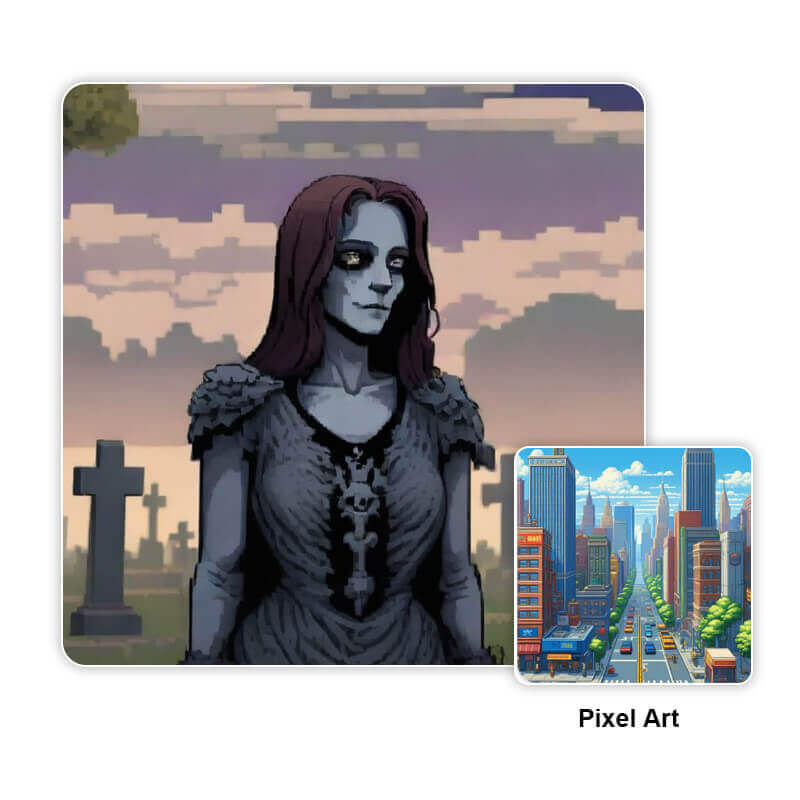

The Pixel Art Style lets you see yourself as a character in an 8-bit game. This vibrant and playful style appeals to those who love the simplicity and charm of pixelated graphics. It offers a unique twist on the traditional horror theme, giving a fresh take on spooky transformations.
Horror Play: Silent Hill Style
🧪 My test notes: Horror Play delivered the most atmospheric results, especially when my prompt described fog, dim light and an abandoned town. It's the style I'd pick for a Silent Hill-inspired Halloween profile picture.
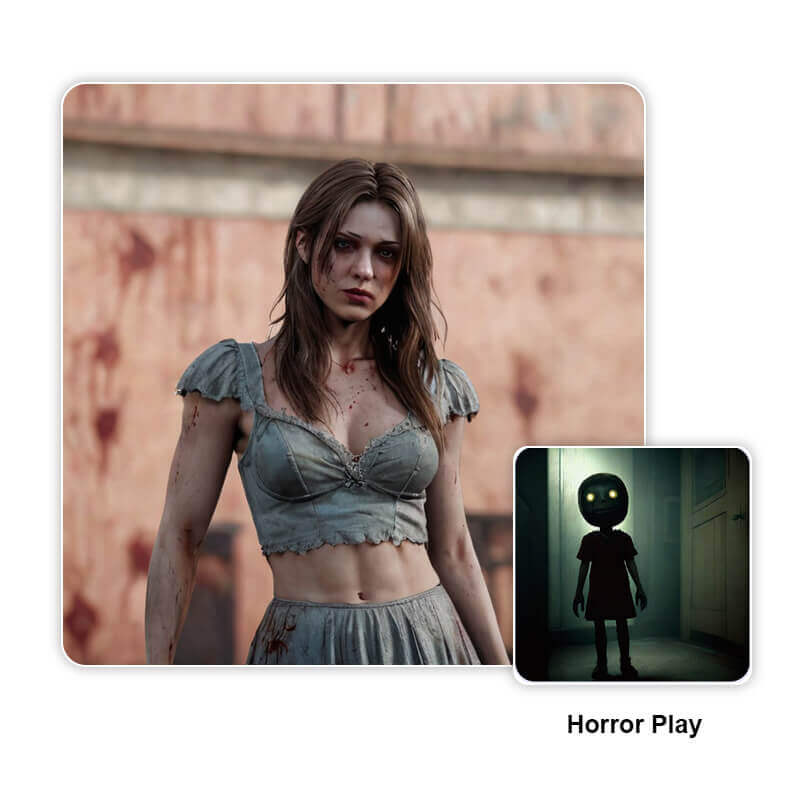

For fans of psychological horror, the Silent Hill Style provides a chilling transformation. This style captures the eerie visuals of the iconic series, ideal for crafting a spine-tingling image. Dive into the unsettling world of Silent Hill with foggy backgrounds and haunting details.

See What I’d Look Like in a Horror Game with AI
Ready to see your transformation? Follow these steps:
Download the Best AI Horror Game Filter App

To elevate your Horror Game transformation, download the reputable AI-powered Filter app, YouCam AI Pro, from App Store or Google Play Store.
Upload an Image for the Horror Game Filter

Open YouCam AI Pro and select the option to upload a photo. Choose a clear, well-lit image of yourself for the best results.
🧪 My test notes: A selfie with harsh overhead light gave me muddy, shadowy results that lost my features. Soft window light and a plain background worked much better — the horror effects looked intentional instead of messy.
Enter Your Prompt for the Horror Game Filter

The next step in your transformation process is crafting a prompt that guides the AI. Be specific about the elements you want to see in your horror game persona. For example, mention any particular facial features you'd like emphasized or specific horror themes you're interested in exploring.
🧪 My test notes: Describing the scene helped more than piling on gore words. Prompts that set a location (a cemetery, a hospital hallway, a foggy street) plus my hair and outfit came out more like a real game screenshot. Next time I'd start simple and add one detail per try.
Select the Horror Game Style for the Horror Game Filter

Once you've crafted your prompt, it's time to choose the horror game style that best suits your vision. Whether you prefer the Zombie Fallout Style or the Silent Hill Style, each option offers a unique take on horror that can transform your image in exciting ways. In YouCam AI Pro, we suggest these 4 styles: Zombie, Console Style, Pixel Art, or Horror Play, for the best results.
Save & Share Your Horror Game Filter

With your transformation complete, it's time to save and share your creation. Save the image to your device, ensuring you have a high-quality version for sharing on social media platforms and with friends.
🧪 My test notes: I generated a few versions per style before saving, because the best one wasn't always the first. Posting two styles side by side — like Console Play vs. Pixel Art — made a more engaging carousel than a single image.
Horror Game Filter Options Compared: Which Option Is Best?
Here's how each option I tried compares, so you can pick the right one for your Halloween post.
| Option | Best For | My Verdict |
|---|---|---|
| TikTok Resident Evil filter (template) | Joining the viral trend quickly | Fastest route to a shareable video, but it's a fixed look you can't customize. |
| TikTok Indie Horror Game filter | A retro, pixelated horror vibe | Fun and nostalgic; effects vary by template creator. |
| YouCam AI Pro – Zombie style | Gritty, undead transformations | Best for full-on gore and decay; lean on the prompt for setting and outfit. |
| YouCam AI Pro – Console Play style | PS2-era, Resident Evil-like graphics | My favorite balance of nostalgia and still looking like myself. |
| YouCam AI Pro – Pixel Art style | Playful 8-bit indie horror | Most shareable and fun, but fine facial details get simplified. |
| YouCam AI Pro – Horror Play style | Silent Hill-style psychological horror | The most atmospheric results, especially with foggy, dim scene prompts. |
Verdict: For a quick trend post, the TikTok template does the job. If you want to choose how you look in a horror game, YouCam AI Pro wins — start with Console Play for a recognizable result, then try Horror Play for the eeriest mood.
Pro Tips for Better Results
- Use soft, even light: Face a window or a soft lamp; harsh overhead light turns into muddy shadows once horror effects are added.
- Keep one photo, swap styles: Test the same selfie and prompt across all four styles first, then refine the one you like best.
- Describe the setting: Name a place (cemetery, abandoned hospital, foggy town) so the result feels like an actual game scene.
- Match the style to the game: Console Play for Resident Evil-style PS2 looks, Horror Play for Silent Hill vibes, Pixel Art for indie horror, Zombie for Fallout-style decay.
- Regenerate before you settle: Make a few versions and keep the one that best preserves your face.
- Post as a carousel: Share two or three styles side by side and ask followers which game you belong in — it invites comments.
New for Halloween 2026: Fresh Horror Games to Inspire Your Filter
This September kicked off spooky season early for gamers, with horror releases including Halloween: The Game on September 8 and Silent Hill Townfall on September 24. Both make great prompt inspiration: try a Haddonfield-at-night scene in Console Play style, or a foggy small-town setting in Horror Play style for a Silent Hill-inspired look. (Source: KeenGamer, September 5, 2026)
What Real Users Say
Here's what people who use YouCam AI Pro have said in App Store reviews — the good and the areas for improvement.
"I had to learn to refine my ai prompts several times to obtain my desired results, but I'm learning how to word things." — lesliew508, ★★★★★ (App Store review)
"I cannot get an accurate representation of any photo that I have used so far." — G-4orce, ★☆☆☆☆ (App Store review)
Want more spooky transformations? See our Silent Hill filter guide, or try the YouCam Halloween Filter to turn a selfie into a Halloween costume right in your browser.
Transform Your Face into a Horror Game Character with YouCam AI Pro

Exploring AI horror game filters opens up exciting possibilities for creativity and self-expression. By following this guide, you can transform your image into a captivating horror character and join the viral TikTok trend. Download YouCam AI Pro and try different styles, share your creations, and dive into the thrilling world of horror game transformations.