


 Author:


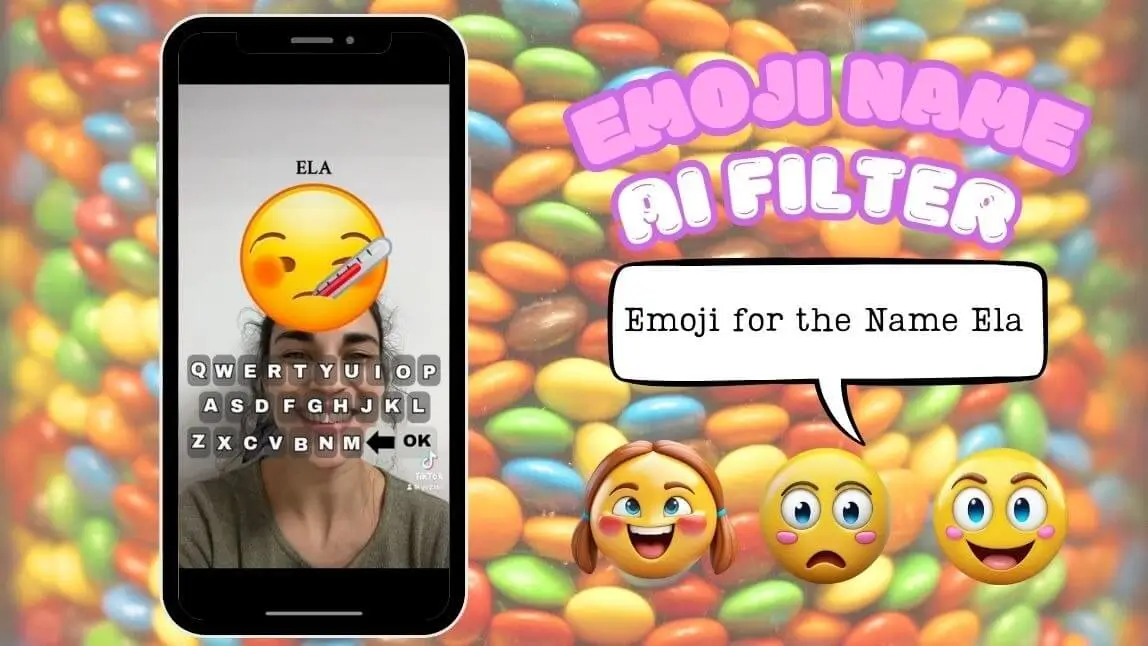
TikTok users are still going viral in 2026 with a filter that turns their names (or any word) into emojis. The Emoji Name Filter offers a fun way to see your name in a new light. This blog will guide you through using the Emoji Name Filter on TikTok and YouCam AI Pro to create your personalized emoji. See your name as an emoji with us now!

🧪 How I tested this: For this 2026 update, I ran my own name and a couple of friends' nicknames through the TikTok Emoji Name Filter, then recreated the same names as custom emojis in YouCam AI Pro. The TikTok filter is great for a quick, surprising reveal on camera, but you don't get to choose what it lands on. YouCam AI Pro took a bit more effort because I had to rewrite prompts, yet it gave me an emoji I could actually save and reuse as a sticker or profile image. Below I've added my notes after each method, a comparison table, and the prompt tweaks that worked best for me.
When His Name is an Emoji Trend: How to Do it on TikTok
@_amal_aw_ ♬ original sound - mmusicnostalgia
The "When His Name Is" emoji trend is a fun and creative way to represent someone's name using emojis. Here's how you can join in:
- Choose a Name: Pick a name you want to represent with emojis.
- Select Emojis: Think of emojis that symbolize the name. For example, if the name is "Rose," you might use 🌹.
- Create a Post: Combine the emojis in a creative way and share it on social media platforms like TikTok or Instagram.
🧪 My test notes: The DIY version of this trend worked best for names with an obvious object or meaning, like a flower or an animal. For abstract names I had to get creative with sound-alike emojis, which honestly made the posts funnier. If you try it, jot the emoji combo down before you record so you are not scrolling the emoji keyboard on camera.
My Name as an Emoji: How to Get the Emoji Name Filter on TikTok
Even though we already have tons of emojis on different platforms, people always want more. Apple already lets iPhone users create their own emojis with AI (and made that tool more editable in iOS 27), but it seems like that’s still not enough to satisfy everyone’s emoji cravings.
There’s a new filter on TikTok that’s all the rage, letting users turn their names (or any words) into personalized emojis. Here’s how you can try it out for yourself.
Find the Emoji Name Filter on TikTok

- Open the TikTok app and go to the search bar.
- Type “Emoji Name Filter” and look for the filter in the search results.
- Tap on the filter to open it.
Apply the Emoji Name Filter

- Once the filter is open, you’ll see “Name as Emoji” with an orange star above the username. Tap it to try.
- Tap the “Use this effect” button to apply the filter to your video.
- Type your name or any text you want to turn into an emoji.
Record & Share the Emoji Name Filter

- Type your name or any text you want to turn into an emoji.
- Record your video with the Emoji Name Filter applied.
- Share your video on TikTok and other social media platforms to show off your new emoji name!
🧪 My test notes: The filter was easy to find by searching its name, and the reveal animation is what makes the video fun to watch. What surprised me was how random the result felt: the emoji it chose for my name did not always connect to the name at all. I'd record a couple of takes and keep the funniest reaction rather than expecting a meaningful match.
What Does My Name Look Like as an Emoji with YouCam AI Pro
YouCam AI Pro allows users to elevate their emoji creativity by transforming names into personalized emojis with AI precision, making it ideal for creating high-quality, customizable emojis to share on social media.
Download the Best AI Emoji Generator App: YouCam AI Pro
Shared Materials by Strapi
*Adjust the size of images ONLY. Please go to Strapi to edit the materials info.
- Download and install the YouCam AI Pro app from App Store or Google Play Store.
Write a Prompt for Emoji Name Filter

- Open YouCam AI Pro and enter a prompt that includes your name and any specific details you want for your emoji.
- Prompt Suggestion: generate 1 emoji for the name Alfred, emoji style, white background.
Add 3D Cartoon Style for Emoji Name Filter

- Select the 3D cartoon style option to give your emoji a fun and animated look.
Tap "Generate" to Try the Emoji Name Filter

- Tap the “Generate” button to create your emoji name.
- Save your new emoji and share it with friends and family.
🧪 My test notes: My first prompt was too vague and gave me a generic smiley that barely reflected the name. Adding what the name reminded me of (a color, an object, a vibe), plus "emoji style, white background", produced something much closer to a real emoji. The 3D cartoon style looked the most like an actual emoji to me; I'd regenerate a few times and pick the version with the simplest shapes, since fine details get lost at sticker size.
Emoji in Name: Find Your Nickname with Emoji
@english.daily28 Emoji name (ep.1) #englishdaily#learnenglish#englishbasics#englishvocabulary#englishforkids#dailyenglishspeaking#emoji♬ original sound - Daily english learning
Do you know the names of all the emojis? I don't either! Here's a quick video that lists the names of these emojis for you. Find your nickname with emoji now! Enjoy! 😊
Emoji Name Filter Methods Compared: Which Option Is Best?
Each way of turning a name into an emoji suits a different goal. Here's how they stacked up when I tried them side by side.
| Option | Best For | My Verdict |
|---|---|---|
| TikTok Emoji Name Filter | A quick, playful reveal video for TikTok | Easiest and most "on-trend," but you can't pick or edit the emoji it assigns. |
| DIY emoji combo ("When His Name Is" trend) | Text posts, captions, and bios | Full control with no app needed, but you're limited to emojis that already exist. |
| YouCam AI Pro text-to-image | A unique emoji you can save and reuse | Most personal result; expect to rewrite your prompt a few times to get it right. |
Verdict: Use the TikTok filter to join the trend, and YouCam AI Pro when you want an emoji of your name that is actually yours to keep and share.
What Real Users Say
Here's what two App Store reviewers said about using YouCam AI Pro.
"I was surprised by how realistic the images turned out, which is exactly what I wanted!" — Jayleigh42, ★★★★★ (App Store review)
"I had to learn to refine my ai prompts several times to obtain my desired results, but I'm learning how to word things." — lesliew508, ★★★★★ (App Store review)
Pro Tips for Better Results
- Describe the name, not just spell it: Add one or two ideas the name brings to mind (for example, a color or object) so the AI has something visual to draw.
- Keep the background plain: Ending your prompt with "emoji style, white background" makes the result easier to cut out and use as a sticker.
- Favor simple shapes: Emojis are viewed tiny, so pick the generation with bold outlines and few details.
- Regenerate before rewriting: Try a few generations of the same prompt first; only change the wording if none of them are close.
- Pair it with the TikTok reveal: Post the random TikTok filter result first, then follow up with your custom AI emoji for a "what it should have been" moment.
New in 2026: iPhone's Genmoji Gets More Editable
Custom emojis are having a moment beyond TikTok. With iOS 27, released in September 2026, Apple reworked Genmoji so you can start from an existing emoji, a photo, or a person and adjust individual elements with a "Describe a Change" option, and switch from the default 3D cartoon look to a sketch or drawing style. It's another sign that personalized, name-style emojis are becoming an everyday way to express yourself. (Source: MacRumors, September 23, 2026)
Want to take your custom emoji further? Try the AI text-to-image generator to create matching stickers, or explore everything in YouCam AI Pro.
Discover What Does My Name Look Like as an Emoji with YouCam AI Pro
Shared Materials by Strapi
*Adjust the size of images ONLY. Please go to Strapi to edit the materials info.
With these simple steps, you can easily turn your name into a unique and personalized emoji using AI technology. Whether you’re using TikTok or YouCam AI Pro, you’ll have a fun and creative way to express yourself. Don’t stop here—download YouCam AI Pro today to explore more ways to bring your ideas to life.
More AI Emoji Ideas
- How to Create Emoji Through AI Emoji Generator FREE
- How to Create iMessages & Instagram Stickers from Your Photos with AI
- Flower Name Filter: How to Make a Flower Name Wallpaper


